This article explains how to add, edit, and manage assignment plans within BestNotes.
Permissions Required
- Teacher
Managing Assignment Plans
Navigating to Assignment Plans
To navigate to the Assignment Plan, drop down the box labeled view and select Assignment Plans.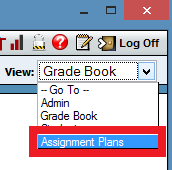
Adding an Assignment
Before adding assignments, the user can create five sets of assignment plans and the assignments displayed are dependent on which set is selected.
To add a new assignment:
- Click the Add Assignment link.

- Give the assignment a name, designate the set, select the term or terms the class will be assigned, select the type, possible points, and whether this assignment is part of the core curriculum.
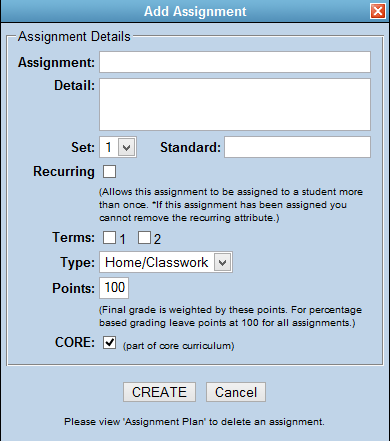
If an assignment is marked as core curriculum, they will be a part of the assignment plans of all sections created in this class in the future.
Once finished setting the assignment details, click Create to finish creating the assignment.
Editing an Assignment
To edit the details of an assignment:
- Click on the assignment
- Make changes as needed.
- Click update.