The Students academic page provides access to a student's schedule, a summary of classes, academic reports, and allows for enrolling or disenrolling students from classes. The ability to perform these tasks may depend on your assigned permissions.
Permissions Required
- Administrator
- Academic Reports
- Teacher
- Registrar
- Advisor
Managing Student Academic Records
Navigation
- Navigate to a student's chart, and select the "Academics" button at the top of the chart.

- There are four areas to choose from: "Schedule", "Summary", "Reports", and "Enroll."

Schedule
The "Schedule" tab is where you can view a student's schedule. You can specify your schedule view by selecting from the following drop-down options.

- Year: This will display the schedule for the specified year.

- Term: This will filter the schedule down to the specific term.
 Type: This will filter the display based on Period, Daily, or Weekly schedule.

To print the student's schedule, select the filtering options desired, and select the "Print" button in the top left corner.

The Schedule will look similar to this.

Summary
The "Summary" tab shows a view of the classes and grades of the student.

This includes but is not limited to the following:
- Classes the students enrolled in.
- The student's grade.
- The class average.
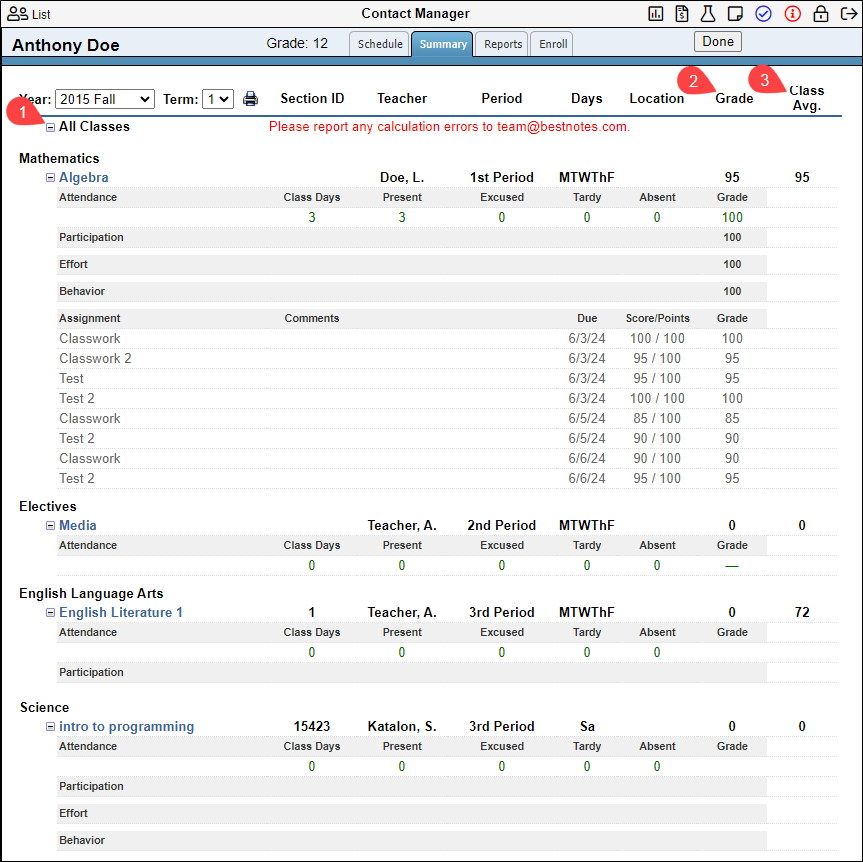
This area can be changed to view a different "Year" and "Term", and you can select the "+" and "-" symbols to show more or less details about each class.

You can print the summary by selecting the "Print" icon.

Reports
The "Reports" tab will have Academic reports that are specific to the student.

There are five academic reports available here. The report can be selected from the "Type" drop-down, and are as follows:
- Attendance
- Missing Assignments
- Progress Report
- Report Card
- Transcript
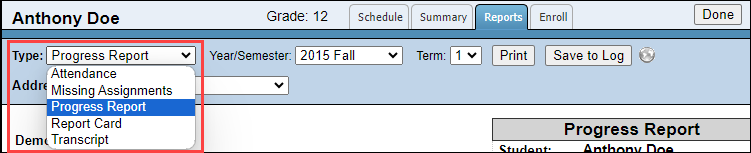
These reports can be filtered by the "Year/Semester" and the "Term."

Each report will have the option to "Print" or to "Save to Log" which will send a copy of the report to the student's Activity Log.

With the appropriate permissions, each report will have the option to send the report to the portal.

Attendance
The "Attendance" report will display the student's classes with an attendance summary, and then the number of absences, tardies, and excused absences listed by date.

This report can be filtered by "All", "Tardies and Absences", and "Absences."

Missing Assignments
The "Missing Assignments" report is a detailed list of all missing assignments grouped by class, and includes the assignment, the due date, and the score.

Progress Report
The "Progress Report" is intended to give the students a view of their mid-term grades and comments the teacher has written about the student's work so far.

The student and related contacts are available in the "Address to" dropdown. This will display the mailing address on the "Progress Report" to be printed and mailed.

Report Card
The "Report Card" is intended to be sent to the parents at the end of the Term. Areas that are red indicate grades that are not finalized.

The student and related contacts are available in the "Address to" dropdown. This will display the mailing address on the "Report Card" to be printed and mailed.

Transcript
The "Transcript" shows a complete record of the student's academics. This report will be a "view-only" report that you can Print, send to the students Activity Log, or send to the portal (permission based).

The "Registrar" permission allows you to edit the transcript.

You can add "projected" grades, set up the transcript, and import grades into the transcript.

Enroll
This tab will display all the classes the student is enrolled in during the selected academic year.

To see and interact with the "Enroll" tab you have to have one of the following permission sets:
- "Administrator" only.
- "Advisor" and "Academic Report"
- "Advisor" and "Teacher"
From the Enroll tab, you will be able to select the "Year" filter to view the desired enrollment period.

Each class the student is enrolled will be listed below the "Currently Enrolled" header, and each class will include basic information. In the "Action" column, you will have a "Details" button.

When you select the "Details" button, you will have the ability to change the term details, including the dates of the class, the class weights, the period, the weekdays, objectives and Term credits. Additionally, by selecting the "More" button at the bottom, you will have the ability to transfer the section enrollment, or withdraw the student from the section.
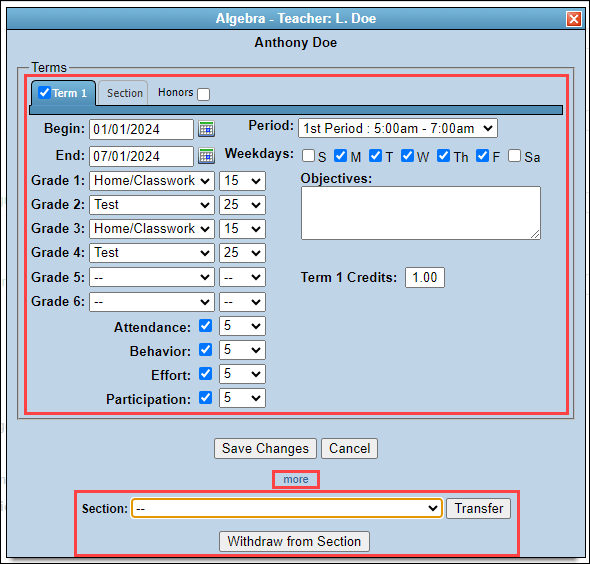
Enroll student
- You can also enroll the student in a new class by selecting the (+) symbol next to the class category, then select the "Enroll" button next to the desired class.

- You will see the selected "Term", and then a list of currently enrolled students, with the allocated number of seats, and a total number of enrolled students. To enroll the student in the class, select the "Enroll Now" button.

- This will display the class details, allowing you to make any necessary adjustments. Then to finalize enrollment, select "Enroll Now".

- You will see the class added to the "Currently Enrolled" section.

Next Steps
- See also: Send Academic Reports to the Portal
- See also: Transcript