This article provides instructions and a video tutorial on how to manage client medications within BestNotes, including adding, viewing, reporting on, and deleting medication entries.
Permissions Required
- View Medications Reports
- Edit Medications
- File Audit
Visual Tutorial
Click Play button
Managing Client Medications
Permissions Overview
Contact your BestNotes System Administrator for user permissions.
NOTE: Dr.First Users will need the View Meds Reports Permission to have a button on their client's page.
Navigation
To enter medications for a client:
- Click on the Med/Clinical button.
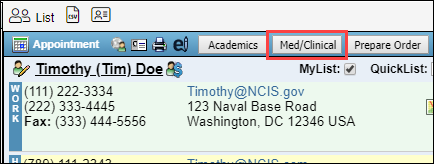
- Then, click on the Meds tab.
This is a Medication Tracking System, but not a full MAR. This system allows staff to input the medications that the clients are on with dosage, frequency, and refill information. The current list of medications can be pulled into the Templates where needed. There is a read-only view that allows staff to see what medications the clients are on currently.
Add Medications
To add a medication:
- Click New Entry in the upper-left (If this button is not displaying, this patient is attached to DrFirst. For more information about DrFirst - ePrescribing, click HERE).
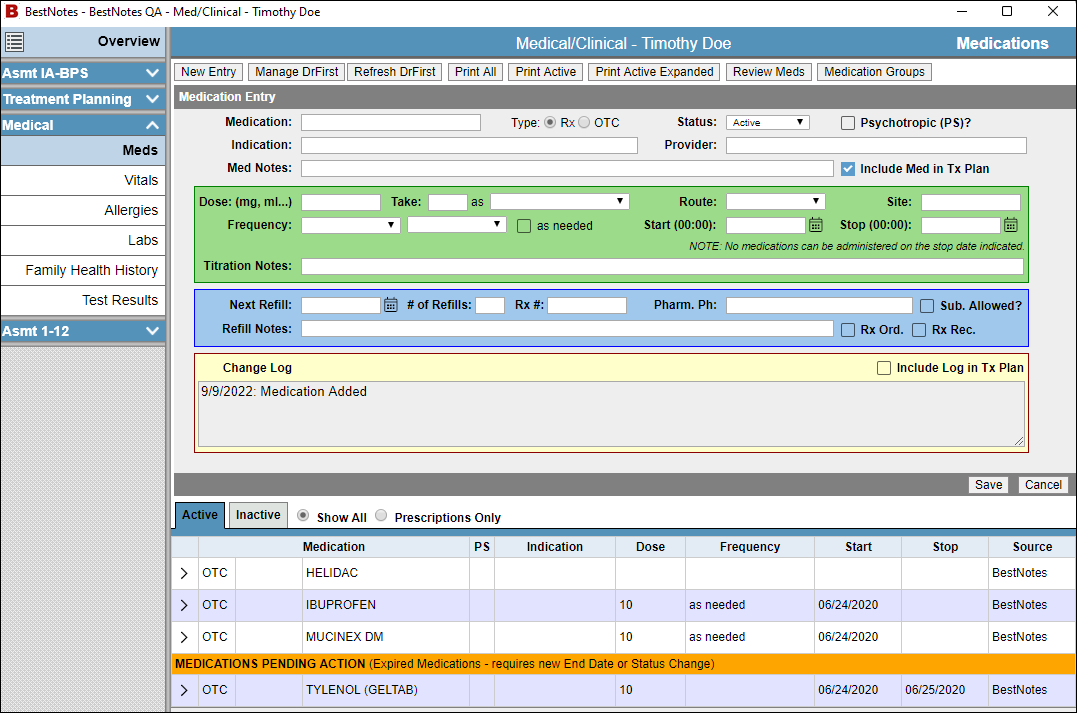
- Start typing the medication name to see a dropdown menu of possible matches
- NOTE: Not all medications will be available through this search and will have to be manually typed in.
- Select either Prescription (Rx) or Over-the-Counter (OTC).
- Select the status.
- Active
- Erroneous
- Completed
- Discontinued
- Check the box if it is a Psychotropic. The three long bars are for free text:
- Indication is the purpose of taking the medication.
- Provider is the one who prescribed the medication.
- Notes are for the office or key comments (e.g. "Don’t pick up until… ")
NOTE: Logs change every time you enter new data.
- Check Include Med in Treatment Plan to show up in the Master Treatment Plan, Discharge Summary, AND any documentation using Med Special Fields.
- Meds created in DrFirst will automatically check this box.
- It can be un/checked as needed.
- In the green area enter the dosing directions.
- In the blue box, enter the refill directions and pharmacy information.
- For Medication log, check Include log in Treatment Plan to be included with the medication, this will also display on the Master Treatment Plan and Discharge Summary.
- When ready, click Save.
Notes
- Medications "Pending Action", is based on status.
- Comprehensive documents, reports, and templates using Special Fields can pull in and show medications that are entered in this tab OR DrFirst and as long as the Include Med in Tx Plan is checked.
- Meds created in DrFirst will automatically check this box.
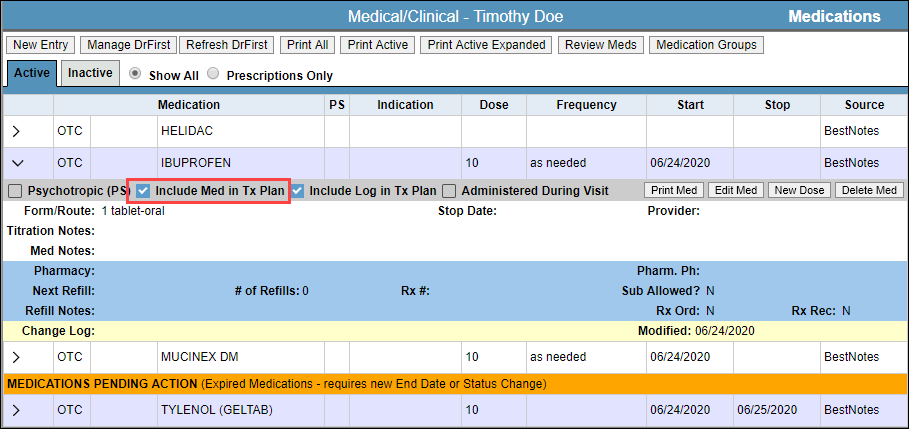
- Un/check in this tab as needed (e.g. to remove med from future documentation).
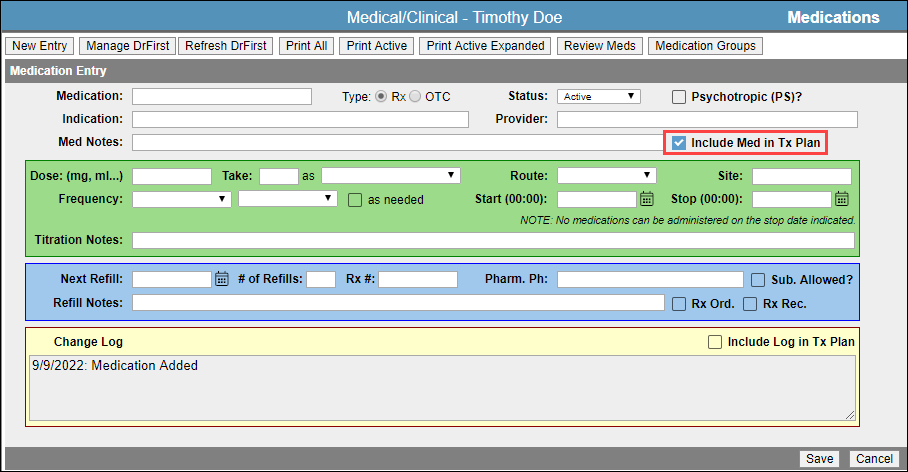
- Meds created in DrFirst will automatically check this box.
- Use the Medications Review Report to see a master list of medications across clients.
Reports
Med Clinical Report: displays all field data from Med / Clinical forms. It can be filtered by: Med/Clinical Tab, Status (All, Current, Past), and Date Range. This report displays: CID, First Name, Last Name, Date of Birth, Age at Intake, Sex, Admit Date, Discharge Date and all field data labels from that particular med/clinical tab.
Med Clinical Table Data: displays all table data from the Med/Clinical forms. It can be filtered by: Med/Clinical Tab, Table (Current Medications, Allergy, etc.), Status (All, Current, Past), and Date Range.
Medications Review: displays the most recent medication updates for the given filters. It can be filtered by: Med Date filter (Med Start Date between, End dates between, Med dates between, Refill date between), Date Range, and Med Status (Active, Completed, Erroneous, Discontinued).
Delete Medications
User Permission Edit Medications is required to delete medications. Contact your BestNotes System Administrator for user permissions.
Next Steps
- See also: DrFirst - ePrescribing
- See also: Med Special Fields
- See also: Reports Documentation