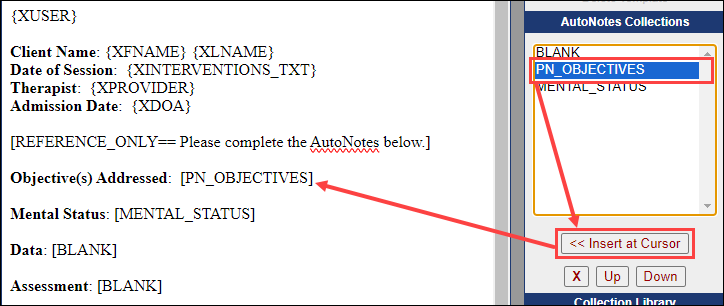
This article explains how to create and manage AutoNote™ collections within BestNotes templates, including adding them to a template's collection list and inserting them into specific locations.
Permissions Required
No specific BestNotes permissions are required.
Creating an AutoNote™ Collection
Creating a New Collection
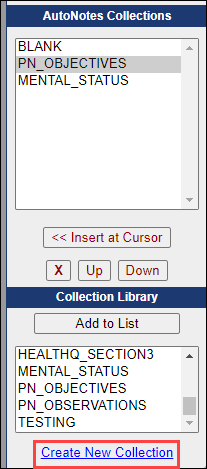
- Click on the Create New Collection link at the bottom right side of the template editor.
- Type a name for the new collection (it will be automatically capitalized).
- Click Save.
Add to List
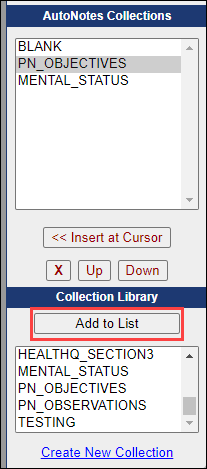
The created AutoNote™ collection will appear at the bottom of the Collection Library list. Click to highlight your collection, then click Add to List. This will move the collection to the AutoNote™ Collection list, which displays the list of collections available in the current template.
Creating a Collection Flow
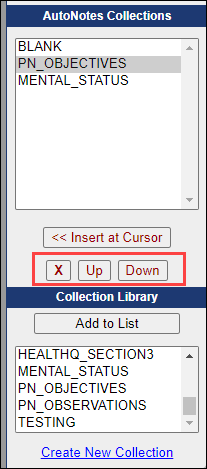
When creating the list of AutoNote™ collections within a template, be sure to organize them in the order that they appear in the template by highlighting each AutoNote™ and clicking the Up and Down buttons to move them to the correct location.
Insert Collection into Template
To insert a collection into a template, either:
- Type the collection name within square brackets at the location where the AutoNote™ is to be inserted.
OR
- In the template, position the cursor in the location the AutoNote™ should appear.
- Highlight which AutoNote™ should be inserted in AutoNote™ Collections.
- Click the Insert at Cursor button.