This article explains how to create and fill out template notes in BestNotes, including the use of AutoNotes™ for efficient data entry.
Permissions Required
No specific BestNotes permissions are required.
Filling Out Templates and Using AutoNotes™
Create Template Note
- Navigate to the client's chart.
- Select the "New Note" button at the top of the Activity Log.

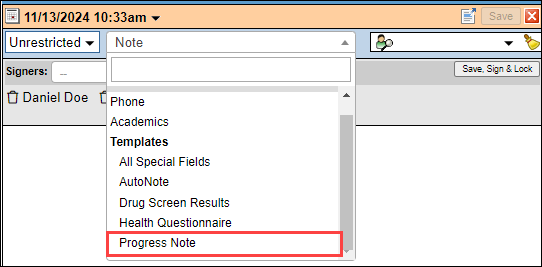
- Select the "Note" drop-down.

- Select the note below "Templates" that you would like to create.
Fill Out Template Note
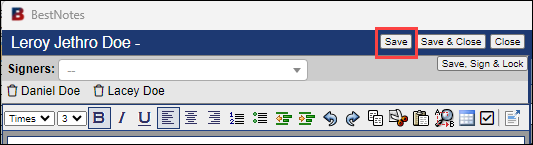
Template style notes do not save as you go. Be sure to click the save button frequently to avoid losing progress.
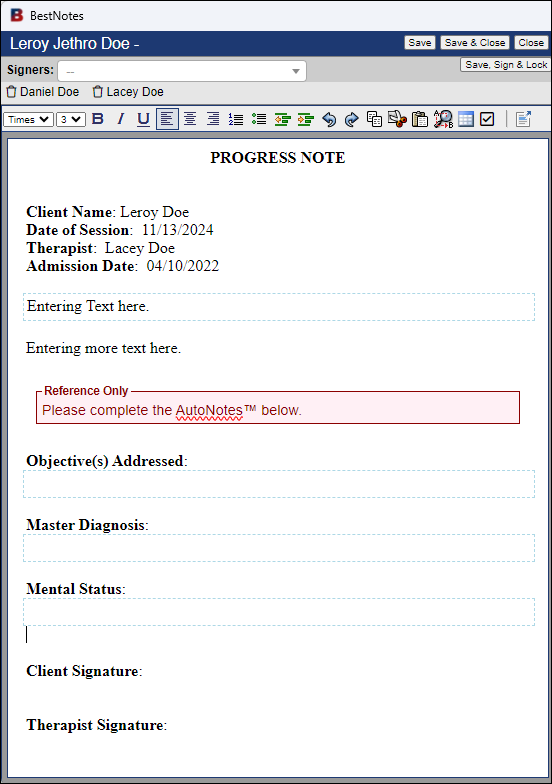
Template style notes will generally already have content as a guide for the information that is needed. They may also have special fields that will pull content directly from the client's chart. It is important to verify this information as you go. You can add information to the template by typing into the note as any standard document.
Using AutoNotes™
Some templates may have red "Reference Only" boxes. This content is for instructional purposes, and will not appear in the saved and locked document. One purpose for the "Reference Only" boxes is to indicate that you need to fill out AutoNotes™.

When you see this, follow the instructions below.
- Select the AutoNotes™ tab on the right-hand side.
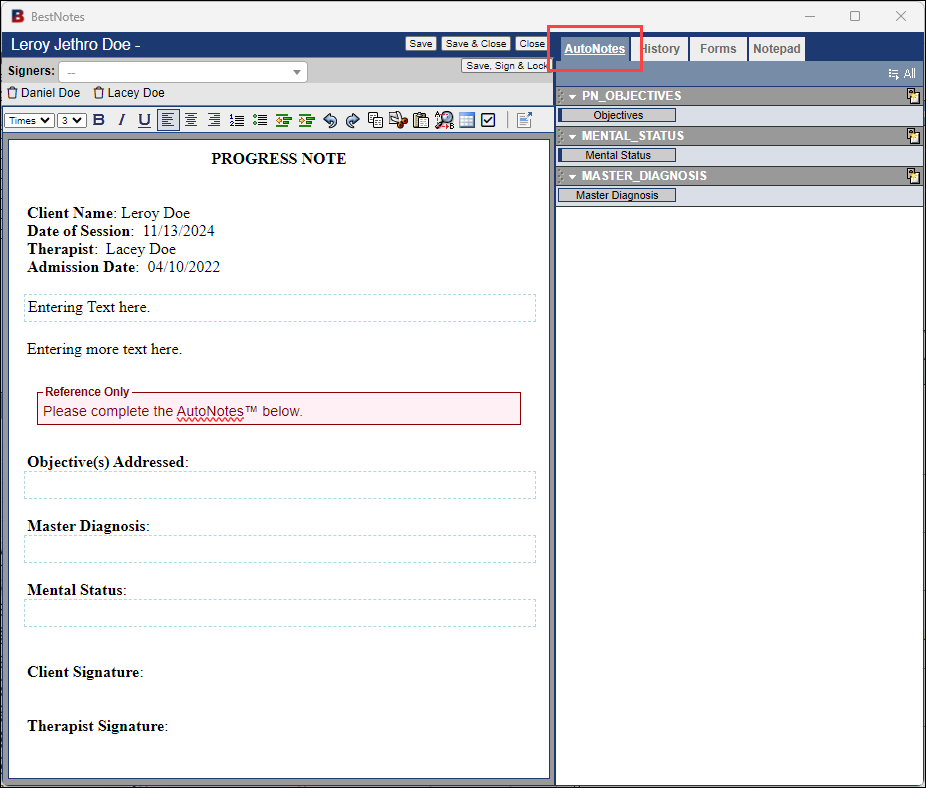
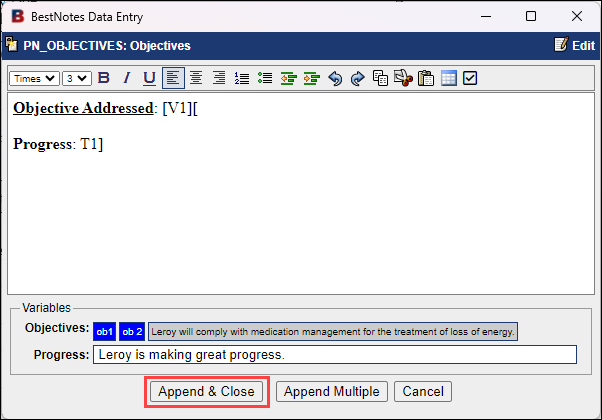
- Select the first AutoNote™ listed. This will open the AutoNote™ in a new window.
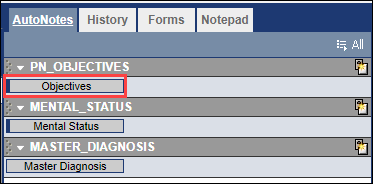
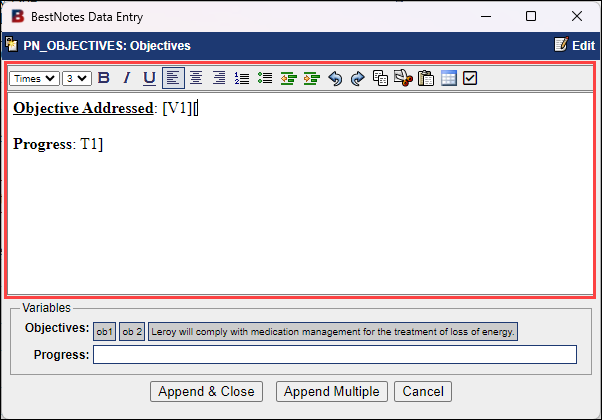
- The top portion of the AutoNote™ is intended as a visual reference. Do not type in this area.
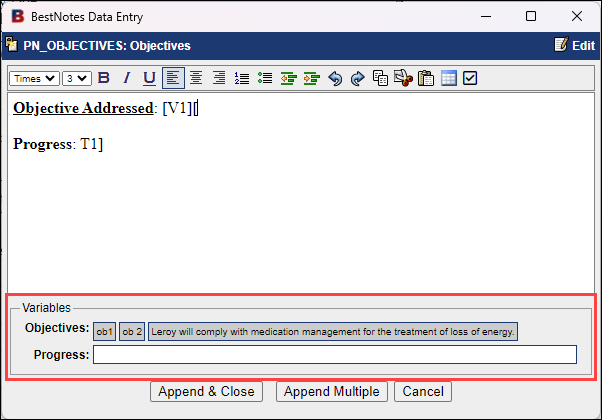
- The bottom portion is the "Variables" section, and this is the area you will enter your data. This will include, text fields, and multi-select options.
- Enter the necessary data, and select the options as needed.
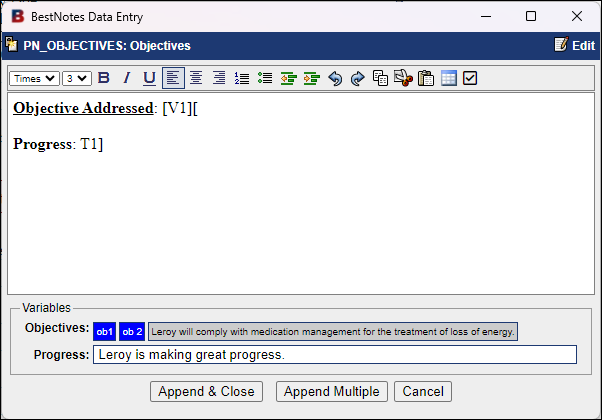
- When you are finished, select "Append & Close."
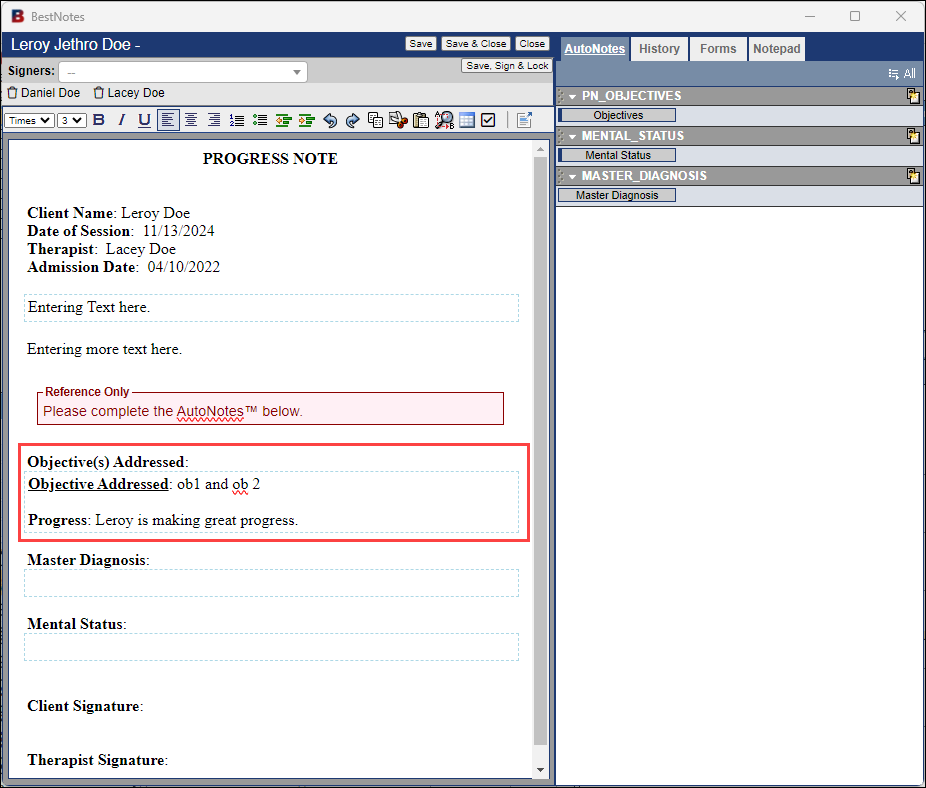
- The information entered will automatically populate in the corresponding section of the Template.
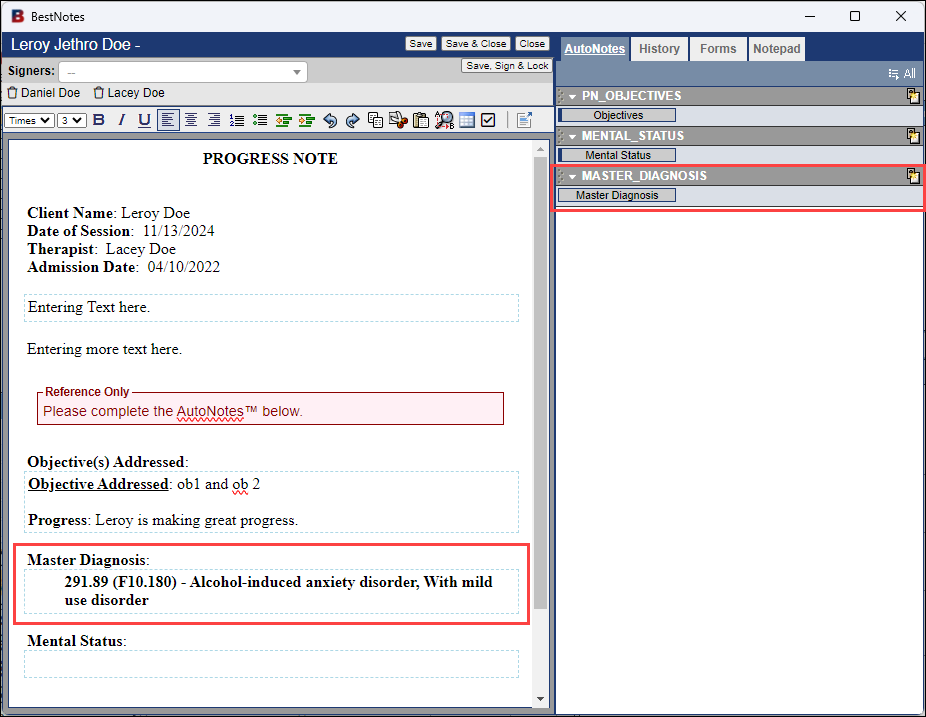
- Some AutoNotes™ will not open a new window, such as the "Master Diagnosis" AutoNote™. This AutoNote™ will automatically populate the selected Master Diagnosis from the Master Treatment Plan.
Next Steps
- See also: Templates and Signatures