This article explains how to create or edit AutoNotes™ using existing templates within a client's record.
Permissions Required
No specific BestNotes permissions are required.
Creating and Editing AutoNotes from Templates
- Navigate to a client's page and open a template that contains the AutoNote™ collection you need.
Note: Creation of individual AutoNotes™ usually occurs after the creation of the corresponding Template.
- Once the note is open, locate the AutoNote™ collection on the right side of the screen.
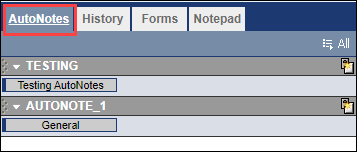
- To edit an existing AutoNote: If the AutoNote™ displays "Default" as the title, Right-Click on it to open. This will open a blank data entry window.

- In the blank data entry window, click the Edit icon in the upper right-hand corner. This will open the Edit AutoNote™ window.

- To create a new AutoNote: To create a new AutoNote™ within a collection that already has existing AutoNotes™, click the new AutoNote™ button on the same bar as the collection’s title. This will immediately open the Edit AutoNote™ window.
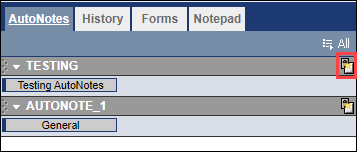
- Once in the Edit AutoNote™ window, give the AutoNote™ a Title (found in the upper left-hand corner of the window).
Tip: The AutoNote™ system is generally used to replicate forms where a set response is given for a question (e.g., "Has the client ever been on probation? Yes/No, if yes explain.").