This article explains how to export demographic information from BestNotes. The export will reflect data present in the system at the time the report is run, and will not include data entered afterward.
Permissions Required
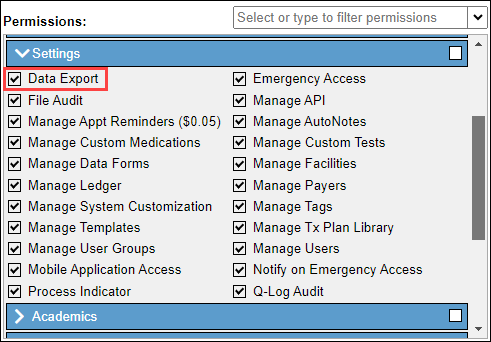
- Data Export
Exporting Data
Caution: BestNotes recommends that your business creates a security protocol for users with the "Data Export" permission.
To export data from BestNotes, you need the "Data Export" permission.
Caution: BestNotes recommends that you store exported information in a location that is secure, accessible, waterproof, and fireproof.
Navigate to "Settings", then "Export Data."
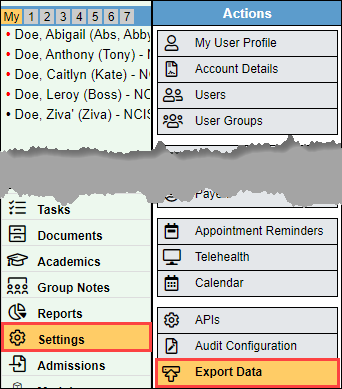
You will have two options.
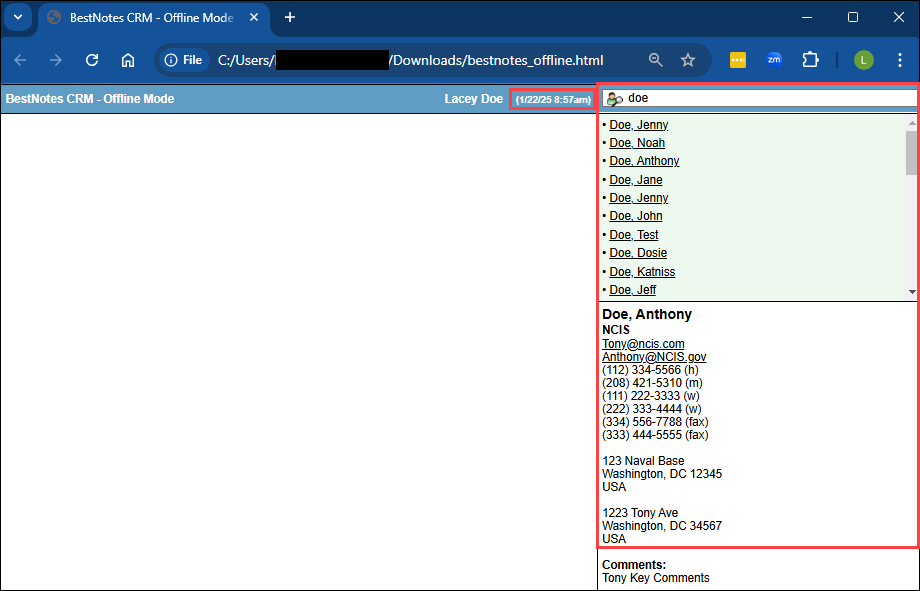
Export Contacts as HTML file: This will provide an offline file viewable in any web browser, with a contact search box provided. You can search by contact's last name. This will only contain information that has been recorded at the time of the export, and only contacts that you have permissions to view. The information included will be the contact demographics.
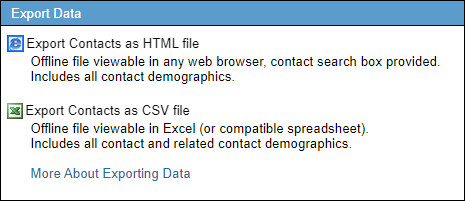
Export Contacts as CSV file: This will provide an offline file viewable in Excel (or a compatible spreadsheet). This will only contain information that has been recorded at the time of the export, and will contain all contacts. The information included will be the contact demographics, and related contacts and their demographics. Each additional line with the same contact will represent a related contact.

If you need to export more data than is included in these exports, reach out to submit a support ticket to request an export.
Back to top of page