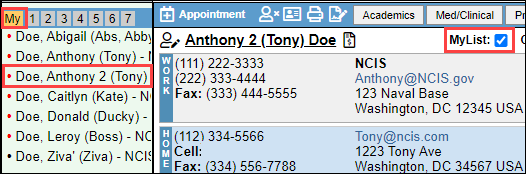
The article explains how to manage QuickLists, which are shared contact groups, and MyLists, which are personal contact lists, within BestNotes.
Permissions Required
- System Administrator
- Manage Tags
Visual Tutorial
Managing QuickLists and MyLists
Manage QuickLists
QuickLists allow you to update the label for groups of contacts that are applied to all users within your account. Other users will only see the contacts they have the appropriate permissions to see.
- Select "Settings", then select "QuickLists."
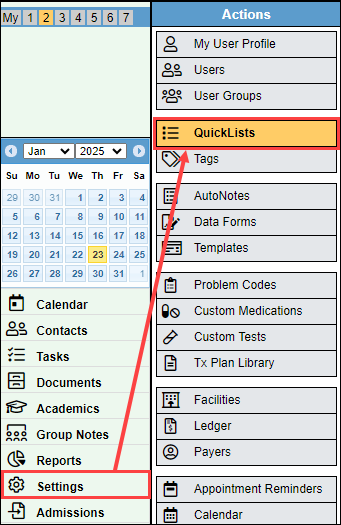
- Add Labels: Click + Add Label to create a new slot (up to a maximum of 50).
- Reorder: Click and drag the handle icon (⋮⋮) to move a label to a new position.
- Sort: Click Sort Alphabetically to organize the list instantly.
- Save: Click Save to apply changes to the user interface.
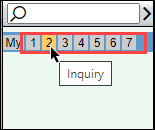
The QuickLists are accessed in the top left corner, and the label can be viewed when you hover over the number.
Add Contact to QuickList
- Navigate to the contact you would like to add to the quicklist.
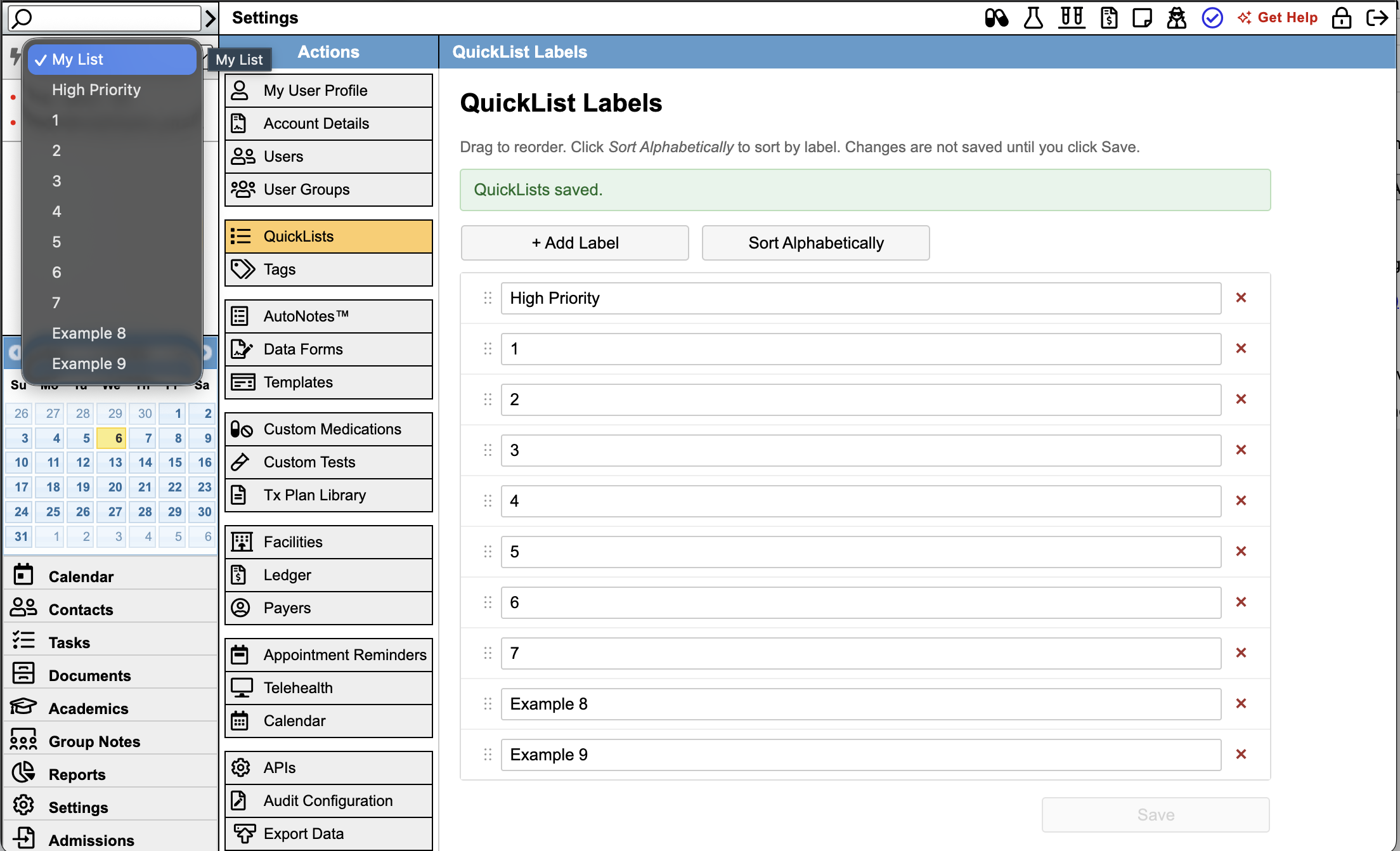
- Select the QuickList drop-down.
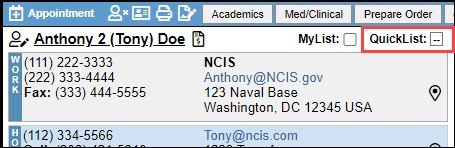
- Select the QuickList label that you would like to add the contact to.
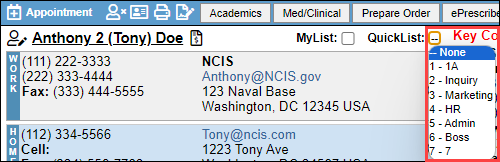
- That user will now display in the corresponding QuickList.
MyList
The MyList works similarly to the QuickList, but is specific to the user.
- Navigate to the contact you would like to add to the quicklist.

- Select the MyList checkbox.
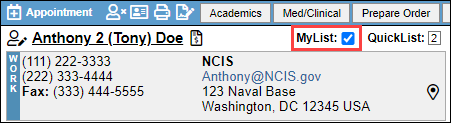
- That user will now display in your MyList.