This article explains how to use Access Tags and Fixed Tags in BestNotes to manage user access to contacts and categorize client information.
Permissions Required
- System Administrator
- Manage Tags
Visual Tutorial
Understanding and Creating Access and Fixed Tags
Access Tags
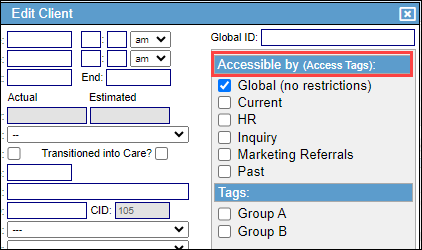
Access Tags restrict or allow a user's access to specific contacts. As a general rule, most contacts should only have one Access Tag. Access Tags may also be labeled as "Accessible by."
Your database will come with a set of standard Access Tags, which include:
- Current
- HR
- Inquiry
- Marketing Referrals
- Past
Permissions for Access Tags
To manage Access Tags, you must be a System Administrator and have the "Manage Tags" permission.
Access Tag Use Scenarios
Here are a few scenarios for using Access Tags:
- If you want the admissions staff to only see Current clients, you will add the "Current" tag to your current clients and give the admissions staff the "Current" tag. That staff member will then only be able to access the charts of clients who have the "Current" tag.
- If a user has only the "HR" access tag, they will only be able to see clients and users that also have the "HR" tag.
| Note: Most contacts should only have one Access Tag, then as many Fixed tags as needed. A common indicator that a client is tagged incorrectly is if they have a "Current" Access tag and a "Past" Access tag. A client will most likely not be current and past at the same time. This is a great way to check whether your clients are tagged correctly. |
Global Tag
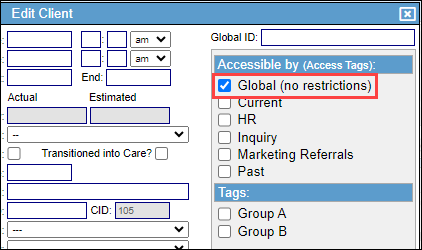
The "Global" tag is an Access Tag used when there are no requirements for restrictions on a contact.
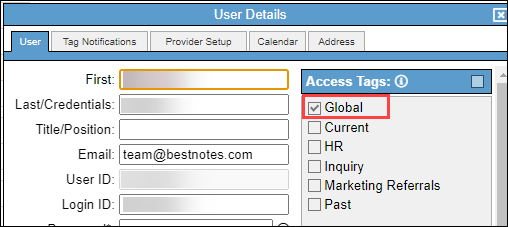
When creating a user, the "Global" tag will automatically be selected, and that user will be able to view all contacts regardless of which Access Tags the contact has.
When creating a contact, all contacts need to have at least one Access Tag. If you give the contact the "Global" tag, all users will be able to see that contact, regardless of any other Access Tags selected.
You can also think of Tags as a filing cabinet. The Access Tag is the "key" to access the drawer. Then the Fixed Tags are the files within the cabinet. You are giving the user the Key (Access Tag) to the drawer, and the Fixed Tags give them access to the folder.
Fixed Tags
Fixed Tags help to describe or categorize contacts. Fixed Tags may also be labeled as "Tags."
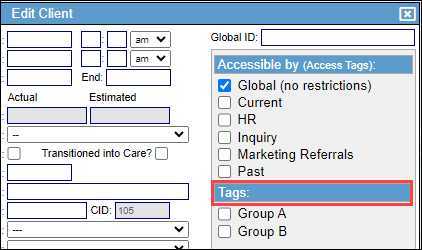
Contacts can have several Fixed Tags, and these can be used to assist in creating reports.
| Note: User tags are the same as Fixed tags, and are used for categorization purposes. |
Permissions for Fixed Tags
To manage Fixed Tags, you must have the "Manage Tags" permission.
Fixed Tag Use Scenarios
Here is a scenario for using Fixed Tags:
- If you have two different groups for Group Therapy, Group A and Group B, you can also have Fixed Tags for "Group A" and "Group B." If you add this tag to each participant in each group, then when you create a Group Note, you can add the participants by selecting the tag for the appropriate group in the participant drop-down.
Create Tags
To create new tags, you must have the "Manage Tags" permission. Only System Administrators can create Access Tags.
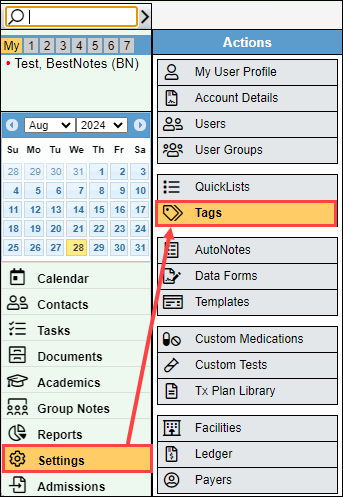
- Navigate to "Settings" and select "Tags."
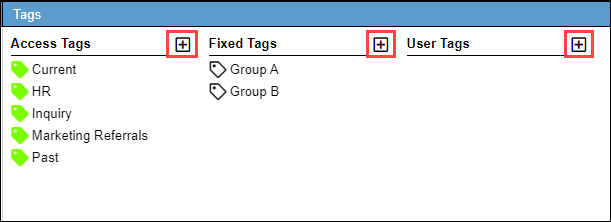
- Select the plus icon on the right side of the column.
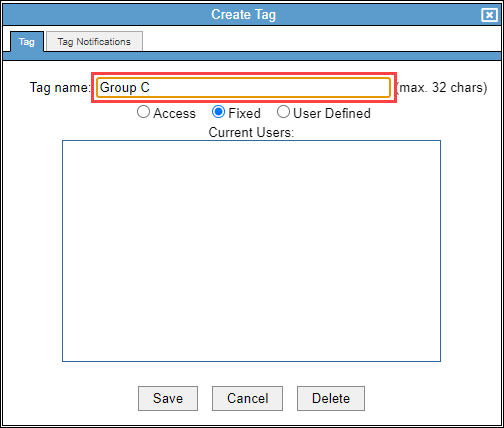
- Enter your new "Tag Name" and select the type of tag.
| Caution: Do not include "LOC" in the name of the tag, as this will cause errors within BestNotes. |
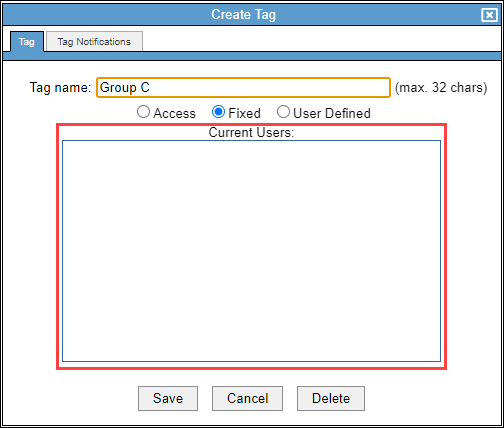
- The "Current Users" area will display any Users that currently have that tag.
- To assign tag notifications for that tag, select the "Tag Notifications" tab.
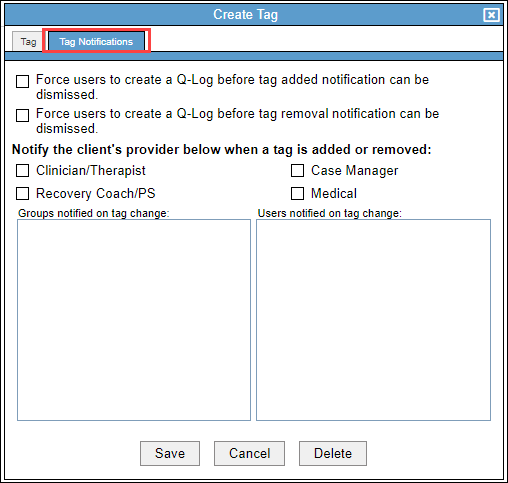
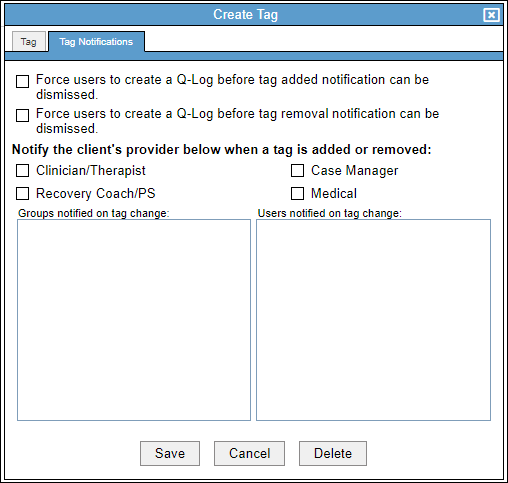
- Then select the desired options. For additional information, visit Tag Notifications.
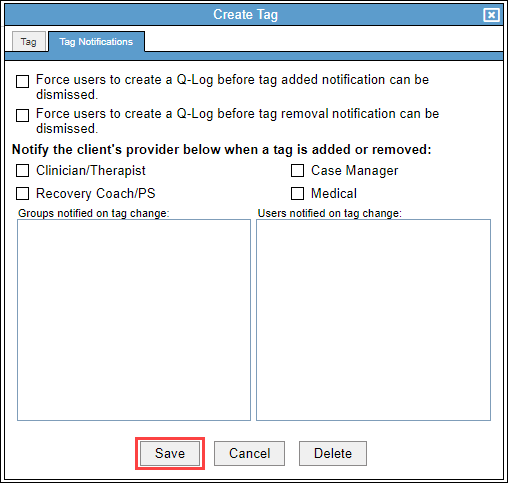
- Select "Save."
Next Steps
- See also: Tag Notifications