This article explains how to change your default web browser on macOS, noting that BestNotes recommends keeping Safari as the default browser for optimal use.
Permissions Required
No specific BestNotes permissions are required.
Changing Your Default Web Browser on macOS
To change your default web browser on macOS, you will first need to open Safari. You can do this using one of the following methods:
- From Finder, navigate to Applications:

- From the Dock:

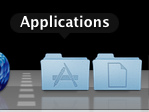
- From the Dock Applications Folder:
Once Safari is open, follow these steps:
- From the Safari menu, choose Preferences.

- Click the General button.
- Choose a different browser from the Default Web Browser pop-up menu.

Important Note: After changing the default application, do not delete Safari or Mail, even if there are no plans to use them. They will be needed if you wish to change the default settings in the future.
Next Steps
- For more information, please see the Apple Support page.