This article outlines the recommended methods for copying and pasting information into BestNotes to prevent system errors, including using the BestNotes NotePad feature.
Permissions Required
No specific BestNotes permissions are required.
Visual Tutorial
Click Play button
Copy and Paste Rules
IMPORTANT: Do NOT copy and paste digital information (e.g., from Microsoft Word, websites, or PDFs) directly into BestNotes. Doing so can cause system errors. Always copy the information into a plain text editor like Notepad first, then copy from Notepad into BestNotes.
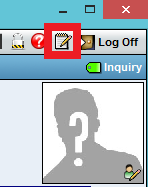
- To use the BestNotes NotePad feature, navigate to a contact's page and locate the NotePad button in the top right corner.
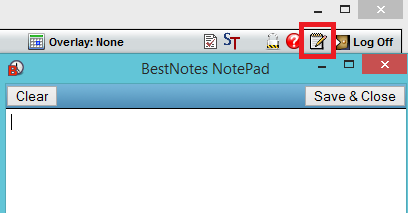
- The NotePad will appear within an active template in an Activity Log Note, allowing you to paste plain text.

Next Steps
- See also: How to Clone a Note