This article provides instructions on how to resize your company's logo for optimal display on the BestNotes web portal using either Windows Paint or Mac Preview.
Permissions Required
No specific BestNotes permissions are required.
Resizing Your Company Logo
To resize your company's logo for the web portal, open a long (wide version) JPEG (.jpg) or a PNG (.png) file.
Resize to 725 Horizontal / Width and check to see if the Vertical / Height is between 100-300 with the following programs:
Windows: Paint
- Click on the Resize button
- Click on the Pixels button
- In the Horizontal box, type in 725
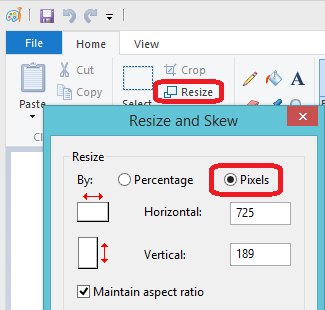
- The Vertical box should maintain the aspect ratio, but make sure it is between 100 to 300 pixels
- Click OK
Once completed, save this new size as a new file. Then, submit a support ticket to send our support team the new file.
Mac: Preview
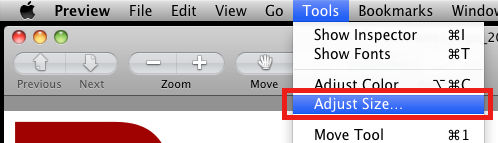
- Select Size icon or Tools drop down menu and choose Adjust Size:
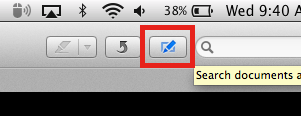
- Select the Edit icon.
- Select the Size icon.
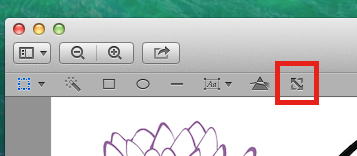
- Change to Pixels view
- In the Width box, type in 725
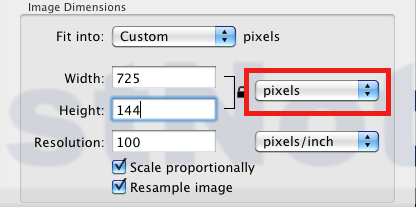
- The Height box should maintain the aspect ratio, but make sure it is between 100 to 300 pixels
- Click OK
Once completed, save this new size as a new file. Then, submit a support ticket to send your Implementation specialist the new file.
Back to top of page