This article explains how to inactivate or delete templates in BestNotes, outlining the differences between these actions and providing step-by-step instructions for each.
Permissions Required
No specific BestNotes permissions are required.
Managing Templates: Inactivate or Delete
Templates can be either inactivated or permanently deleted. Inactivating a template archives it so it can no longer be added to a contact, while preserving all data entered using that template. This data can still be used for reporting purposes. Locking a template prevents unintended changes when reviewing its structure.
NOTE: Templates cannot be deleted if they have been used with any contact. Inactive templates will not be available through Appointments and may need to be manually removed from Appointment Types as needed.
When changing a template's lock or inactivate status, you must click Save. Simply unlocking a template does NOT refresh the window to allow immediate editing; it must be saved and re-opened to edit a newly unlocked template.
Log and Note filter choices will group templates by Active and Inactive status in the following areas:
- General Log
- Activity Log (New Note tab / client chart)
- Group Note History Tab
- Settings > Templates
- NOTE: Group Notes with [GROUP_PARTICIPANTS] at the bottom of content will have their own groupings.
Template titles will display in four distinct colors:
- Black = Regular, unlocked Template
- Green = Locked Template
- Blue = State Profile Template
- Red = System Template (e.g., Reportable Group Notes - aka Incident Reports)
Inactivating or Locking a Template
- Navigate to Settings > Templates.
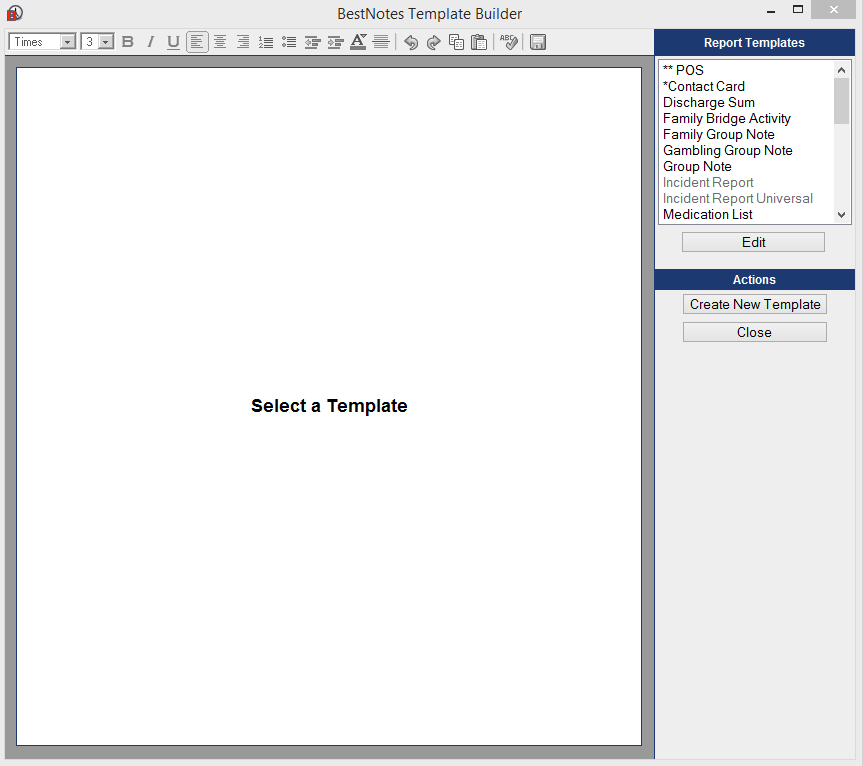
- Double-click the template you wish to inactivate or lock, or select it and click Edit.

- In the Template Builder window, locate the Active and Locked checkboxes.
- Uncheck Active to inactivate the template, or check Locked to lock it.
- Click Save to apply your changes.

Deleting a Template
Note: Deleted templates cannot be recovered. Please, double check that a template has never been used before deleting. To do this, open the General Log and filter for that template.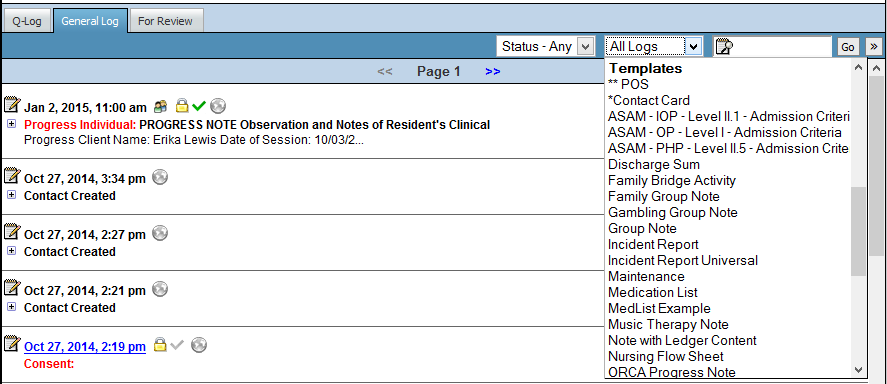
If a template has never been used and is no longer needed, follow these steps:
- Open Template Builder by navigating to Settings > Templates.
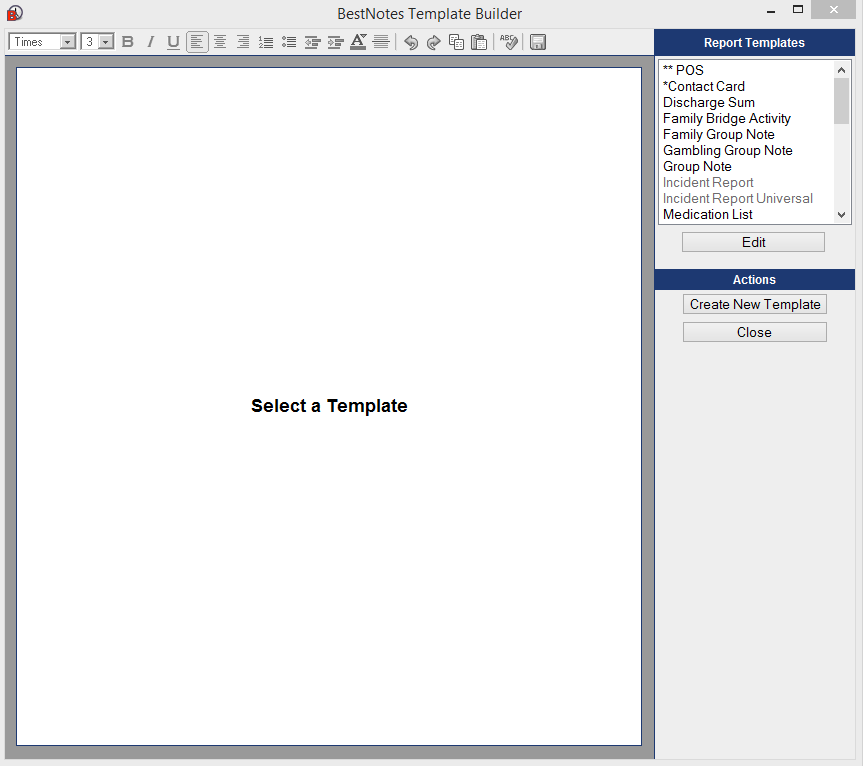
- Select the template you wish to delete by double-clicking it or clicking Edit.
- On the right side of the Template Builder window, click Delete Template.
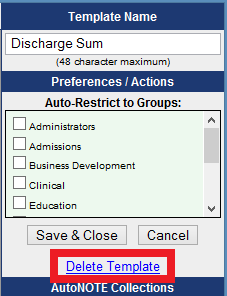
- Confirm the deletion when prompted.
NOTE: This action will permanently remove the Template from your account. BestNotes Support does not recommend this action.
Back to top of page