This article outlines suggested audits you can perform in BestNotes to ensure data integrity and compliance, covering missing contacts, required signatures, duplicate contacts, and user activity.
Permissions Required
- System Administrator
- Reports
- File Audit
- Q-Log Audit
Performing Recommended Audits
Missing Contacts Audit
To find missing contacts, or contacts that do not have any Access Tags assigned, you must be a "System Administrator."
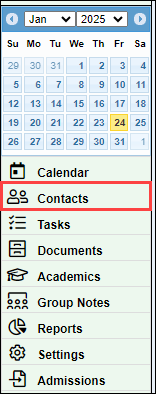
- Navigate to the "Contacts" tab.
- Select "Export."

- In the "Tag" column, identify any blank entries.

- Navigate to the contacts chart in BestNotes.
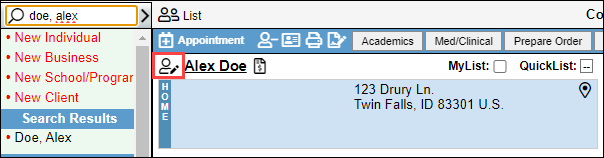
- Apply the appropriate tag.
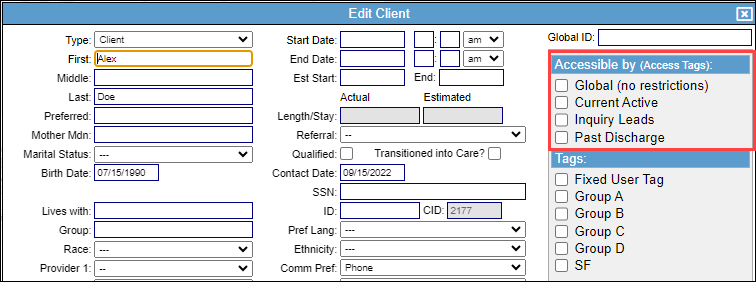
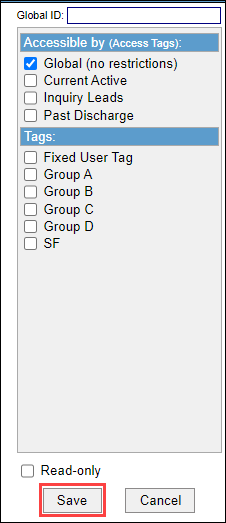
- Select "Save."
Reports for Auditing
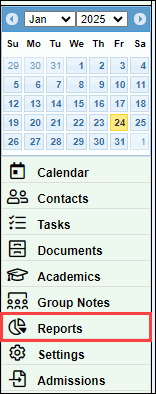
There are several reports that you can use to identify required signatures and address duplicate contacts. To navigate to reports you must have the "Reports" permission.
- Navigate to "Reports."
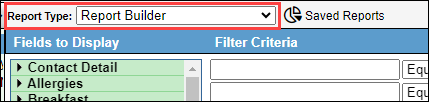
- Locate the "Report Type" drop-down.
Signatures Needed Reports
You can find documents that need to be signed by clients and other users. There are a few different reports you can use to check for this.
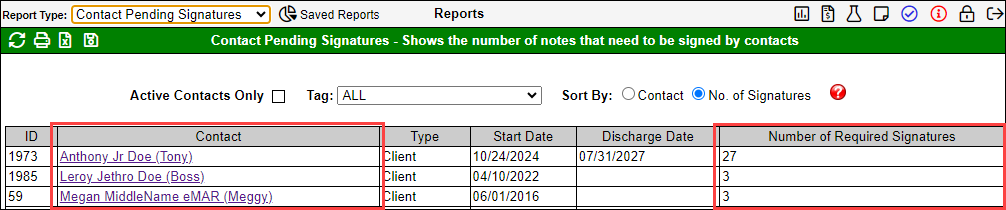
Contact Pending Signatures report.
This report will list the contact, with the number of required signatures.
Log Review report
This report will show documents that need to be completed within a time frame, that require Staff Signatures, or Contact Signatures. Once you open the report, at a minimum, you will update the following filters:
- Date Range: Select the time frame that you need to review,
- User: Select the specific user, or select All.
- Display: Only Pending Signatures: Select this checkbox to ensure that you will view "Pending Signatures."
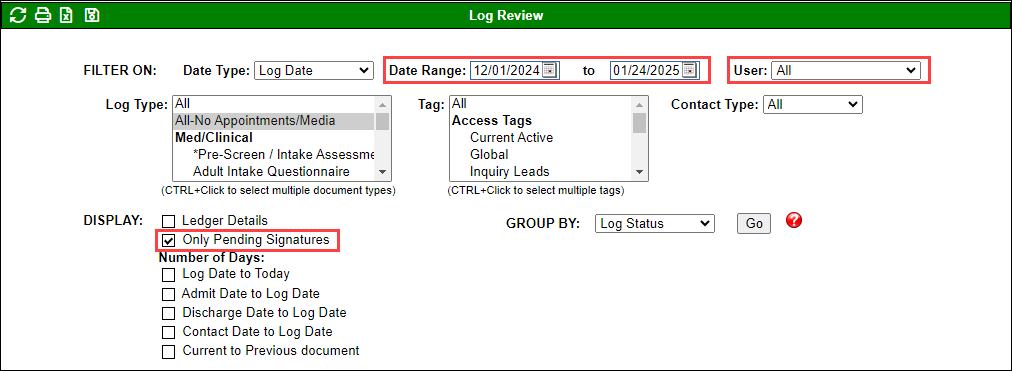
This will display the Staff and Contact signatures that are pending.

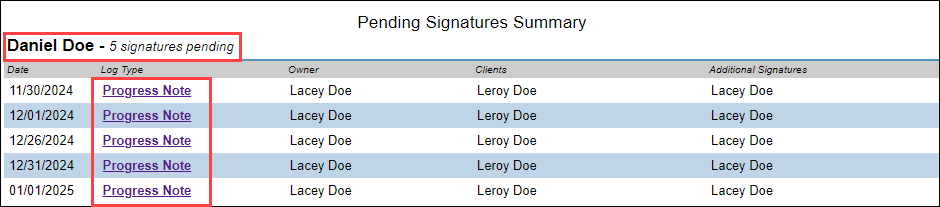
Pending Signatures report
This report requires the "File Audit" permission in addition to the "Reports" permission.
This will show you the Pending Signatures for a specific date by user. Once you open the report, at a minimum, you will update the following filters:
- Date Range: Select the time frame that you need to review.
- User: Select the specific user, or select "All with Pending Signature."

This will display the pending signatures for each user, and then it will list the documents that the signature is required on.
Duplicate Contacts Report
This report will identify duplicated information based on the checkboxes selected.

This will display the CID's, Client Name, and specify the duplicated details.

User Audit Reports
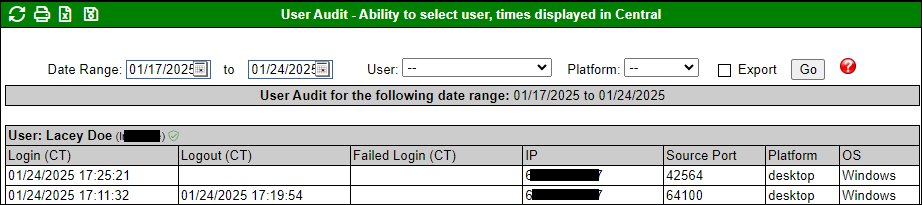
User Audit Report
This report will allow you to view information related to when users login to BestNotes.
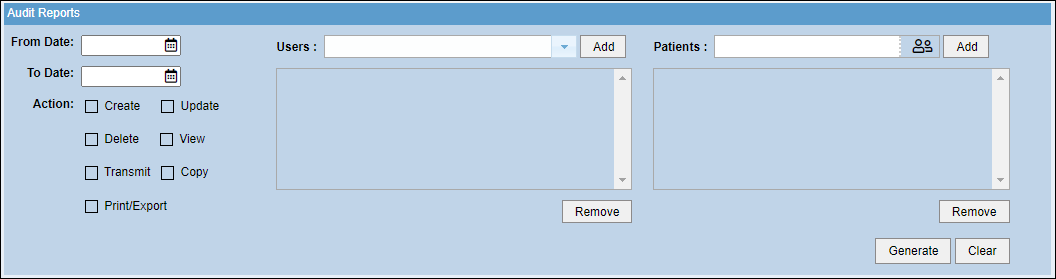
Audit Information Report
This report will allow you to view specific actions taken by users when logged into BestNotes.
Q-Log Audit
To perform a Q-Log audit, you must have the "Q-Log Audit" permission.
To review the Q-Log content of other users, follow the instructions below:
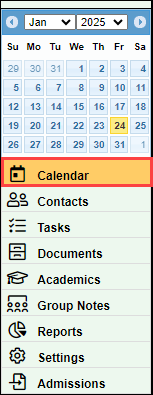
- Navigate to "Calendar."
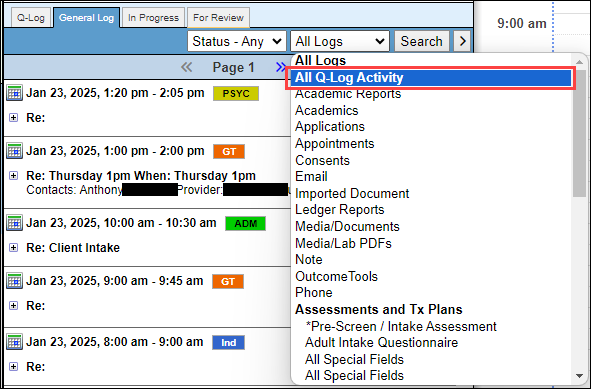
- Select "General Log."
- In the "All Logs" drop-down, select "All Q-Log Activity."

- Select "Search."
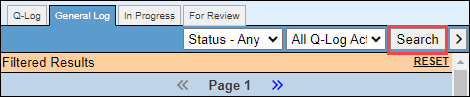
- You will now see all of the Q-Log activity for users you have permission to view.
Next Steps
- See also: Readmit client and duplicate information