This article explains how to prepare and manage student transcripts for student and parent use within BestNotes.
Permissions Required
- Administrator
- Academic Reports
- Teacher
- Registrar
Managing Transcripts
To view the Transcript, you must have the "Administrator", "Academic Reports", or "Teacher" permission. If you need to edit the transcript, you must have one of the previously mentioned permissions and the "Registrar" permission.
Navigate to the Transcript
- Navigate to the student's chart.
- Select the "Academics" button.
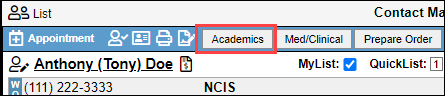
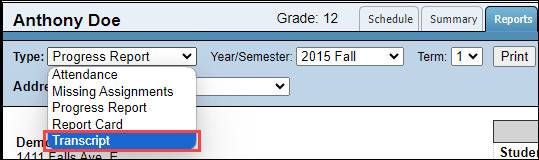
- Select the "Reports" tab.

- In the "Type" drop-down, select "Transcript."
Projected Grades
For Projected Classes (future or recommended), it is considered best practice to use the "+" icon to add a class manually.
- In the Transcript, below the grade level desired, and within the department, select the "+" icon.

- Enter the "Class" and the projected "grade."
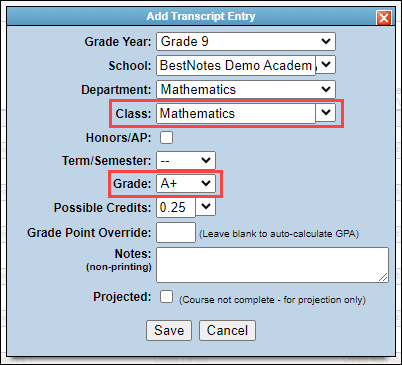
- Select the "Projected" checkbox to display the class to be recommended for the student.

Remove Projected Grade
Once the student has completed the class:
- Select the class that has the projected grade. Projected grades will be green, completed grades will be black.
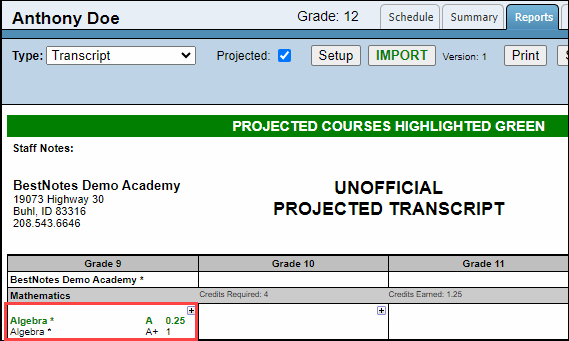
- Select "Delete Entry" to remove the projected class.

Import Grades
Now that the class has been completed, and the projected classes have been deleted, you will want to "Import" the finalized grades into the transcript. This can also be used to import grades from past years into the Transcript.
- Select "Import" to import the class that was completed for an official grade.
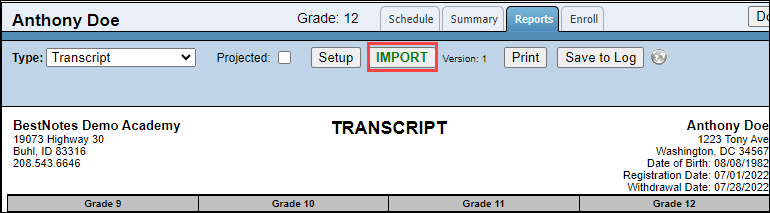
- Select the grade level and click the checkbox. Click Import.

Transcript Setup
To set up the transcript, follow the steps below:
- Select "Setup."

- Enter in the necessary information and select "Save."
