This article explains how to print both completed and blank OutcomeTools questionnaires within BestNotes.
Permissions Required
No specific BestNotes permissions are required.
Printing OutcomeTools Questionnaires
Printing a Completed Questionnaire
To print a client's completed questionnaire, navigate to the client's chart. You have two options to print a completed questionnaire: from the "OutcomeTools" tab, or the "Activity Log."
From the OutcomeTools tab:
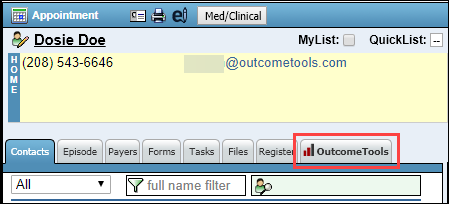
- Select the OutcomeTools tab.
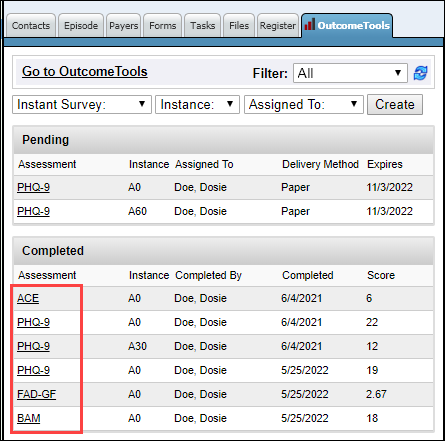
- Select the title of the questionnaire you would like to print.
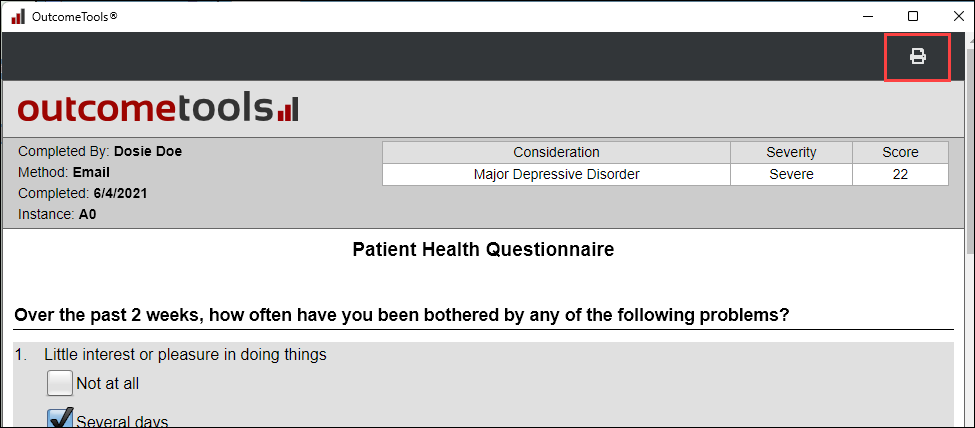
- When the page opens, select "Print.
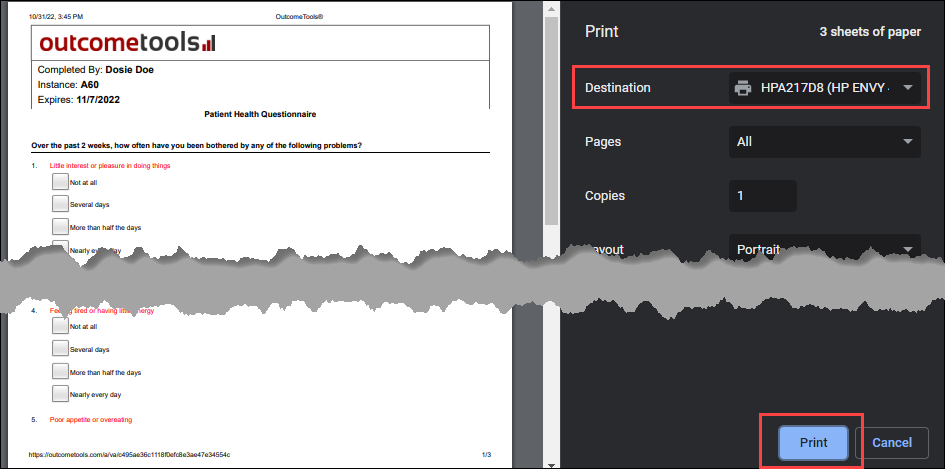
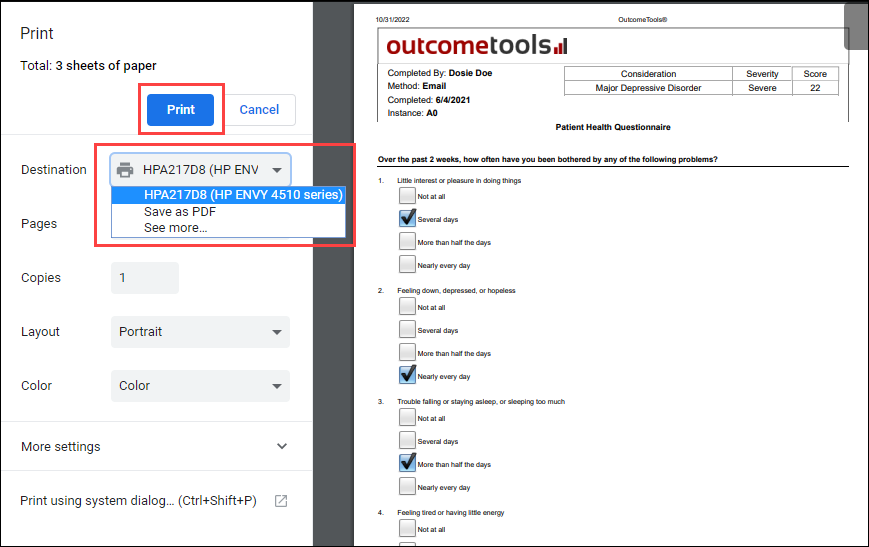
- You can then choose to print to PDF, or to a specified printer.
From the Activity Log:
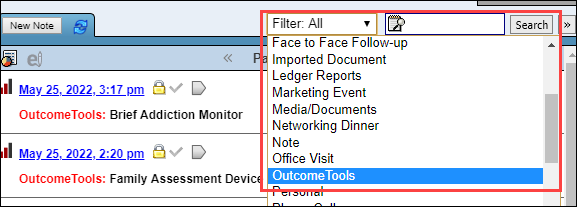
- Filter for OutcomeTools, or search for the title of the questionnaire.
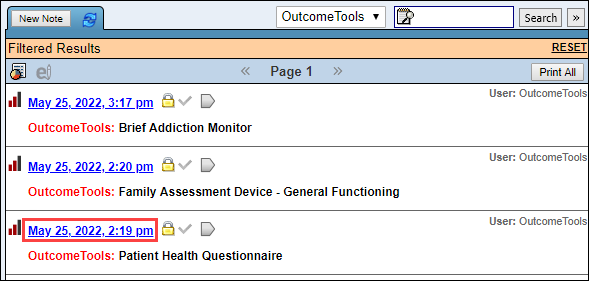
- Select the date and time of the questionnaire you would like to print.
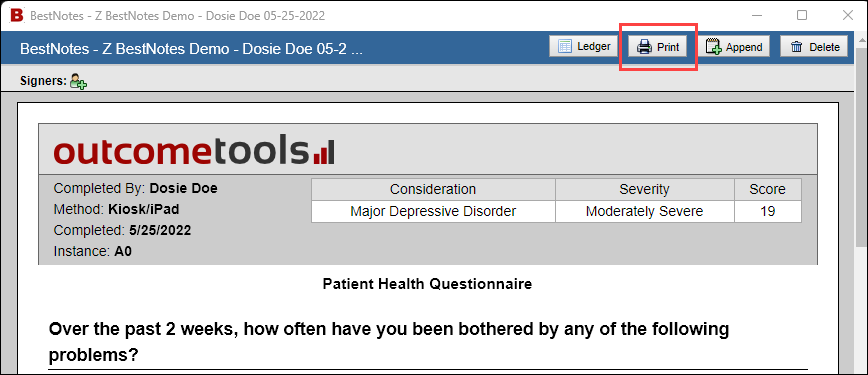
- When the page opens, select "Print."
- A PDF version of the document will be opened, and you will have the option to download a PDF version to your computer or to print the document.
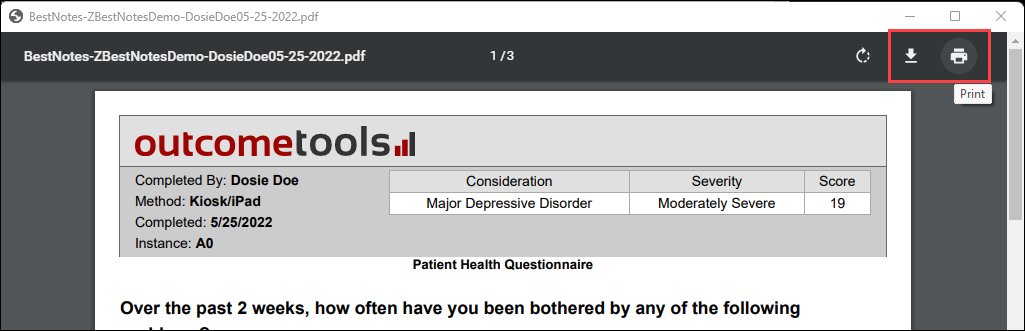 If you select print, you can print to PDF, or to a specified printer.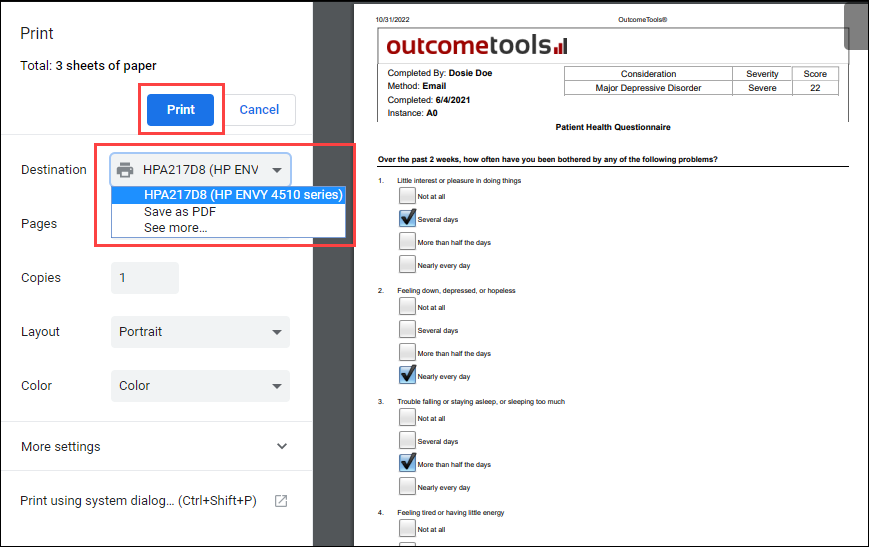
Printing a Blank Questionnaire
If you are printing a questionnaire for a client to fill out, you will navigate to that client's chart. If you are printing a questionnaire to have a blank copy of that questionnaire, you will need to navigate to a fake client. Once you are at the client's chart, follow the steps below.
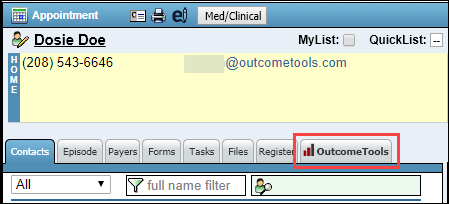
- From the client's chart, select the "OutcomeTools" tab.
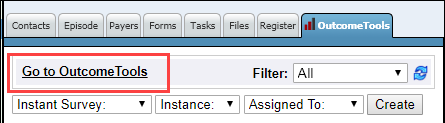
- Select "Go to OutcomeTools."
- In the OutcomeTools window, select the "Questionnaires" tab.
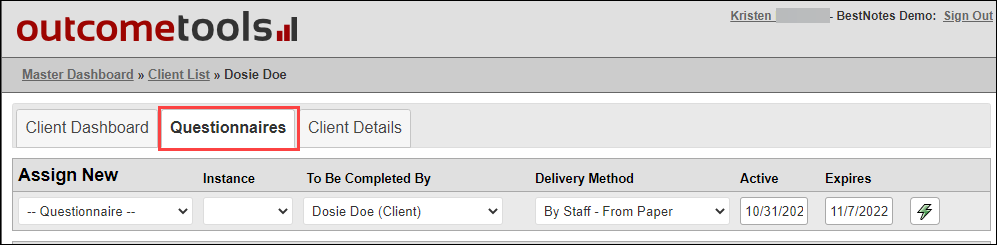
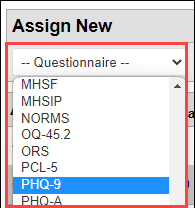
- Below the "Assign New" title, select the "--Questionnaire--" drop-down, and select the questionnaire you would like to print.
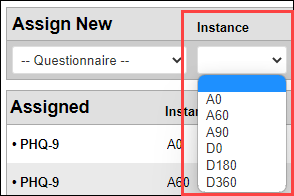
- Then designate the "Instance" as needed.
- Select the "By Staff From Paper" option for "Delivery Method."

- Select the green lightning icon.

- In the "Assigned" section, select the "View Questionnaire" option for the questionnaire that you just assigned.

- The questionnaire will open in a separate window, right-click on the questionnaire, and select "Print."
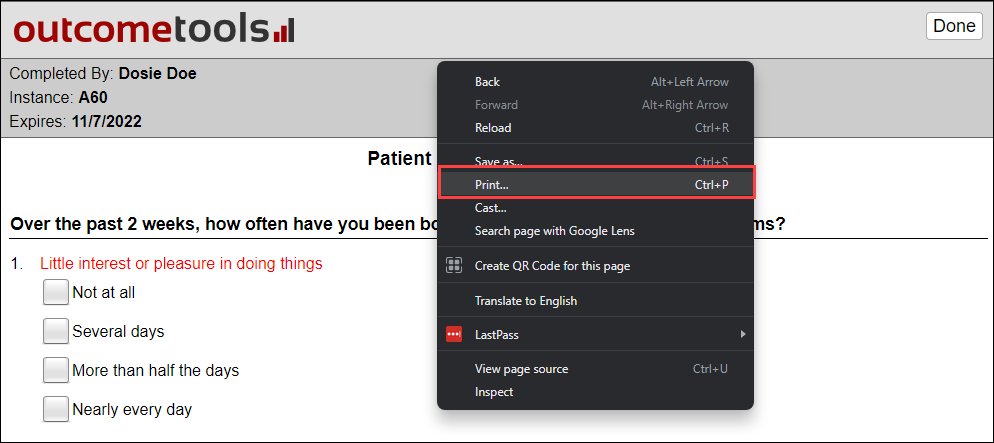
- You can then choose to print to PDF, or to a specified printer.