This article guides you through the process of finalizing term grades within BestNotes, including how to complete grades in the Grade Book, add them to a student's transcript, manually enter grades, and send them to the portal.
Permissions Required
No specific BestNotes permissions are required.
Finalizing Term Grades
Grade Book
- Navigate to the Grade Book.

- For each Class Section:
- Click on a student's name.
- NOTE: Only change the End date for a Mid-Term transfer / move out.
- Select or type a Report Card Comment.
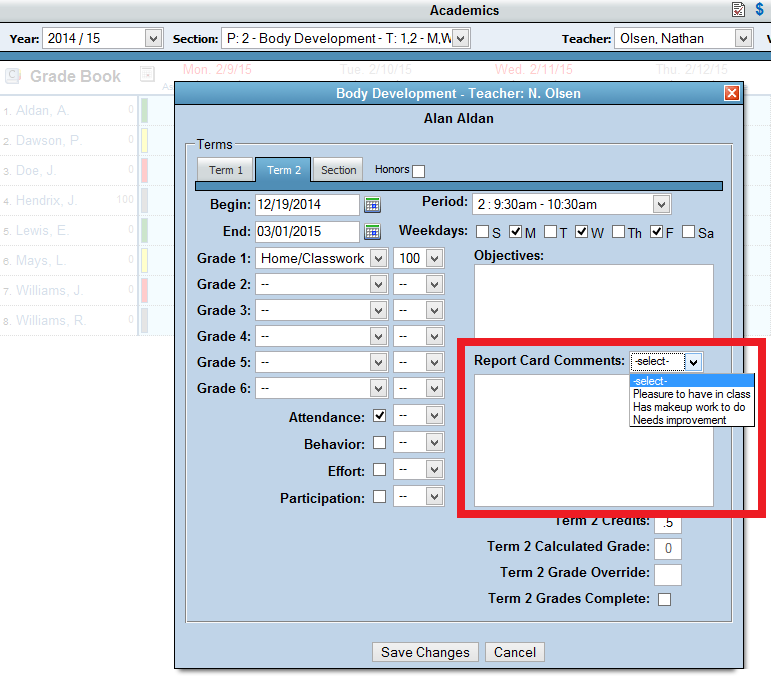
- In the lower right section:

- Review the Credits.
- Review the Calculated Grade.
- Enter a Grade Override as needed.
- Check Term Grades Complete.
- This adds the grade to the Report Card report on the Student's page.
- This is best practice for Transcript (see below).
- Save.
Transcript - Student's Academics Page
- Navigate to the student's profile page.
- Click on the Academics button.
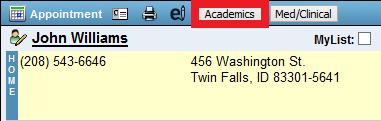
- Click on the Reports tab.
- Select the Transcript type.
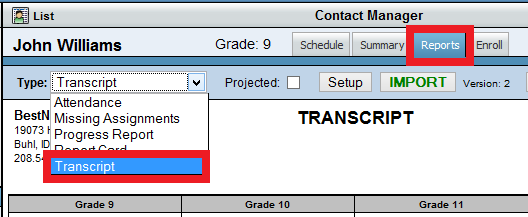
- Click on the Import button.

- For each class you want on the transcript:
- Select Grade Level.
- Check the box at the end.
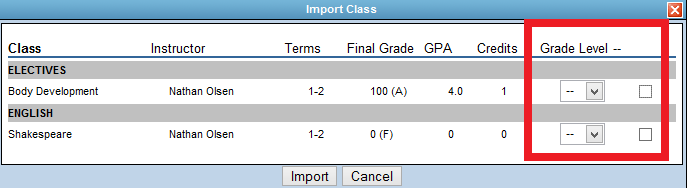
- Click Import.
NOTE: Make sure to Delete any Projected grade(s) on the transcript that are completed by official grades before sending the transcript to the parent(s).
Setup (e.g. Graduation Date for college admissions)

Manually Enter Grades
To manually enter grades on the transcript, follow the steps below:
- From the transcript, select the "+" symbol next to the subject the grade needs to be entered for.
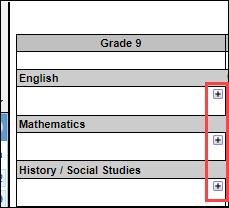
- Enter the Class Name.

- Verify Credits.
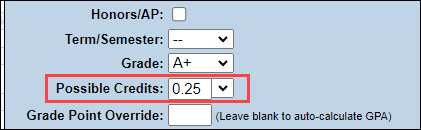
- Enter grade earned and select "Save."

Send To Portal
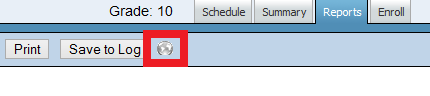
- Click the Globe icon.
- Select who you want to send the Transcript to.
- Select the Report Card.
- Click the Globe icon.
- Select who you want to send the Report Card to.

Next Steps
- See also: Grade Book Documentation
- See also: Student Profile Page Documentation
- See also: Sending Documents to the Portal