This article provides an overview of BestNotes User Reports, explaining the purpose and functionality of each report type, including how to navigate to them and interpret the displayed information.
Permissions Required
- System Administrator
- Reports
Understanding User Reports
To access the User Reports, you will need to have the "System Administrator" checkbox, and the "Reports" permission enabled for your user account.
Navigate to Reports
To find your User Reports, follow the steps below:
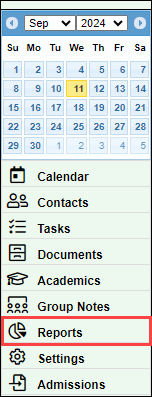
- Select "Reports" in the bottom left corner.
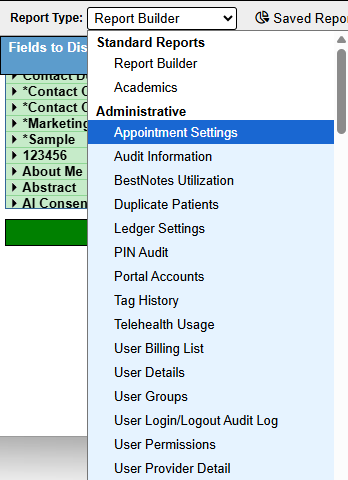
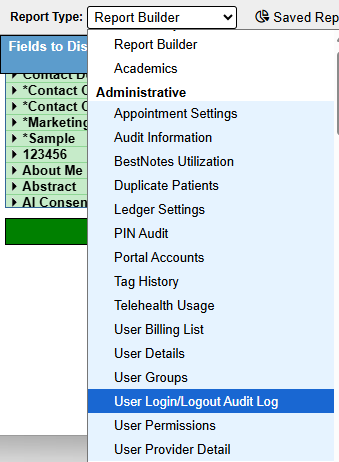
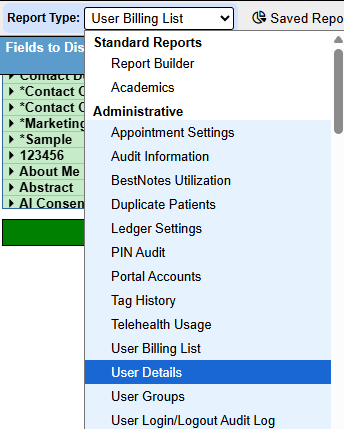
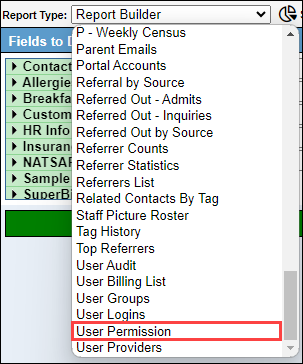
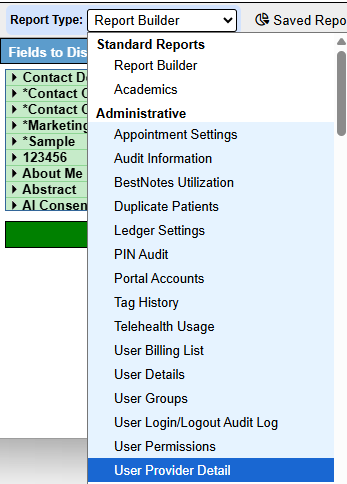
- Select the "Report Type" drop-down, and scroll all the way to the bottom of the list.
User Login/Logout Audit Log
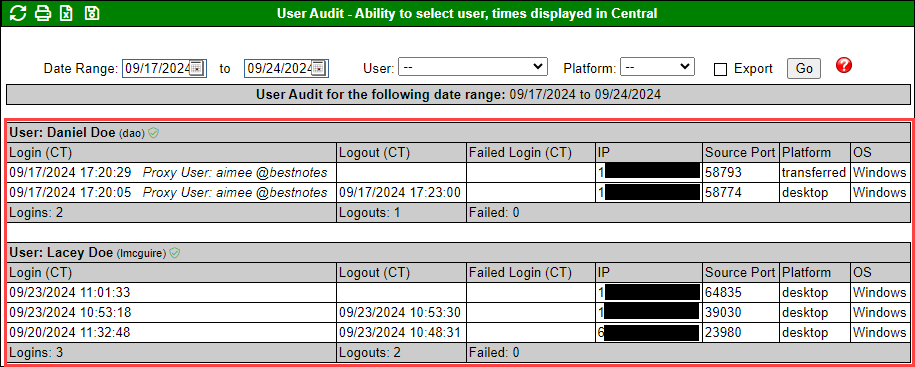
This report displays an audit of each user's login and logout information, including any failed login attempts and any proxy users. Proxy users occur when a secondary login is required, such as for the System Administrator user login, or when BestNotes logs in to assist you. This report also informs you of the IP Address when they logged in, the platform they logged into, and the operating system they were using.
This report allows you to set your filters based on the following:
- Date Range.
- User.
- Platform - Desktop, mobile, app suite.
- Export - Changes the format of the report to be export friendly.
Once you have set your filters, select "Go." This report will display the following information for each user:

- Name and User ID - If the user has a verified email, you will see the verified symbol here as well.
- Login - Date and Time in Central Time.
- Logout - Date and Time in Central Time.
- Failed Login - Date and Time of any failed logins in Central Time.
- IP - IP address when they logged in.
- Source Port - this is a device identifier.
- Platform - Desktop, mobile, appsuite - eMAR, transferred - DrFirst, Claims Report, Labs Session.
- OS - Operating System.
In addition to these parameters, it will show you the total number of "Logins", "Logouts", and "Failed" at the bottom of each user report.
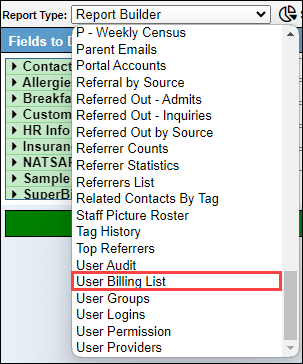
User Billing List
This user report will display all of the users in your system that you will be billed for. When you open this report, both filtering checkboxes will be selected by default.
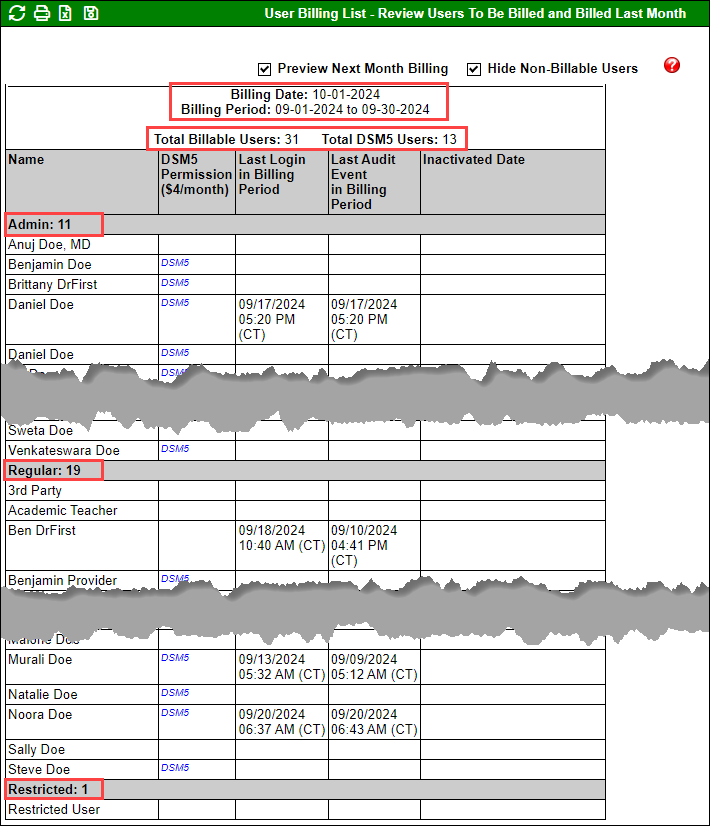
This report allows you to filter by un-selecting the following checkboxes:
- Preview Next Month Billing - If unselected, will show your last month's billing.
- Hide Non-Billable Users - If unselected, will also show all Calendar Resource and Inactive users.

This report will display the billable users for the current month, or the previous month. The billing date, and billing period will be displayed at the top of the report, including the "Total Billable Users" and the "Total DSM5 Users." These users will be categorized in the report by "Admin", "Regular", and "Restricted."
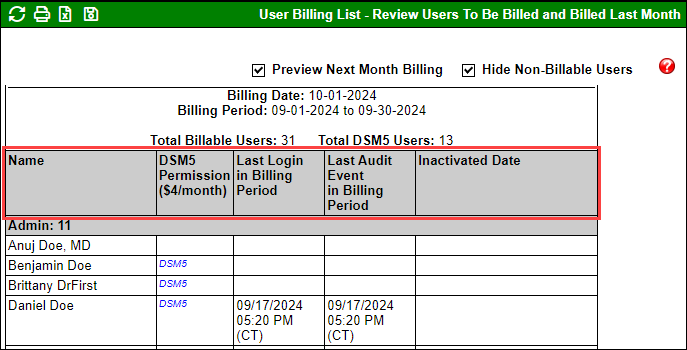
For each user, you will see the following metrics:
- Name - User's first and last name.
- DSM-5 Permission - If this user has the DSM-5 permission, this will display a blue DSM5 in this column.
- Last Login in Billing Period - the last time the user logged in within the billing period.
- Last Audit Event in Billing Period.
- Inactivated Date - Date the user was inactivated, if they were inactivated that month.
User Groups
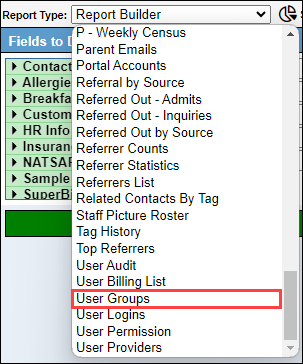
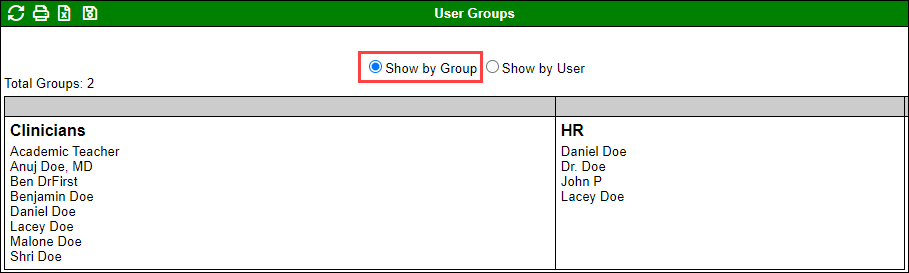
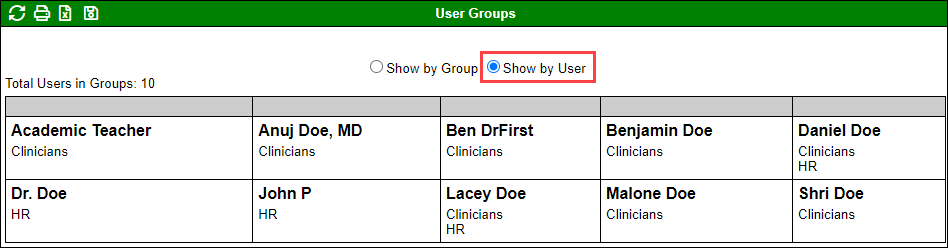
The User Groups report will show you all users in all groups. It will also display the total number of groups at the top.
This report can be filtered by selecting the following options:
- Show by Group - This will display each group, listing all of the users assigned to that group.
- Show by User - This will display each user, listing all of the groups that user is assigned to.
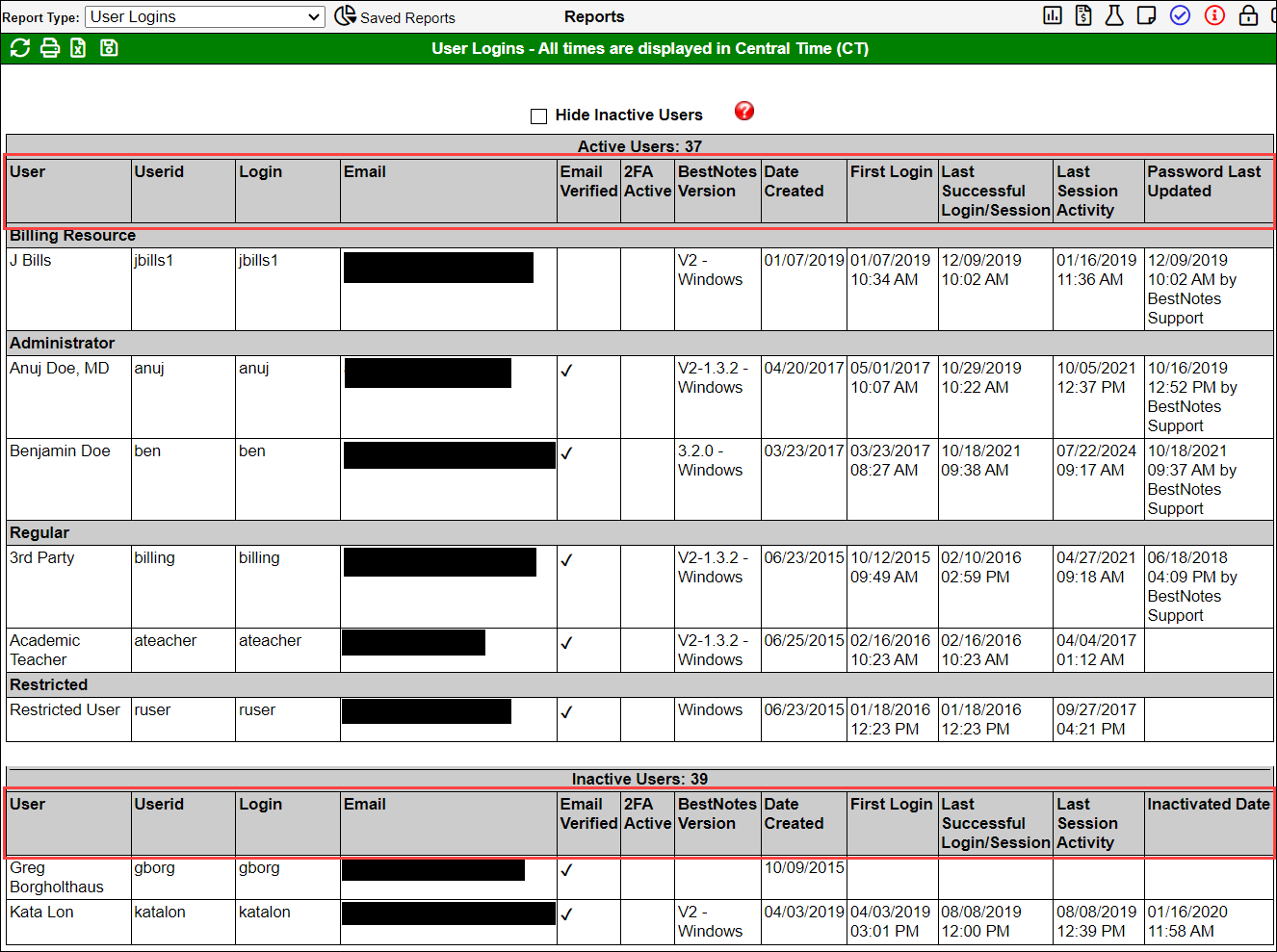
User Details
The User Details report can be used to find a variety of information about your user and their login data.
This report allows you to filter by unselecting the "Hide Inactive Users." By default, this checkbox will be selected, and only show you the active users. These users are also categorized by the user type (i.e., Administrator, Regular, Billing Resource, etc). If "Hide Inactive Users" is un-selected, the Inactive users will be listed at the bottom, after all of your active users. This will also display the total number of active/inactive users at the top.
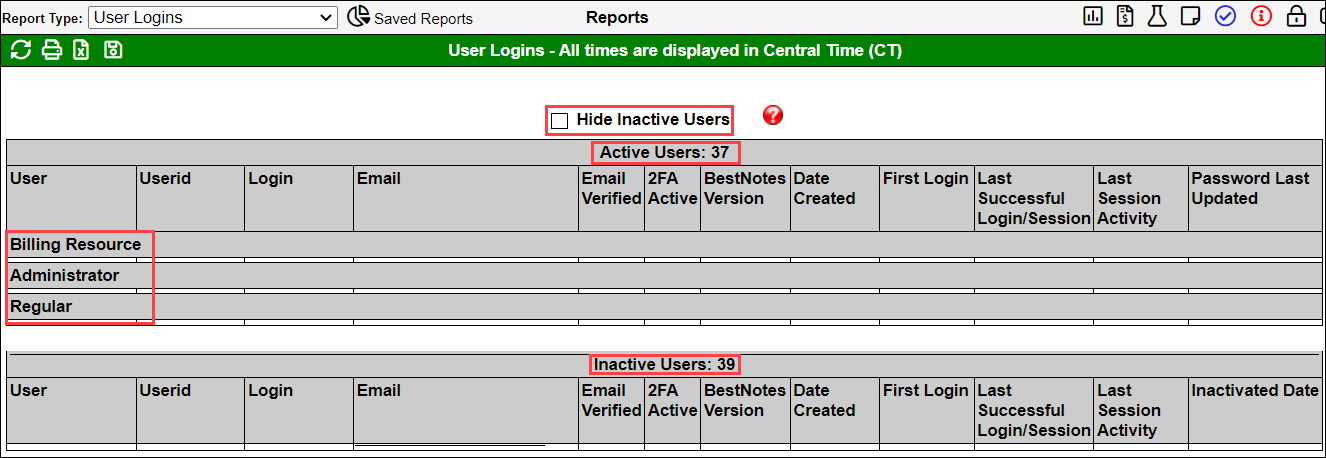
For each user you will see the following metrics:
- User - First and last name of user.
- User id - This cannot be changed once it is created.
- Login id - This is what is used when the user logs into BestNotes, and can be changed if needed.
- Email - Displays the email saved for that user.
- Email Verified - Has the user verified their email address.
- 2FA Active - Has the user activated 2-Factor Authentication.
- BestNotes Version - Shows the Version of BestNotes and the Operating System the user is currently utilizing.
- Date Created - Shows when the user account was created.
- First Login - The user's first login date and time (Date and time in Central Time).
- Last Successful Login/Session - The user's last successful login session (Date and time in Central Time). This does not count entering the password to unlock an existing session.
- Last Session Activity - The user's last session activity, or if the session is locked, but they have received notifications, items for review, etc. Hovering over the date will show you weeks/days since last activity.
- Password Last Updated - The date the password was last updated, and the user that updated the password (Date and time in Central Time).
- Inactivated Date - Only for users in the "Inactive Users" area.
User Permission
The User Permissions report allows you to see which users have which permission.
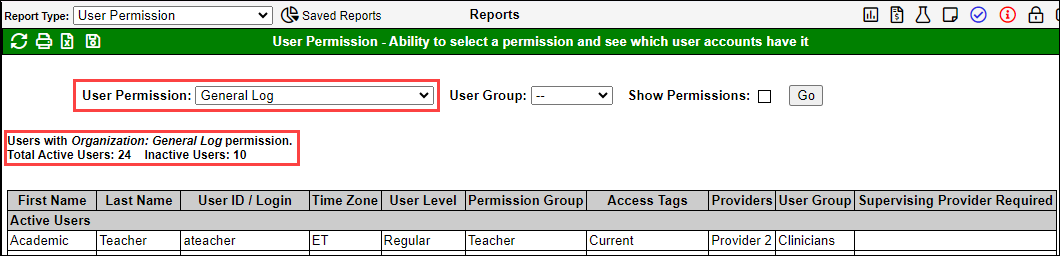
This can be filtered by:
- User Permissions - If you would like to select a specific permission.
- User Group - To view permissions based on a user group.
- Show Permissions - To show all permissions assigned to each user.
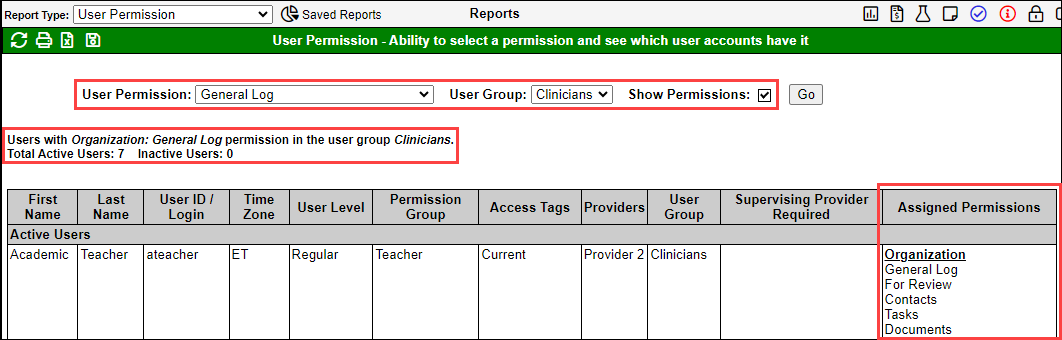
When a "User Permission" is selected, the top area will display the permission selected, and the number of active and inactive users that currently have the permission selected. Then the users will be listed in the report.
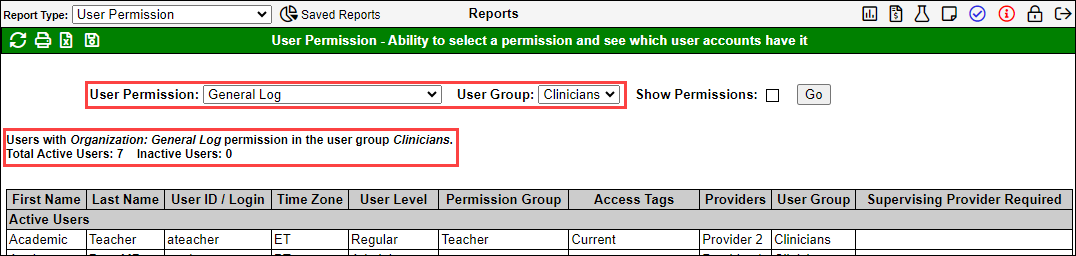
If you further define the parameters by also selecting a "User Group", the top area will display the permission selected, the User Group selected, and the total number of active and inactive users that currently have that permission selected. Then the users will be listed in the report.
Adding the "Show Permissions" checkbox will display all of the permissions for the Users with the selected permission that are also in the selected group.
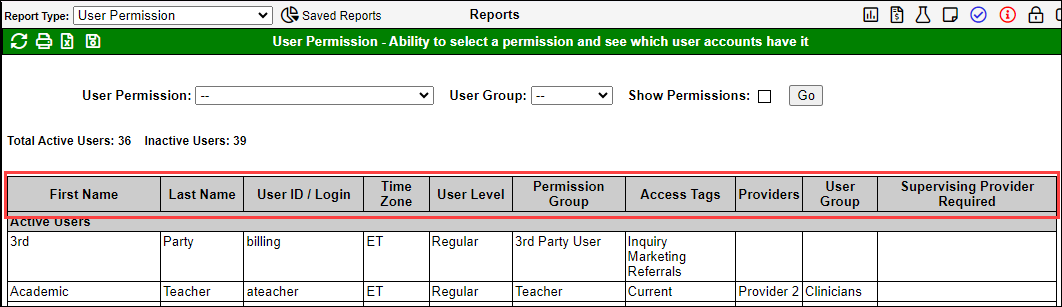
By default this report will display total number of active and inactive users at the top, and then the following information:
- First Name
- Last Name
- User ID/Login
- Time Zone
- User Level
- Permission Group
- Access Tags
- Providers
- User Group
- Supervising Provider Required
- Assigned Permissions - Only if the "Show Permissions" checkbox is selected.
User Providers
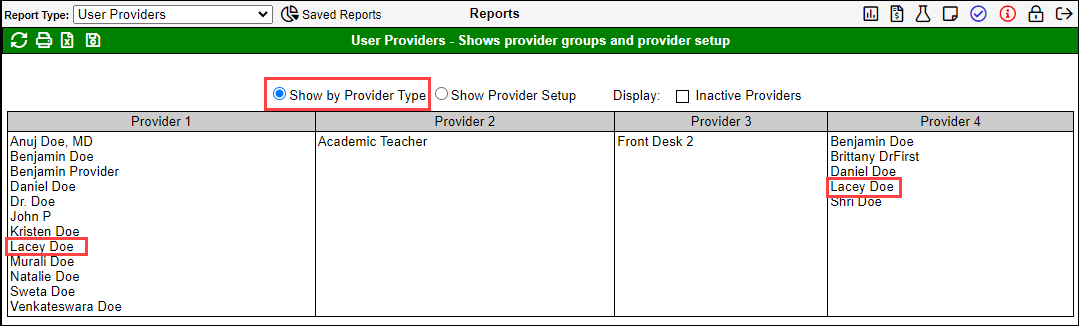
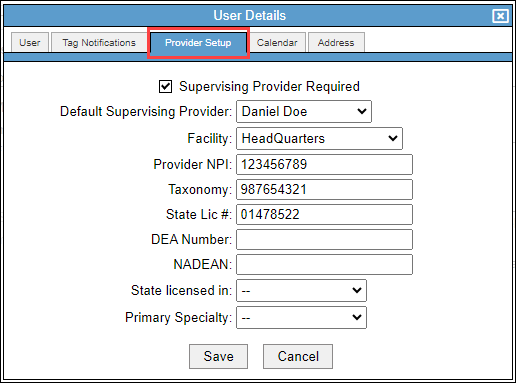
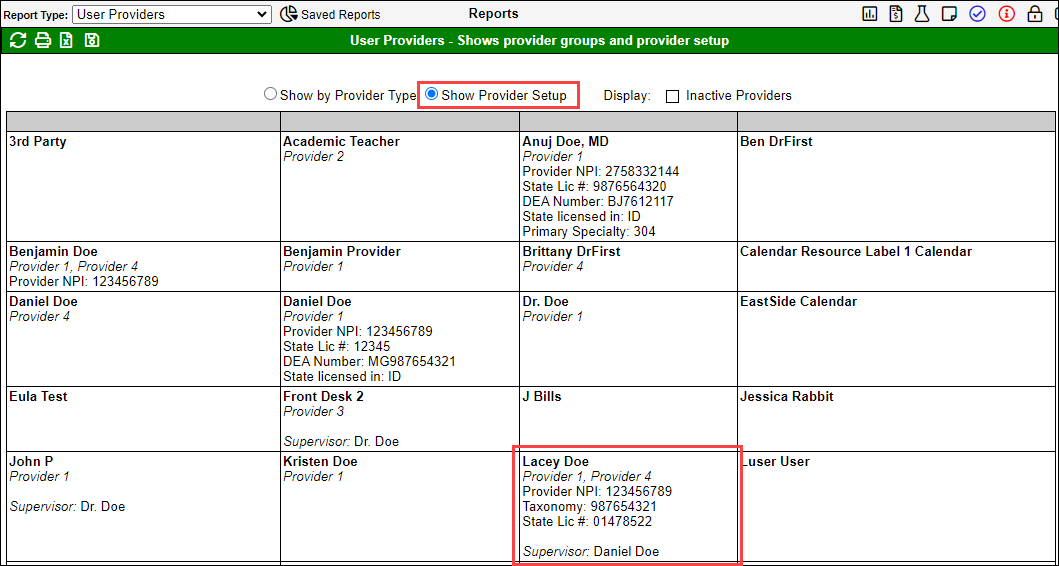
The User Provider Detail report allows you to see which users have "Provider Types" assigned, and will also allow you to see the information included in the "Provider Setup."
The "Provider Types" are defined in the User Details within the "Provider Types" area by selecting the checkbox associated. These Provider Types can be modified by company, so your Providers Types may be different.
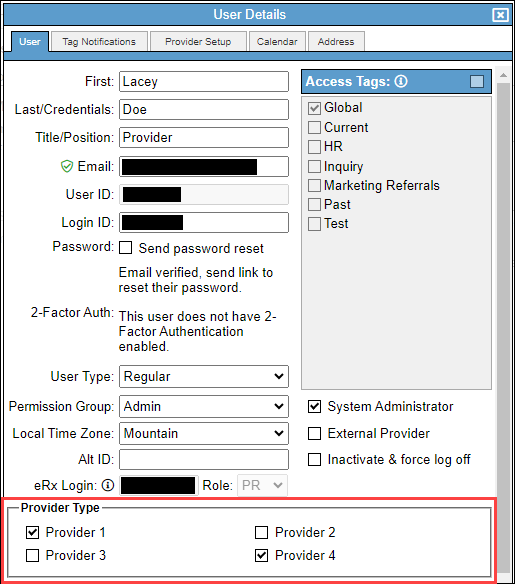
When "Show by Provider Type" is selected, the user "Lacey Doe" will be listed below "Provider 1" and "Provider 4" as defined in the "User Details."
The "Provider Setup" will list the Provider Types below each name, but will also display the information entered on the "Provider Setup" tab.
Pricing
For information regarding pricing for features like DSM-5 permissions, please visit our pricing page: https://www.bestnotes.com/pricing
Next Steps
- See also: User Groups
- See also: All user permissions