This article provides instructions on how to configure Microsoft Edge to allow pop-ups from DrFirst, resolving issues with DrFirst not opening.
Permissions Required
No specific BestNotes permissions are required.
Configuring Microsoft Edge Pop-up Blocker for DrFirst
- From your Microsoft Edge browser, select the menu in the top right corner.
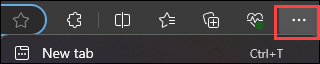
- Select "Settings."

- Select "Cookies and site permissions."
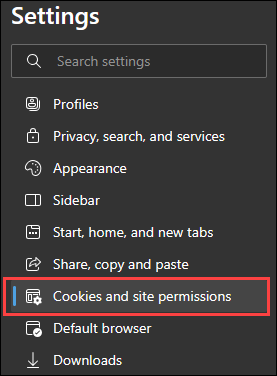
- Scroll down to and select the "Pop-ups and redirects."

- Then next to the "Allow" option select, "Add."
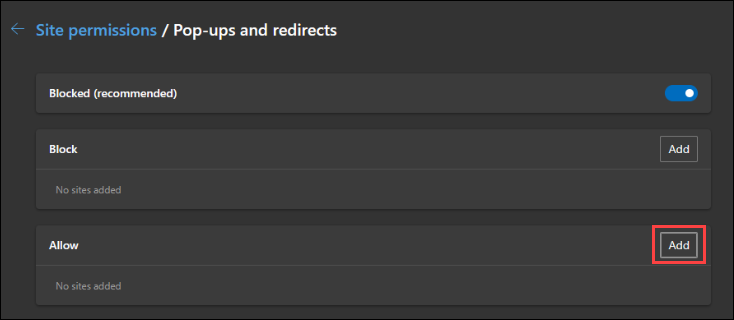
- In the "Site" field, type: https://www.drfirst.com/ and select "Add."

You should now be able to open DrFirst. You can test this by selecting the "ePrescribe" button on a client's chart.
Back to top of page