This article explains how to add an exception for DrFirst in Firefox's pop-up blocker settings, resolving issues with DrFirst windows not opening.
Permissions Required
No specific BestNotes permissions are required.
Adding a Firefox Pop-up Blocker Exception for DrFirst
- From your Firefox browser, select the hamburger menu in the upper right corner.
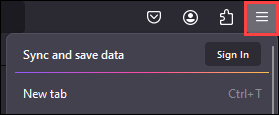
- Select "Settings."

- Select "Privacy & Security."
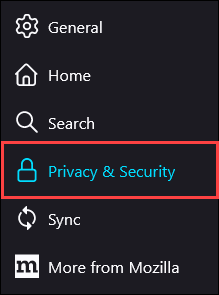
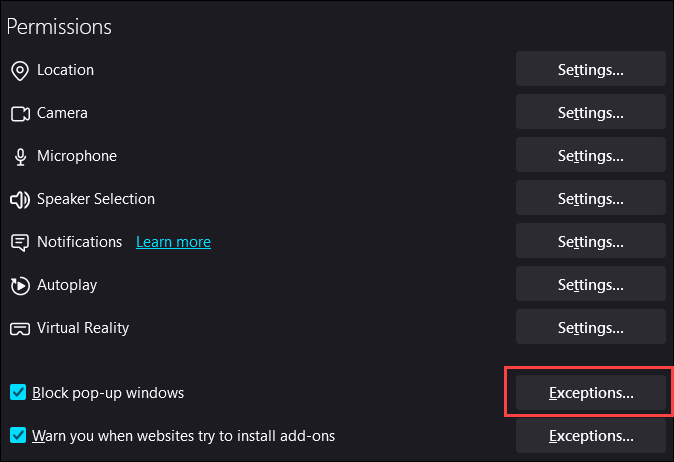
- Scroll down to the "Permissions" section.

- Next to the "Block pop-up windows" option, select "Exceptions..."
- In the "Address of website" field, type in: https://www.drfirst.com/.

- Select "Allow", then select "Save Changes."

You should now be able to open DrFirst. You can test this by selecting the "ePrescribe" button on a client's chart.
