This article provides tips and tricks for effectively using AutoNotes™ in BestNotes, covering features like subheaders, preselected options, live editing, hidden text, and creating new AutoNotes™ from templates.
Permissions Required
- Manage AutoNotes™
Visual Tutorial
Click Play button
Tips and Tricks for AutoNotes™
_Subheader
To create subheaders in multiple choice options, hit enter where you want it to go and type in underscore before it. For example, _Subheader
This does not populate the template, but displays in the AutoNote™ window for your reference. For example, an AutoNote™ only has 8 multiple choice areas, but unlimited Subheaders.

@Preselected
If you would like to populate a template with a long list of options, such as facility services, use the preselected trick. Put the “@” symbol before any variable option.

This automatically selects these options in the AutoNote™ to be populated in the Template. If you know a client is not going to use all your services, simply unselect the options the client doesn’t want. This method is faster than trying to select all the services every time.

Edit Live AutoNotes™
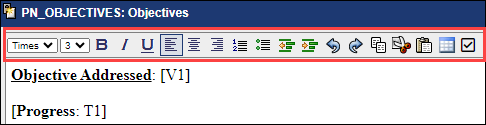
Just like Templates, a user without the Manage AutoNotes™ permission can change anything in the text area before Appending to the document. Such as:
- Bold a header
- Remove/Add a [V1] or [T1] option
- Remove and/or add a header if using the Append Multiple button (Saves content to Template and re-opens AutoNote™)

Hidden Text
Keep your Template condensed by having hidden text headers. For example, if you do not want the word “Progress” to show when people leave the T1 box empty, place the start bracket [ before the text.
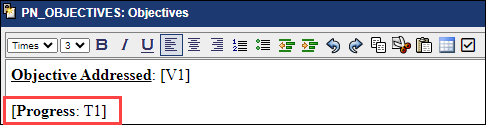
This works for users who do not want to leave an answer and do not want to have the word “Explain” to populate the template.
New AutoNote™ in Live Template
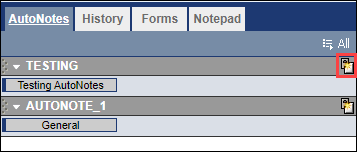
To create a New AutoNote™ for a collection using a live template is to click on the icon in the corner of each AutoNote™ section.