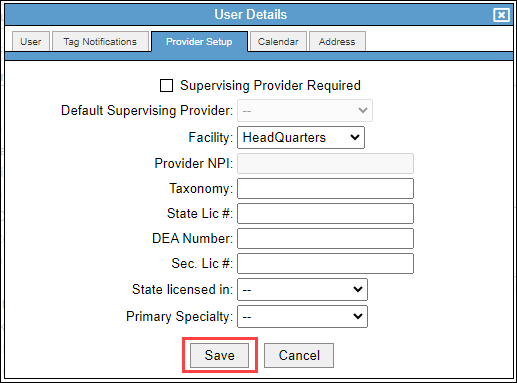
The Provider Setup tab has several uses, including assigning a supervising provider, entering billing details, and configuring DrFirst settings. This document describes the fields on this tab and their functions.
Permissions Required
- Manage Users
Configuring Provider Setup
Navigate to Provider Setup
- Navigate to "Settings", then select "Users."
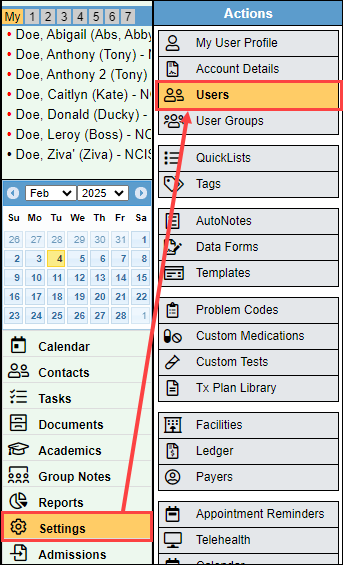
- Select the user you need to update.
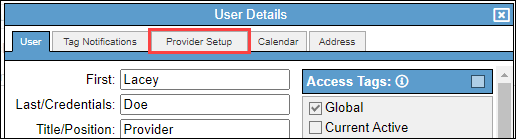
- Select the "Provider Setup" tab.
Manage Provider Setup tab
When managing the Provider Setup tab, some items will populate into other areas of BestNotes.
- The "Supervising Provider Required" checkbox will require a "Default Supervising Provider" to be selected. Adding a supervising provider will result in the following actions:
- Add the indicated supervisors NPI to claims.
- Add the supervisor as a signer to all of the users templates.
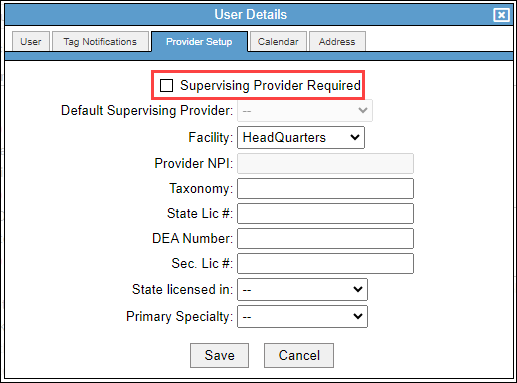
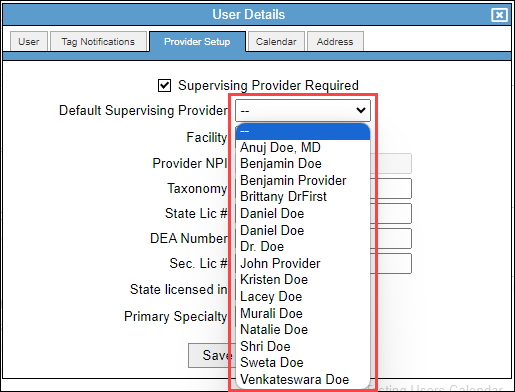
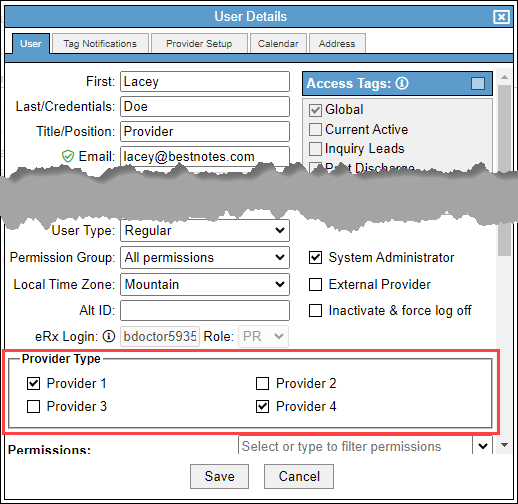
- The "Default Supervising Provider" list includes users that have at least one of the "Provider Type" checkboxes selected in the "User Details."
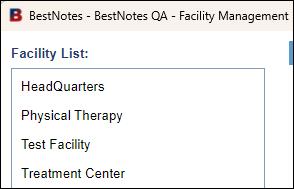
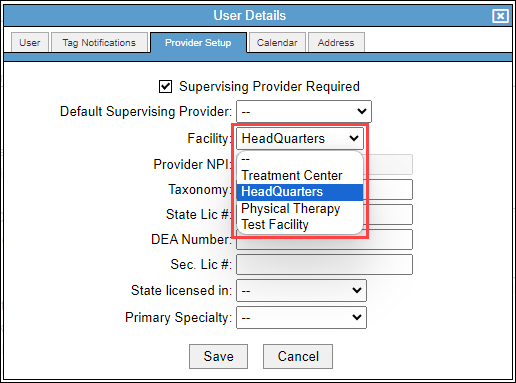
- The "Facility" drop-down will include any "Facilities" created by the System Administrator within your account.
- If the "Provider NPI" is blank, and uneditable, and you need to enter the number, contact BestNotes Support.
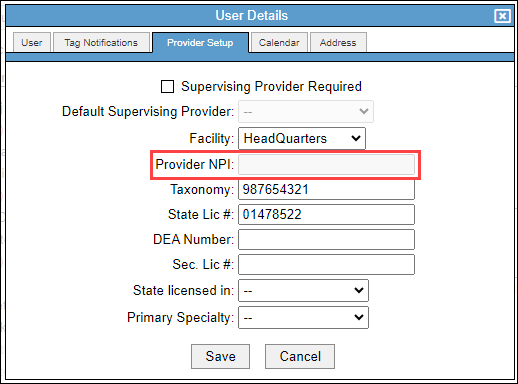
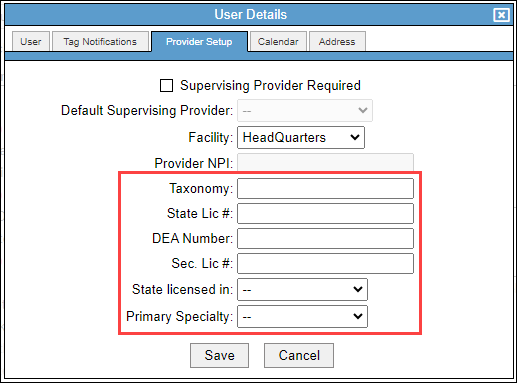
- You can fill out the following fields as needed:
- Taxonomy
- State License #
- DEA Number
- Sec. License #
- State licensed in
- Primary Specialty
- When you have the necessary information, select "Save."