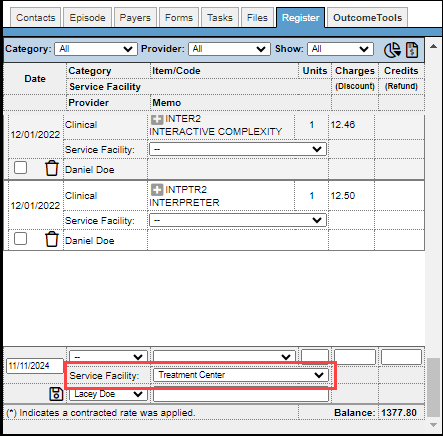
Use the Facilities section to define your service locations. This guide covers how to create, manage, and utilize facilities across the platform.
Permissions Required
- Manage Facilities
Manage Facilities
The user permission required to manage your facilities is the "Manage Facilities."
Create a Facility
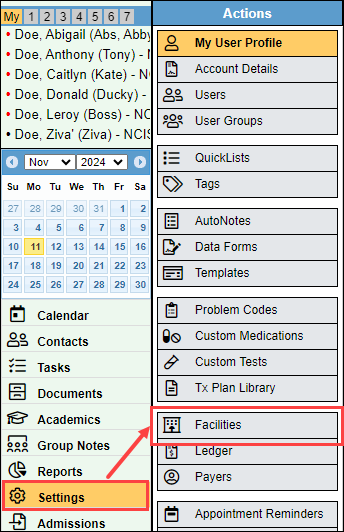
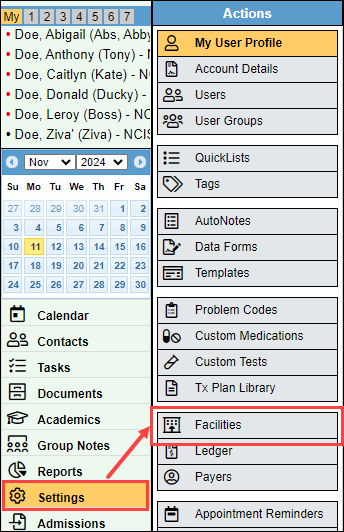
- Navigate to "Settings", then select "Facilities."
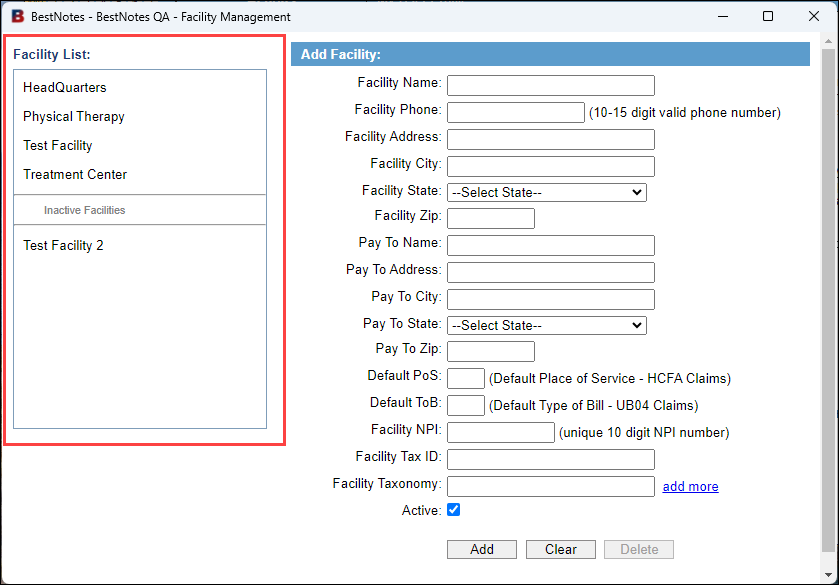
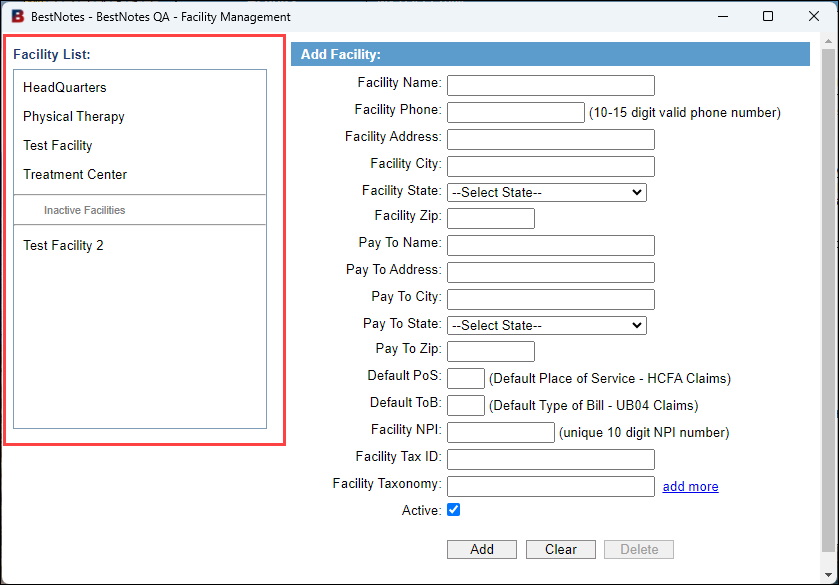
- On the left hand side you will see a "Facility List." This will display any existing Facilities that you may have.
- On the right hand side, the header will say "Add Facility." Enter your Facility information.
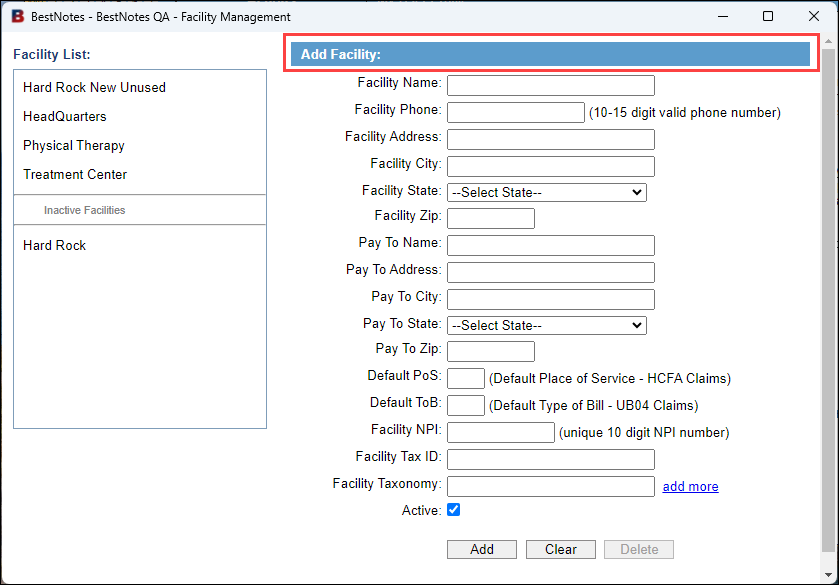
- Once you have entered all the required information, select "Add."
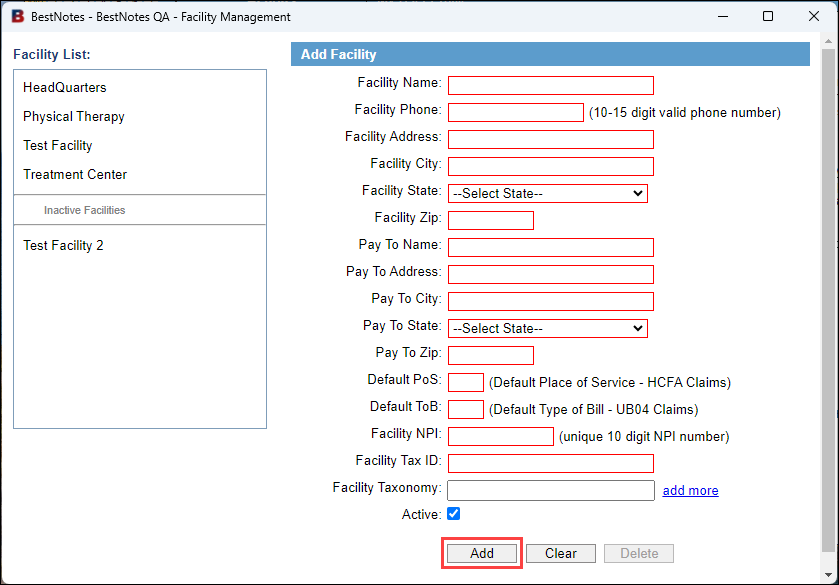
Update existing Facility
- Navigate to "Settings", then select "Facilities."
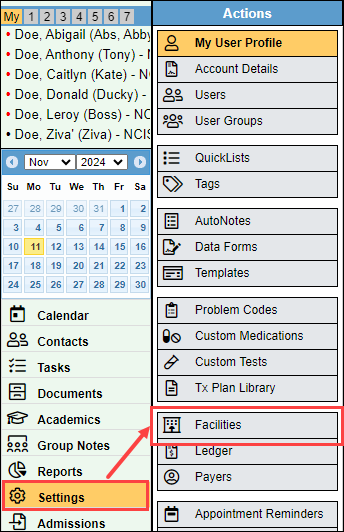
- On the left hand side you will see a "Facility List." This will display any existing Facilities that you may have.
- Select the Facility that you would like to update.
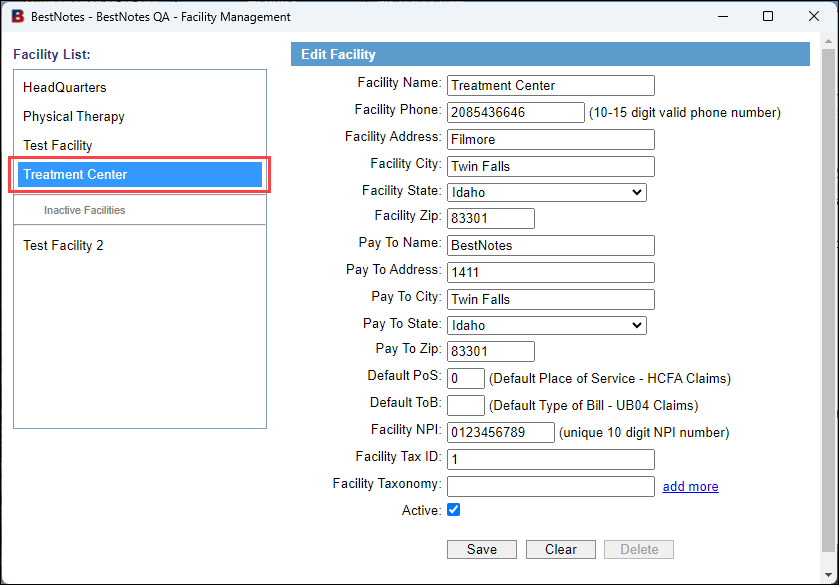
- On the right hand side, the header will say "Edit Facility." Update the necessary information.
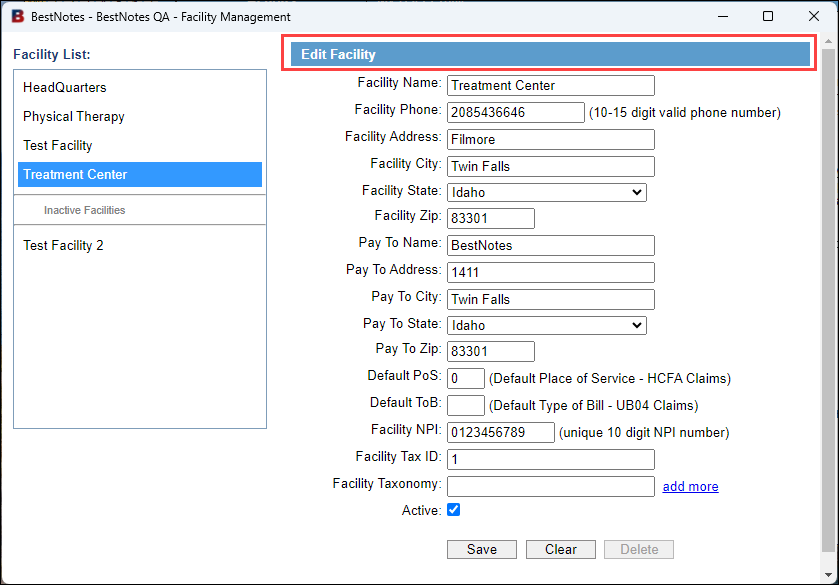
- Select "Save."
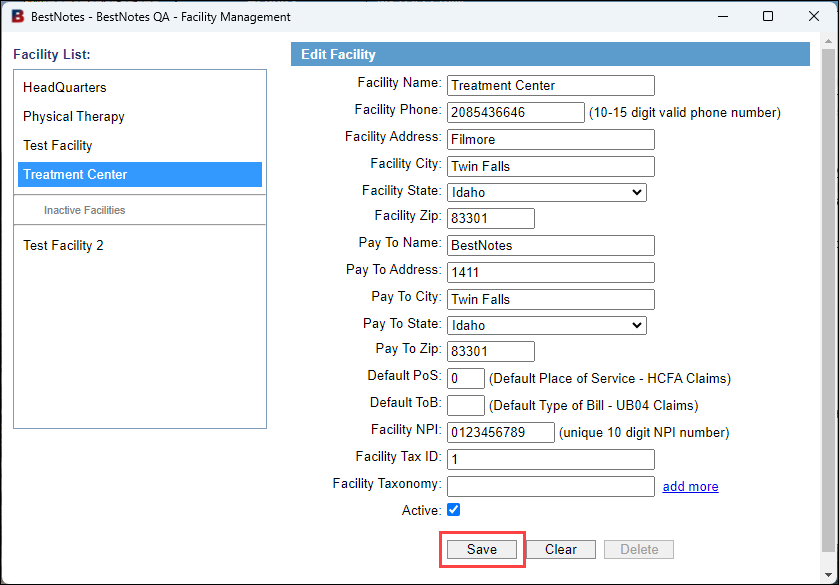
- If you select "Clear" this will not delete the Facility, but will clear the form to enter a new facility.
Inactivate or Delete an existing Facility
- Navigate to "Settings", then select "Facilities."
- On the left hand side you will see a "Facility List." This will display any existing Facilities that you may have.
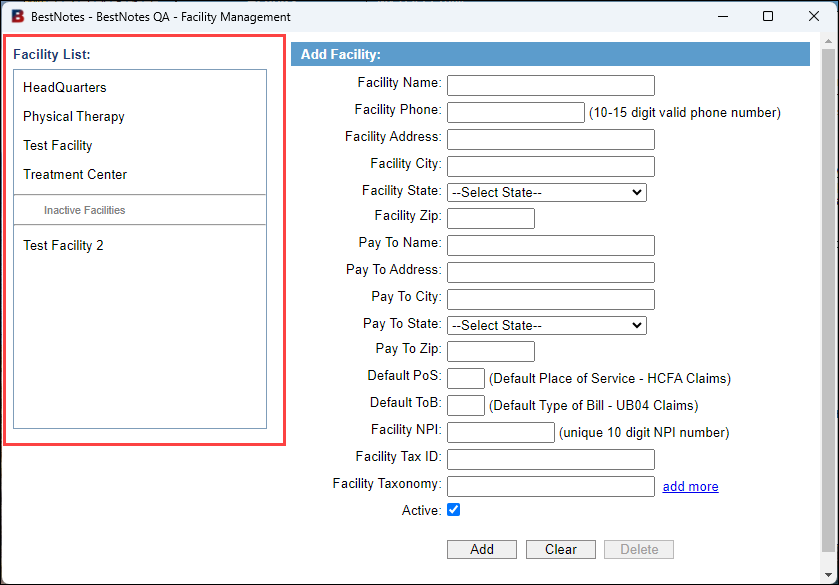
- Select the Facility that you would like to remove.
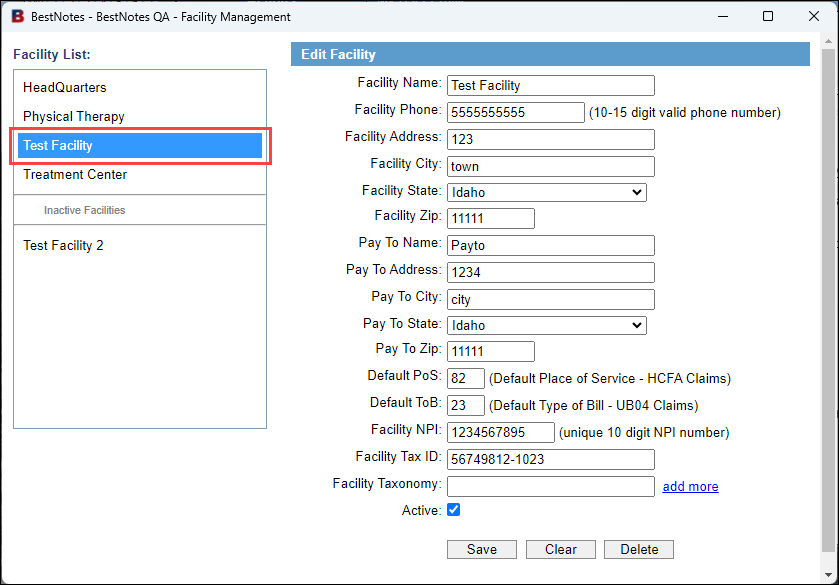
- On the right hand side, the header will say "Edit Facility." At the bottom, un-check the "Active" checkbox.
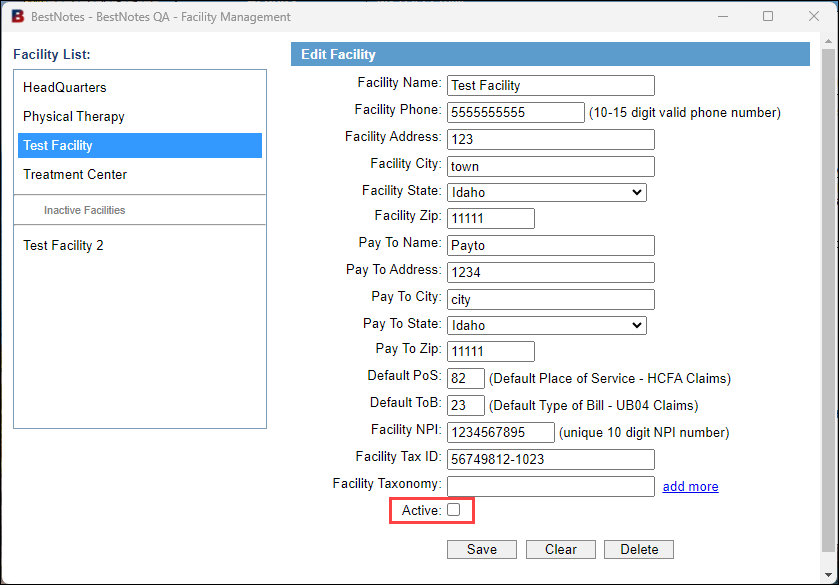
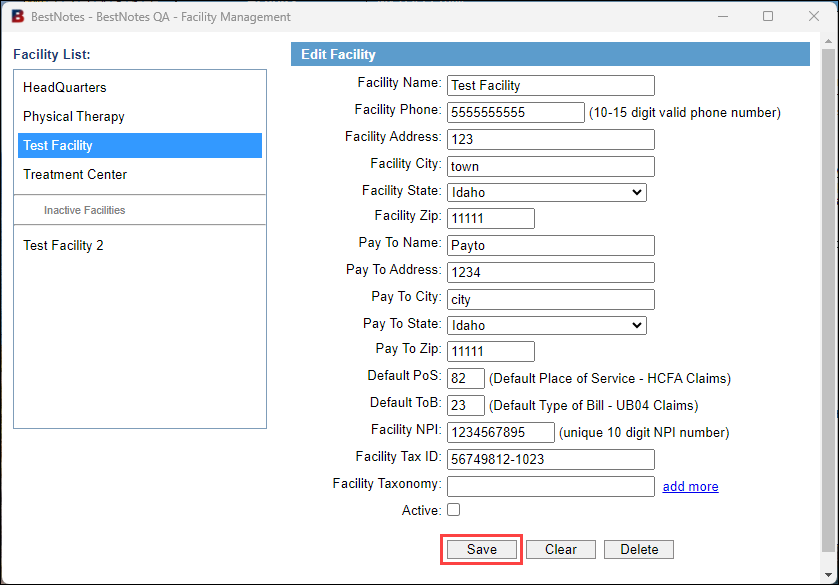
- Select "Save." This will Inactivate the Facility.
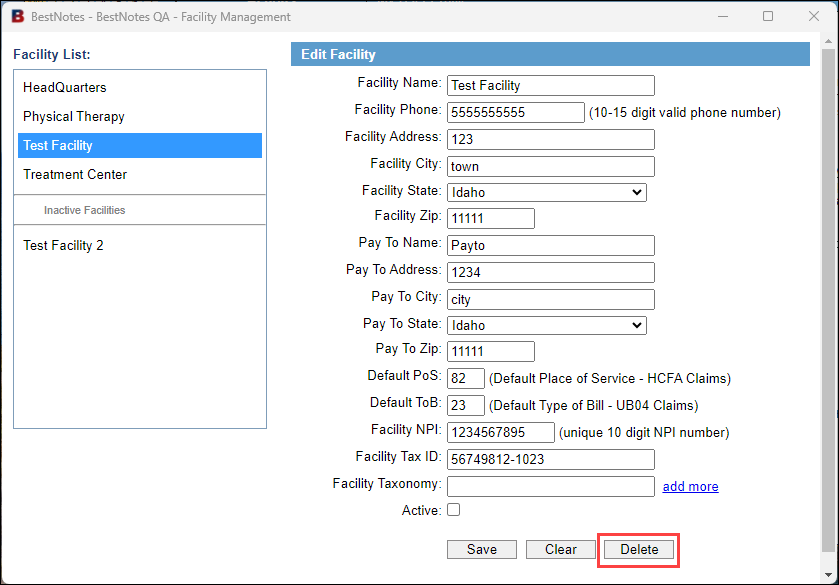
- To delete the Facility, select "Delete." It is not recommended to delete a Facility that has been used in your database.
Using Facilities
Episodes
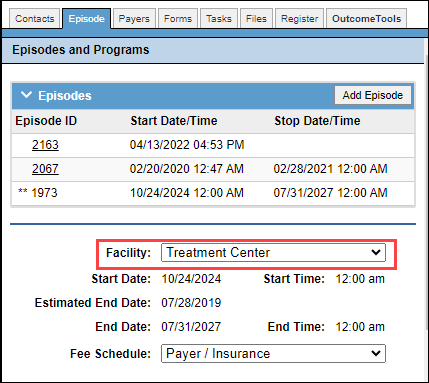
If a Facility is set in the "Episode" tab of the client's chart, all of the appointments and ledger items for that client will set the Facility when created.
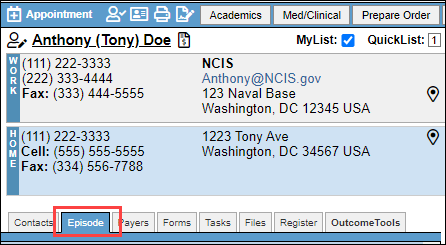
- Navigate to the Client's chart, and select the "Episode" tab.
- Select the "Facility" drop-down.
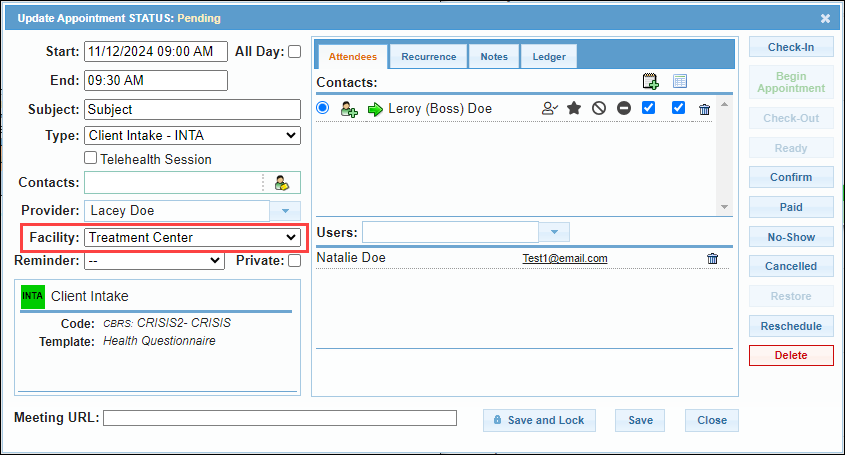
Appointments
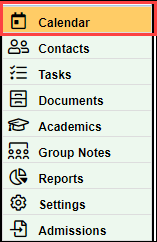
- Navigate to the "Calendar" tab.
- Create a new appointment, or select an existing appointment.
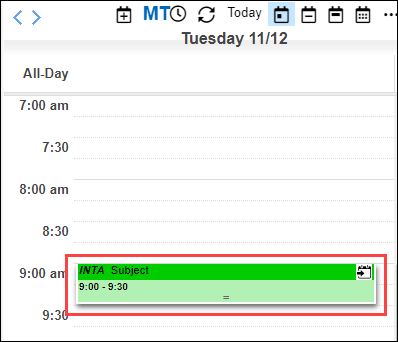
- Navigate to the "Facility" drop-down to select the Facility.
Register
- Navigate to the Client's chart and select the "Register" tab.
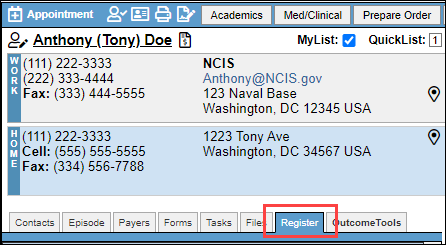
- Select the "Facility" drop-down to select the Facility.