This article provides instructions on how to manage family health history within BestNotes, covering how to add family members and their associated diagnoses.
Permissions Required
- Family Health History
Managing Family Health History
NOTE: If your company re-arranged the Med/Clinical tabs during Onboarding, the Family Health History tab will need to be requested by your System Administrator to be added by BestNotes Support.

Add Family Member
There are two options:
- Select from an existing Related Contact found on the Contact's page OR a member already added in this tab.
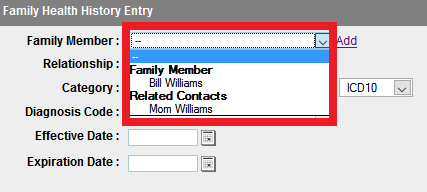
NOTE: Any change to a Family Health History Relationship will NOT change the Contact's tab Relationship. The Relationship dropdown menu is to make a change if the Contact's tab Relationship does NOT reference/reflect/equal the biological relationship to the client. (e.g. a mom is designated as Caregiver on the Client's Contact tab, but needs to be Mother in Family Health History tab)
OR
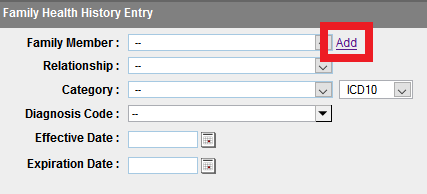
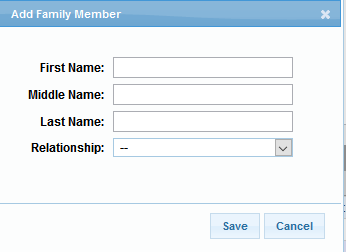
- Click Add and create a family member (NOTE: This does NOT add a contact to the Contact's tab)
Add a Family Diagnosis
- Select a Diagnosis System (e.g ICD10, DSM5).
- Select a Category.
- Select a Diagnosis Code (This is a search engine as well).
- Enter an Effective Date and an Expiration Date.
- Enter a Comment as needed.
- Save.
NOTE: Diagnoses will not transfer to a Related Contact if they become a client.
Miscellaneous
The blue double down arrows OR the Show All button displays the Family Member's Diagnoses.
Pencil Icon
- On a Family Member's name opens the Edit window.
AND
- On a Diagnosis opens the Family Member's Diagnosis edit screen.