You can add and manage custom problems. These will be available as options to select in the med/clinical of a client's chart.
Permissions Required
- Manage Tx Plan Library
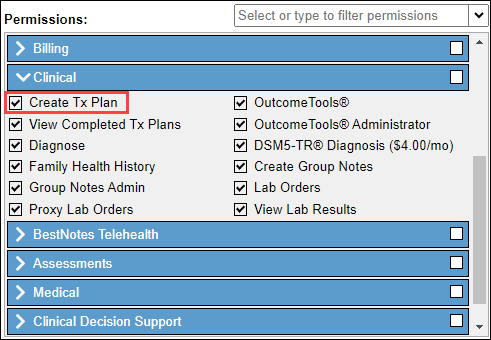
- Create Tx Plan
Managing Custom Problems
Navigate to Treatment Plan Library
- Navigate to "Settings" and "Tx Plan Library."
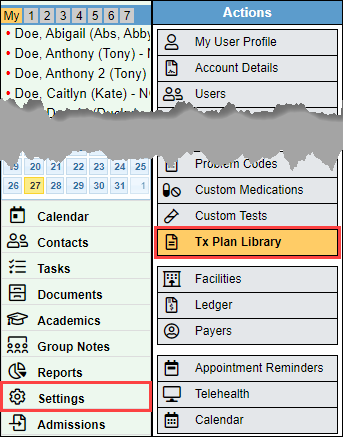
- This will bring you to the main window for the Treatment Plan Library.
Manage Custom Problems
To add and manage custom problems, you must have the "Manage Tx Plan Library" permission.
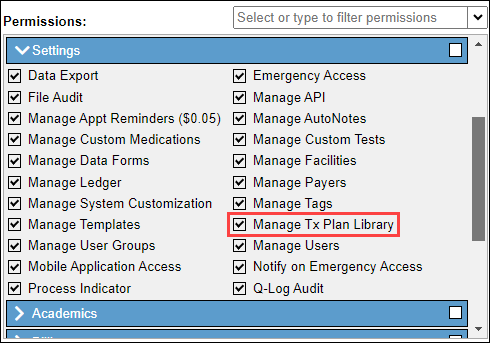
- Select the "View/Edit Custom Problems" button.
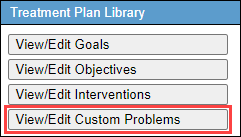
Create New Custom Problem
- Select "Add Custom Problem" to create a new custom problem.
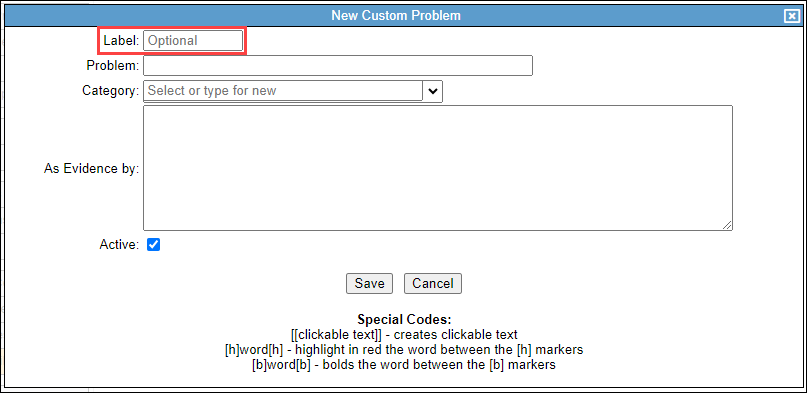
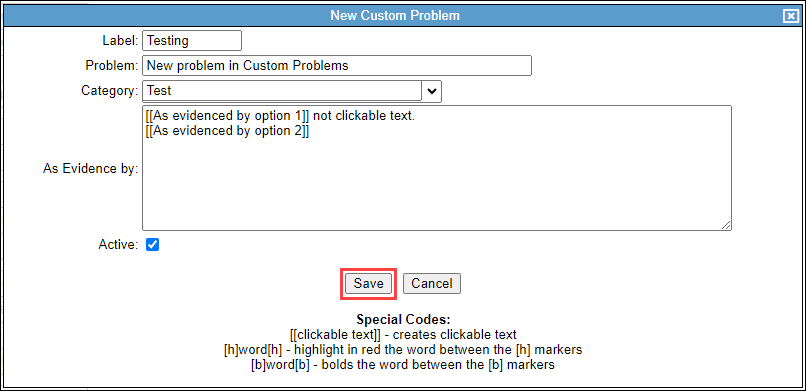
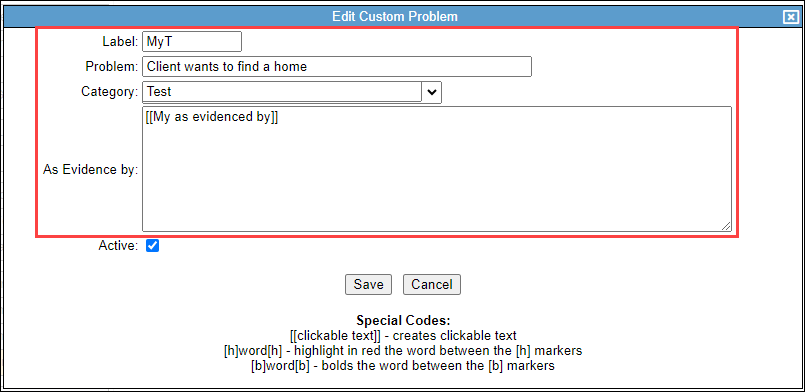
- Enter the "Label" if applicable.
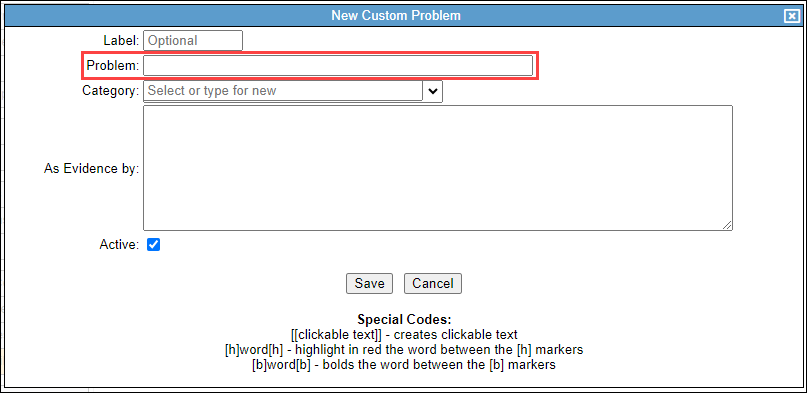
- Enter in the new custom problem in the "Problem" text area.
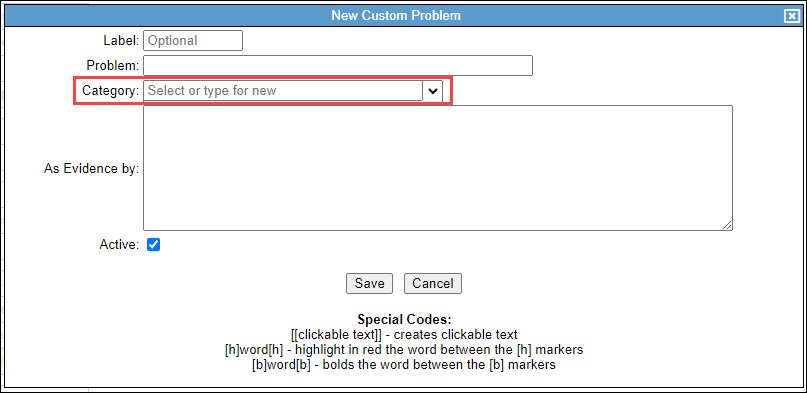
- Select the "Category" if applicable.
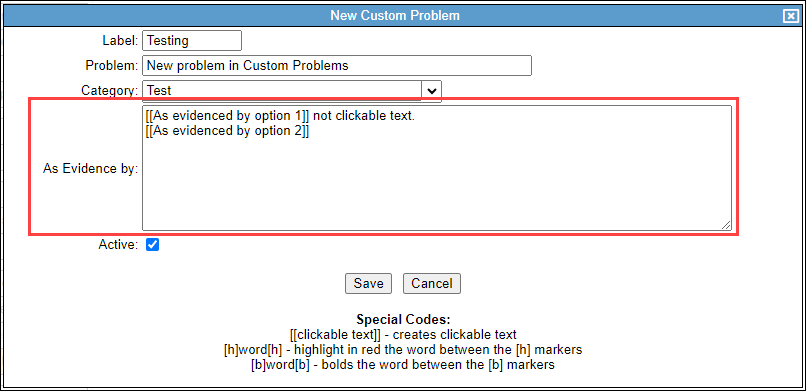
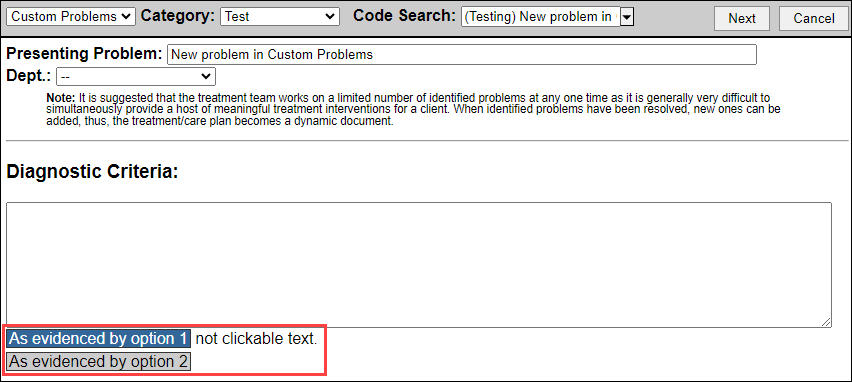
- Enter the "As Evidence by" using the special code "[[clickable text]]" This will allow you to select the As Evidence by options. At least one "Clickable" text is required to interact with the As Evidenced by.
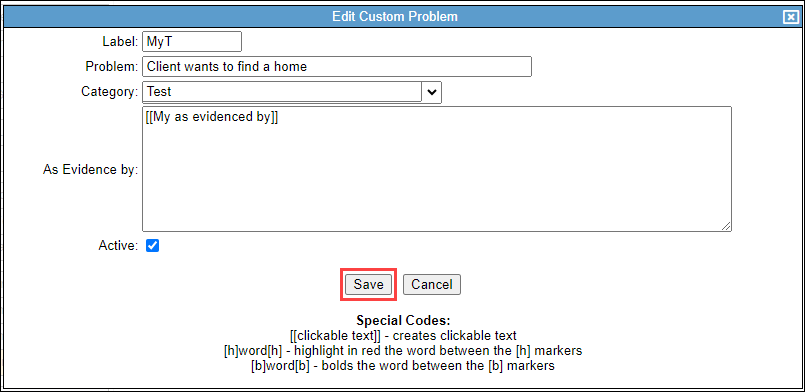
- Select "Save."
Update Existing Custom Problem
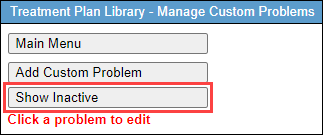
- To view inactive problems, select "Show Inactive."
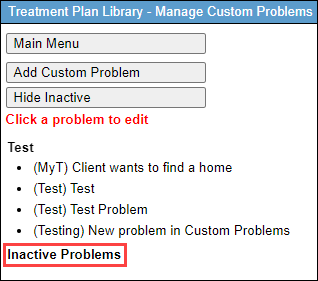
- Inactive custom problems will display below the active problems.
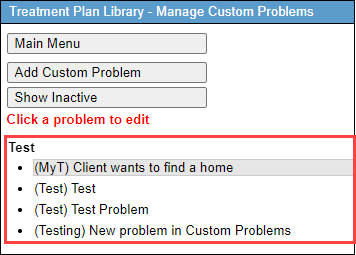
- To edit an existing goal, select the goal you would like to edit.
- Make any necessary adjustments.
- Select "Save."
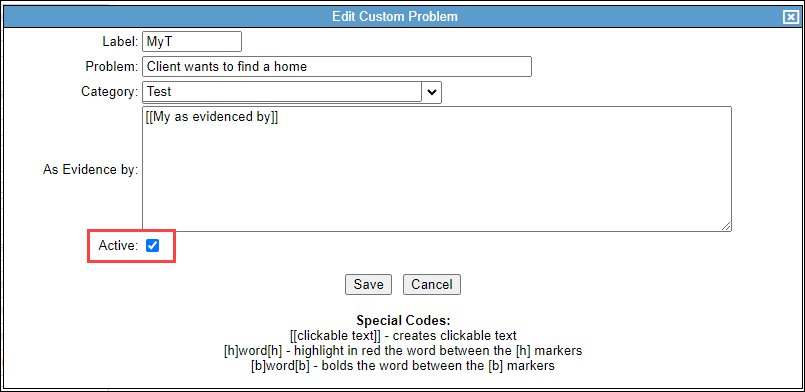
- Un-select the "Active" checkbox to inactivate the custom problem.
Apply a Custom Problem
To apply a custom problem to a client's chart you must have the "Create a Tx Plan" permission.
- Navigate to client's chart, and select "Med/Clinical."

- Select "Master Treatment Plan."
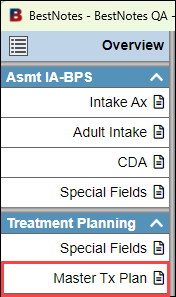
- Find the "Master Problem List", and select "Add Problem."

- In the "Code System" drop-down, select "Custom Problems."

- Select the appropriate "Category" and "Code Search" from the drop-downs.

- Select the appropriate options for the "As Evidenced by."
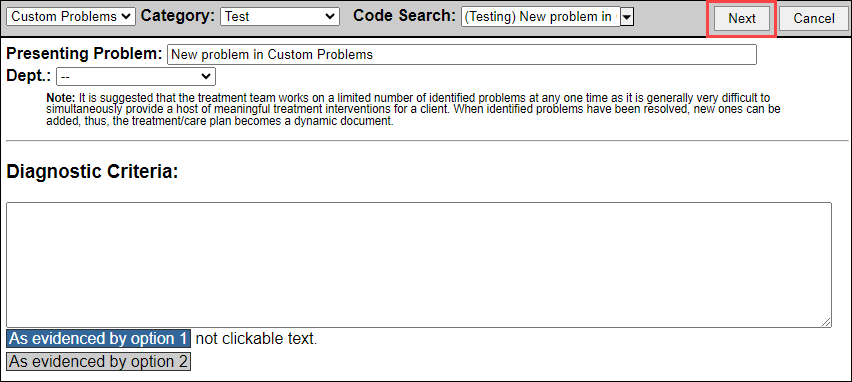
- Once you are done, select "Next." You will then be prompted to apply any goals, objectives and interventions.
- Once you are finished, select "Save & Continue."

Next Steps
- See also: Manage Goals
- See also: Manage Objectives
- See also: Manage Interventions