This article explains how to add and manage API credentials in BestNotes, including how to whitelist IP addresses for secure access.
Permissions Required
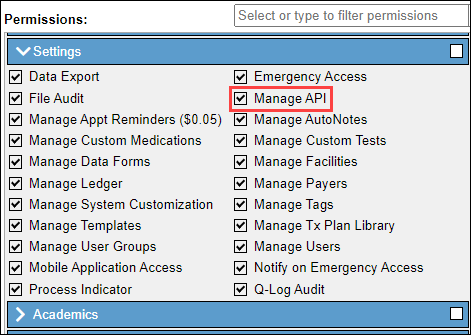
- Manage API
Managing API Credentials
To add API Credentials to BestNotes, you need the "Manage API" permission.
Add Credentials
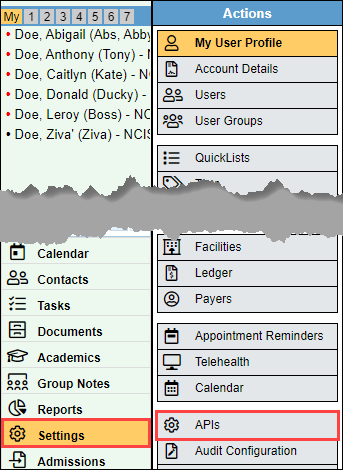
- Navigate to "Settings", then "APIs."
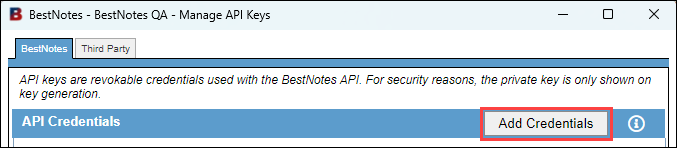
- Select "Add Credentials" to create a new set of credentials.
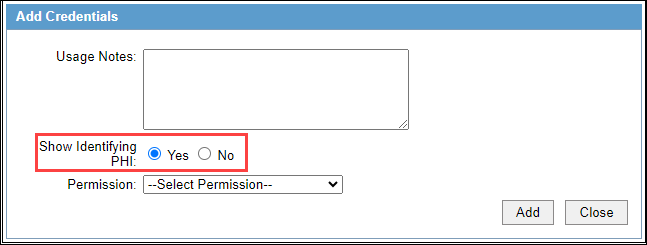
- Add in your "Usage Notes." This field is required.
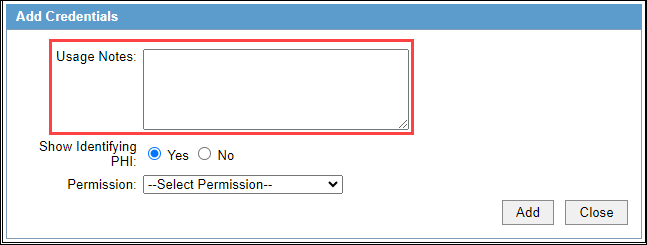
- Select if you want to "Show Identifying PHI." If you select yes, you are allowing Contact information to display through the API, and this sensitive information needs to be populated through a secure HIPAA compliant method.
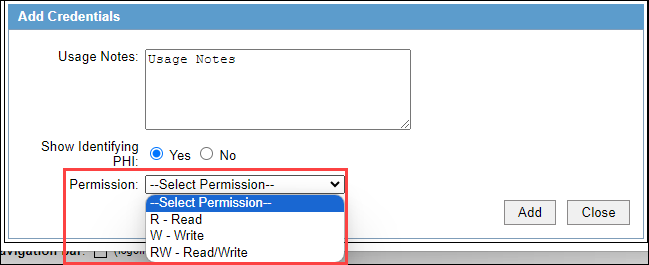
- Then you will select "Permission." This field is required.
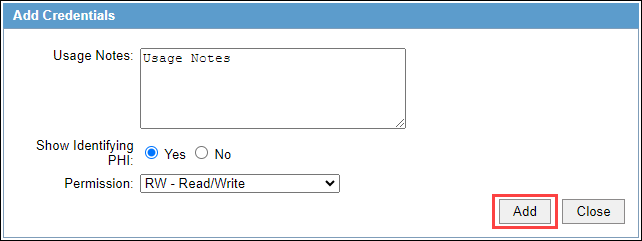
- Select "Add."
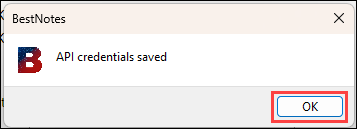
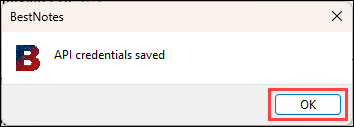
- You will receive an alert letting you know that the "API credentials saved." Select "OK."
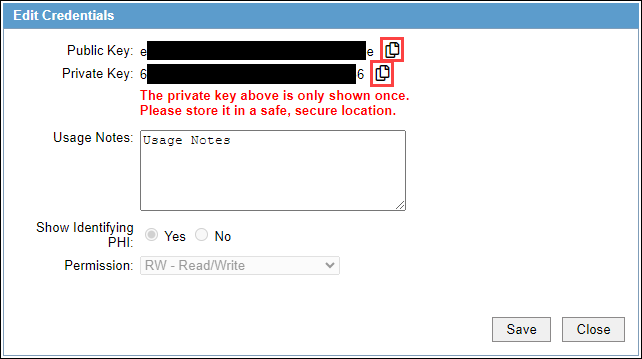
- You will only be able to view and save the "Private Key" this one time. Be sure to store it in a secure location. Do not email public and private keys. These keys need to be sent to a developer of your choosing via a secure HIPAA compliant method. You can copy the keys by selecting the copy icon on the right.
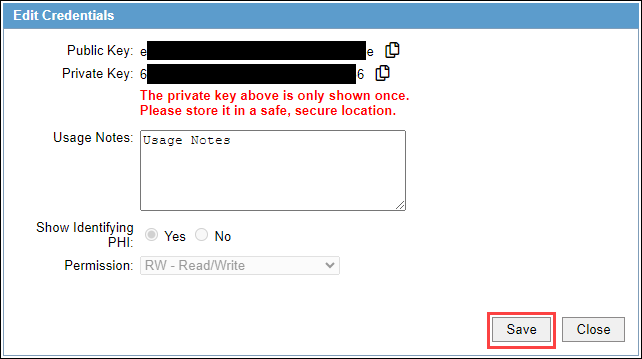
- When you are ready, select "Save."
- You will receive another alert letting you know the "API credentials saved." Select "OK."
Edit Credentials
- To view and edit an existing set, select the entry.
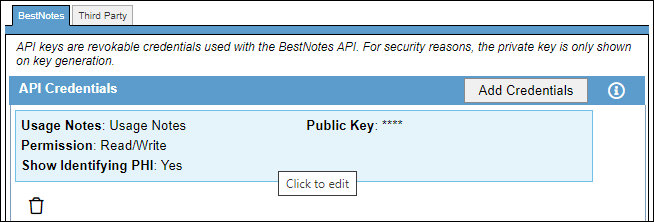
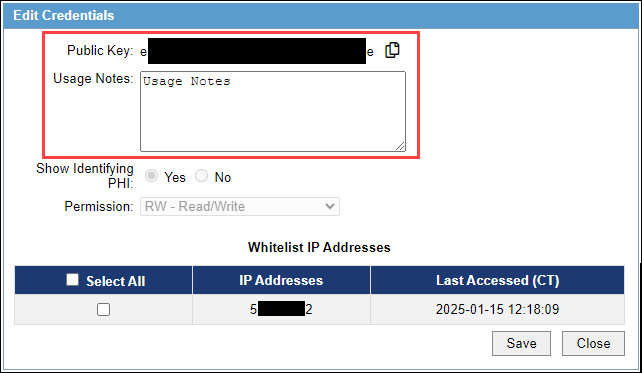
- You will have the ability to copy the "Public Key", or to update the "Usage Notes."
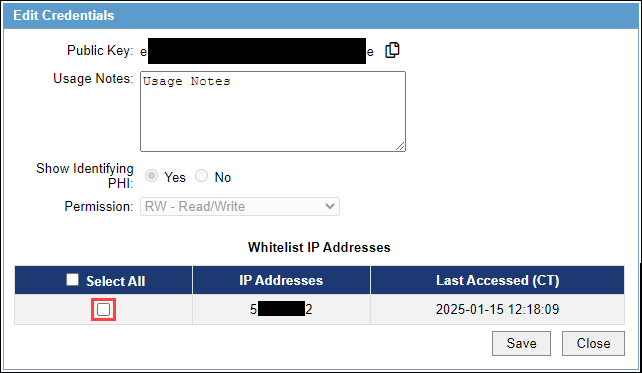
- Once a call is made using the set of keys, you will have the ability to whitelist the IP address that was used. In the "Whitelist IP Addresses" section, select the checkbox next to each IP address that you would like to whitelist. If you add an IP address to be whitelisted, only the IP addresses selected will have access to the API.
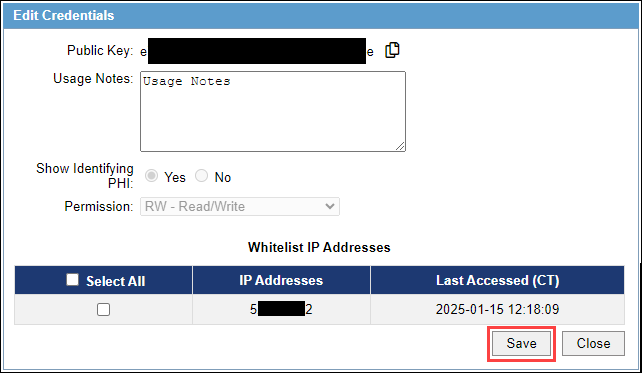
- Select "Save" when ready.
Delete Credentials
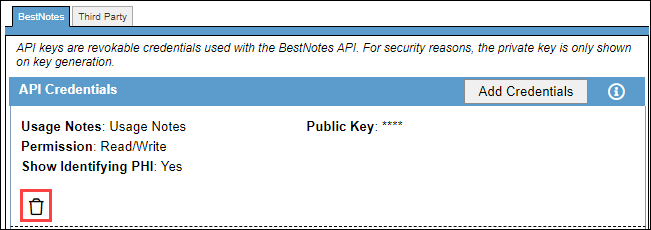
- For the entry that you would like to delete, select the trash can icon.
Next Steps
- See also: BestNotes API Documentation