This article explains how to enable and manage appointment reminders in BestNotes, including configuration options and how to review reminder reports.
Permissions Required
- Manage Appt Reminders
- Reports
Configuring and Managing Appointment Reminders
Before enabling appointment reminders, consider these important details:
- It is recommended best practice to add a statement to your company's Privacy Policy that lets your clients know that Appointment Reminders will be sent.
- To maintain HIPAA compliant standards, the content of the messages cannot be changed.
Enable Appointment Reminders
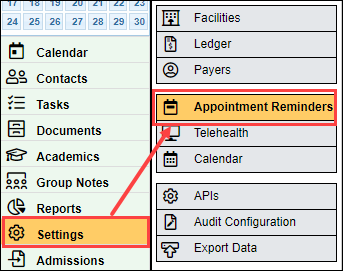
- Navigate to "Settings" and "Appointment Reminders."
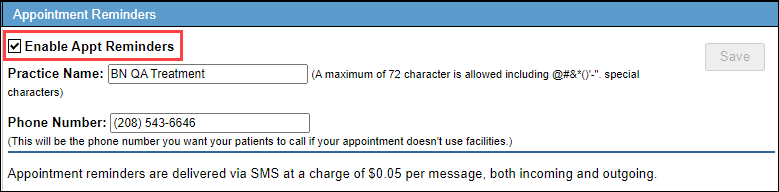
- Select the "Enable Appt Reminders" checkbox.
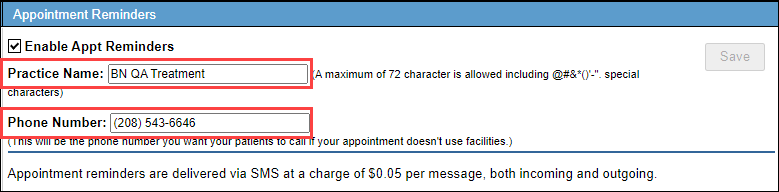
- Enter your "Practice Name" and "Phone Number."
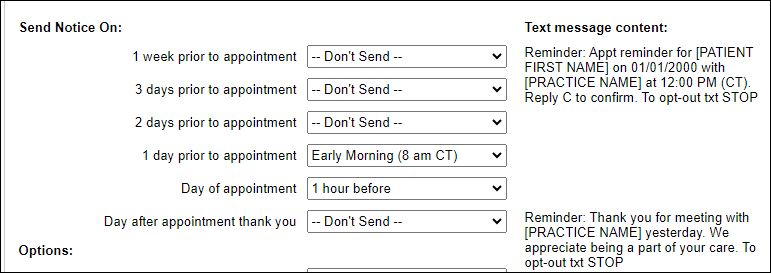
- Next, you will specify the frequency you want to send the reminders out in the "Send Notice On" section.
- Then you will review your "Options."
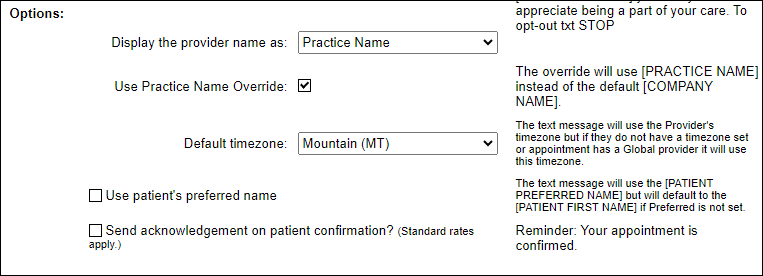
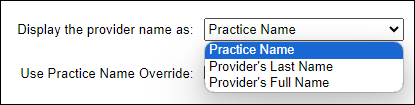
- You can specify what to "Display the provider name as."
- If you would like to use the "Practice Name" defined on this page instead of your Company Name, select the "Use Practice Name Override" checkbox.

- Choose your "Default timezone." This will only apply if the Provider's timezone is not set, or if the provider is set to Global.

- If you would like the client to be identified with their preferred name, select the "Use patient's preferred name" checkbox.

- For an additional cost, you can set the appointment reminders to send acknowledgement of appointment confirmation by selecting the "Send acknowledgement on patient confirmation?" checkbox.

- The next section is specific to using BestNotes Telehealth, or the "Meeting URL link" in the appointment. This will include the link for the client to select to join the meeting.

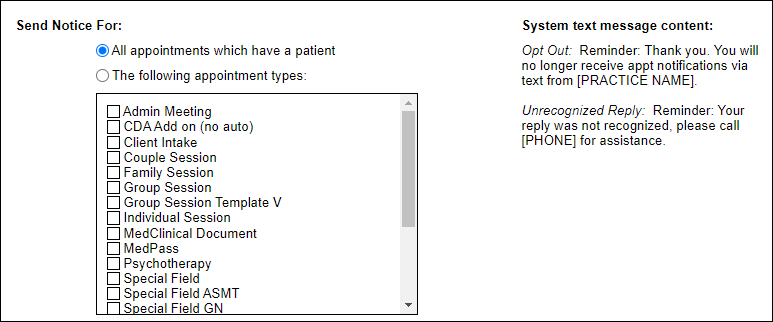
- Finally, you can choose to have appointment reminders sent for all appointment types that have a patient, or you can restrict the appointment reminders to specific appointment types.
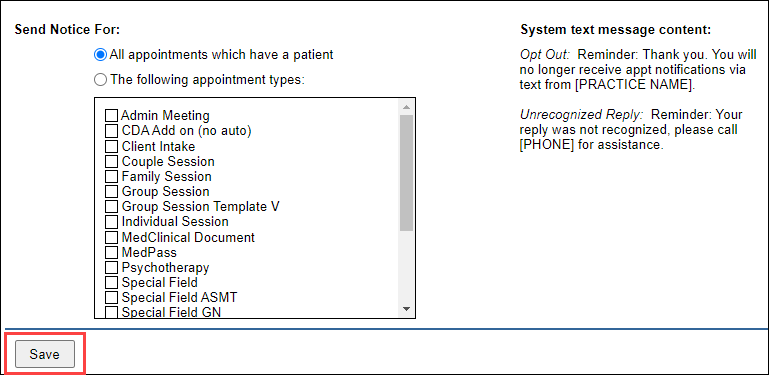
- After entering this information, select "Save."
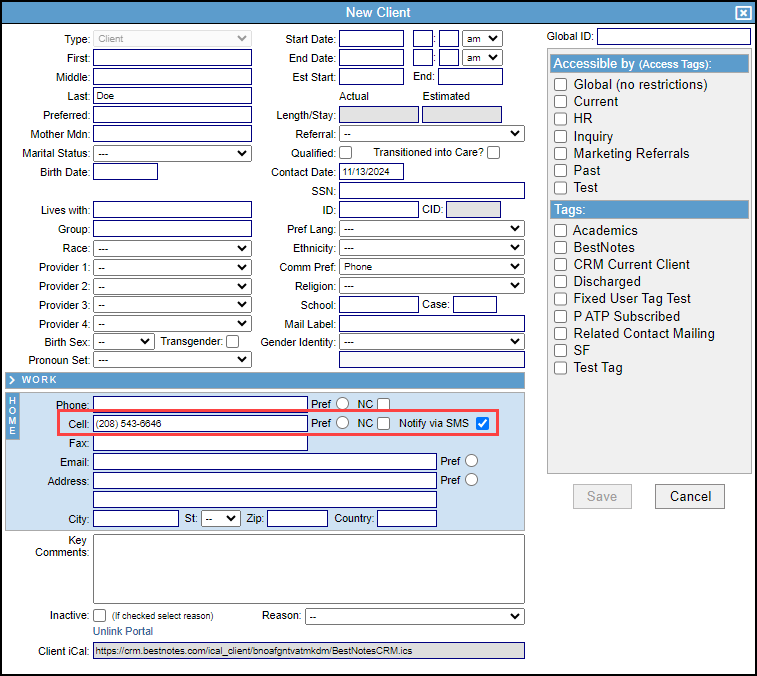
Now that you have enabled your Appointment Reminders and configured your settings, all new contacts will have the "Notify via SMS" checkbox selected by default once a number has been added to the "Home Cell."
Custom SMS Messages
You cannot add a custom message to the SMS reminder. We use a short code to ensure maximum deliverability and reliability. By using a short code, we must adhere to stringent guidelines, which are enforced by the CTIA (Cellular Telecommunications Industry Association), in order to ensure your reminders are delivered. Therefore, we cannot allow any custom text beyond the already approved fields that can be substituted.
Appointment Reminders Report
This report will only appear if you have enabled "Appointment Reminders."
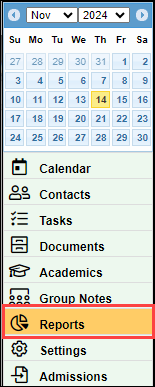
- Navigate to "Reports" in the bottom left menu.
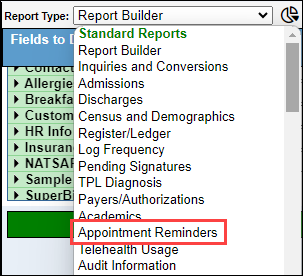
- In the "Report Type" drop-down, select "Appointment Reminders."
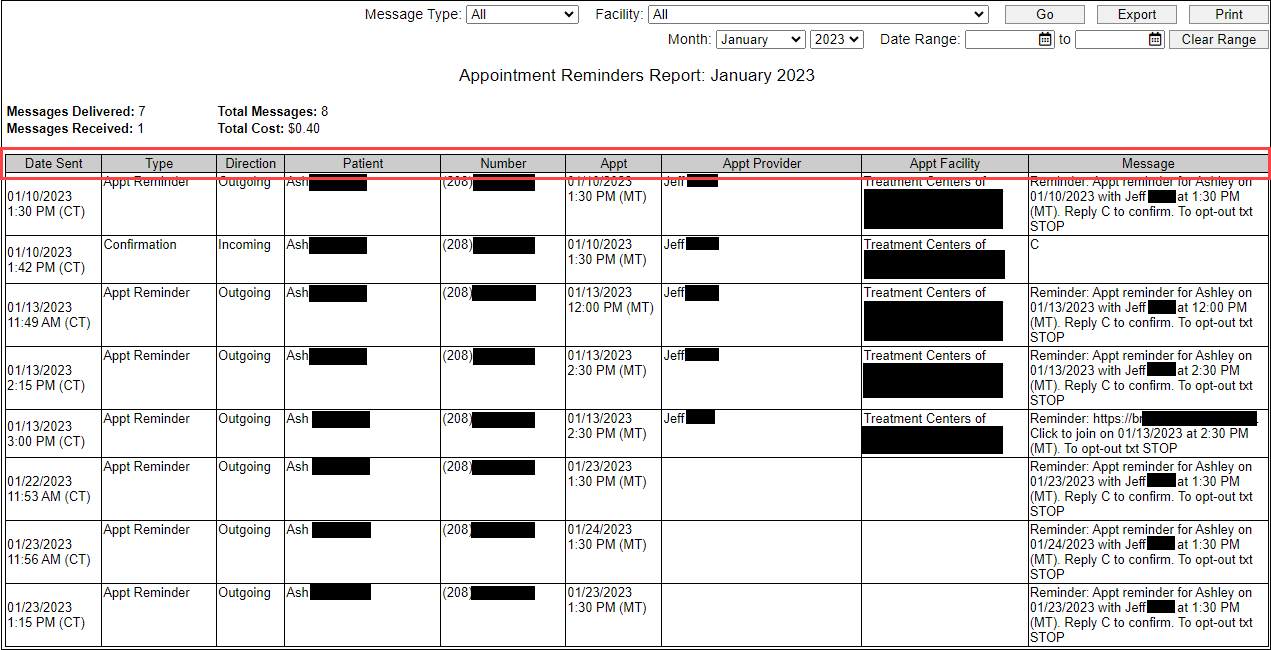
This report will display information specific to Appointment Reminders, including how many reminders have been sent, the total cost, and the specific information of each message. The report will only include the messages sent within the date range selected.
This report allows you to set your filters based on the following:
- Message type
- Facility
- Month/year or a specific date range

Once you have your filters set, select "Go." This report will display the following information at the top of each report:
- Messages Delivered
- Messages Received
- Total Messages
- Total Cost

The report will also display the following information for each message:
- Date Sent - Date the appointment reminder was sent.
- Type - Appointment Reminder, Confirmation, Response, Opt Out
- Direction - Incoming or Outgoin
- Patient - Patient the message was sent to
- Number - The phone number the message was sent to
- Appt - The date and time of the appointment
- Appt Provider - The provider listed on the appointment
- Appt Facility - The Facility selected on the appointment
- Message - The content of the message sent or received.
Pricing
Appointment reminders are available to BestNotes customers as an add-on feature. For detailed pricing information, please visit https://www.bestnotes.com/pricing.
Back to top of page