This article provides instructions for clearing your web browser's cache on various operating systems and devices, which can resolve display or functionality issues after BestNotes updates, loading problems, or unexpected system behavior.
Permissions Required
No specific BestNotes permissions are required.
Clearing Your Web Browser Cache
There are times when updates are deployed to the eMar (BestNotes apps). When this happens, there can be some display/functionality issues as a result of cached information. Follow the instructions below for your operating system and the internet browser you are using to clear your web browser cache. This can also help if you are having loading issues, or if the system isn't working as you would expect.
When using the keyboard shortcuts, you are "reloading the current page, ignoring cached content." This means that you need to be on the page that you want to clear the cache for. If you choose to clear your cache from the settings, this will clear the cache for your entire web browser.
Windows (PC)
When using Windows, there are three web browsers that can be used. You will find the instructions for clearing the browsing history in the sections to follow.
Chrome
Keyboard shortcut: Simultaneously select "Shift + F5" or "Ctrl + Shift + R."
Clear web browser:
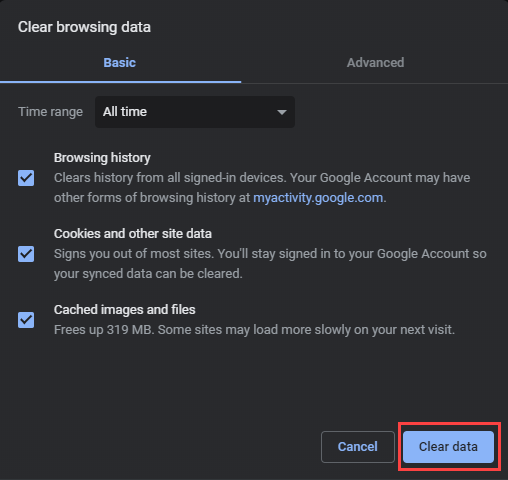
- On your keyboard, simultaneously select "Ctrl + Shift + Delete."
- At a minimum, select the checkbox next to "Cached images and files."

- Select "Clear data."
OR
- Select the menu button (top right).

- Select "Settings."

- Scroll down to the bottom of the page and select "Advanced."
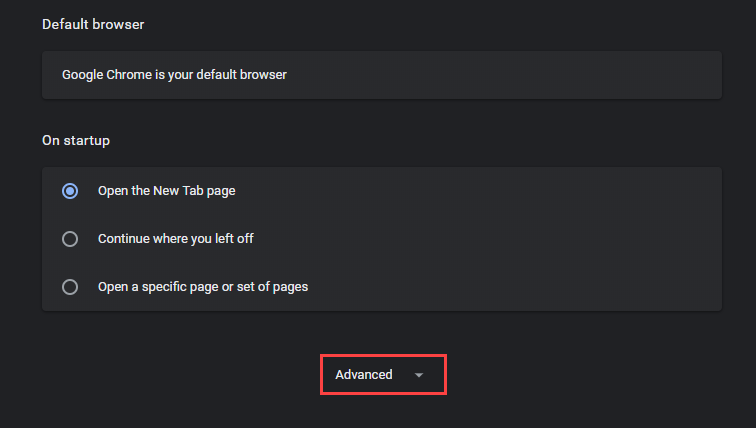
- Select "Clear browsing data" under "Privacy and security."

- At a minimum, select the checkbox next to "Cached images and files."
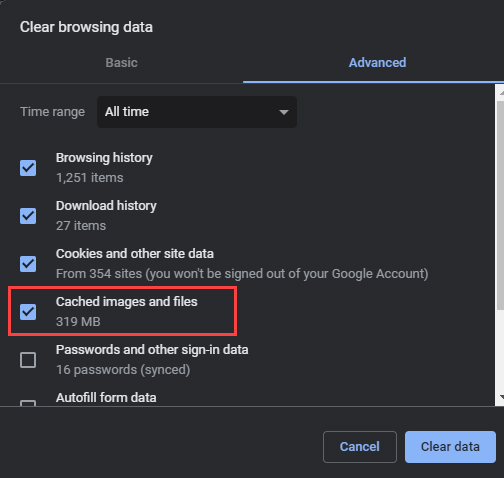
- Select "Clear data."

Microsoft Edge
Keyboard shortcut: Simultaneously select "F5" or "Ctrl + R."
Clear web browser:
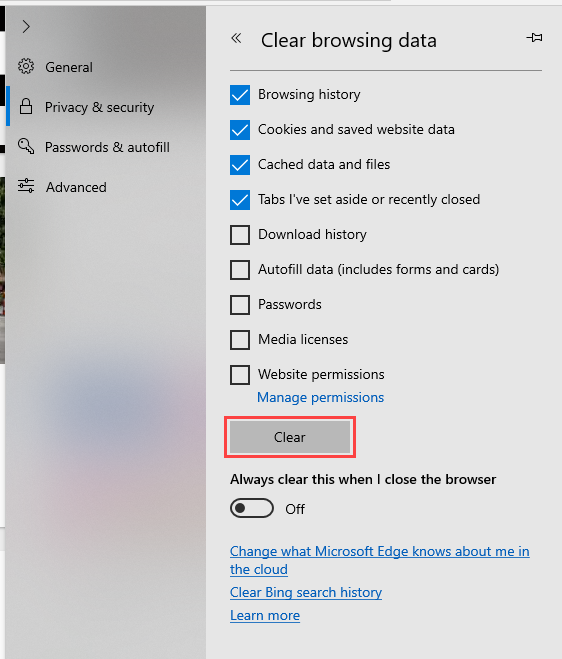
- On your keyboard, simultaneously select "Ctrl + Shift + Delete."
- At a minimum, select the checkbox next to "Cached data and files."

- Select "Clear."
OR
- Select "Favorites" button in the top right corner.

- Select "History."

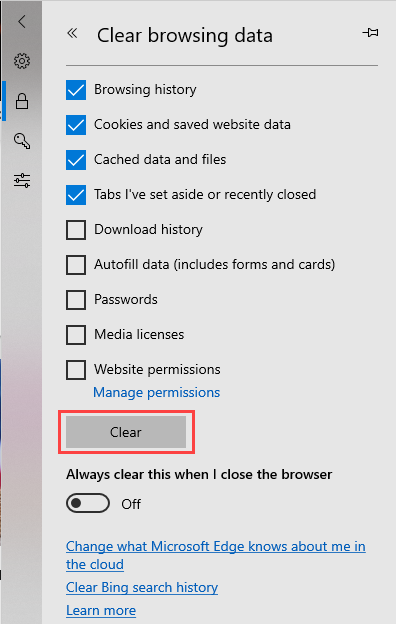
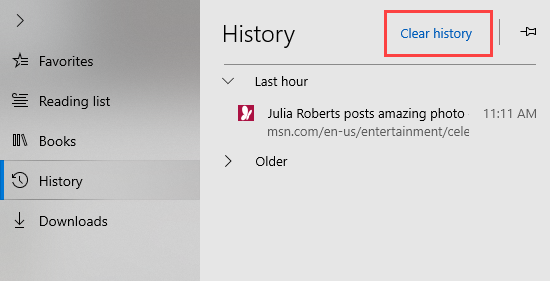 Select "Clear history."
- At a minimum, select the checkbox next to "Cached data and files."

- Select "Clear."
Firefox
Keyboard shortcut: Simultaneously select "Ctrl + F5" or "Ctrl + Shift + R."
Clear web browser:
- On your keyboard, simultaneously select "Ctrl + Shift + Delete."

- Indicate the time range to clear as needed.
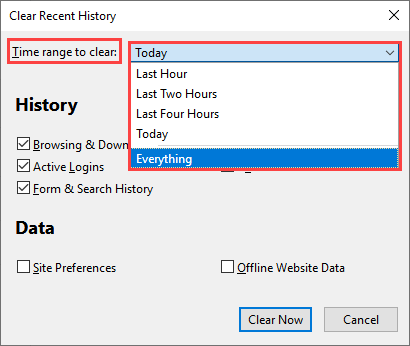
- At a minimum, select the checkbox next to "Cache."

- Select "Clear Now."
OR
- Select the "Library" button (top right).


- Select "History."
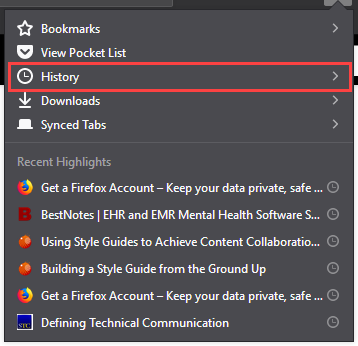
- Select "Clear Recent History."

- Indicate the time range to clear as needed.
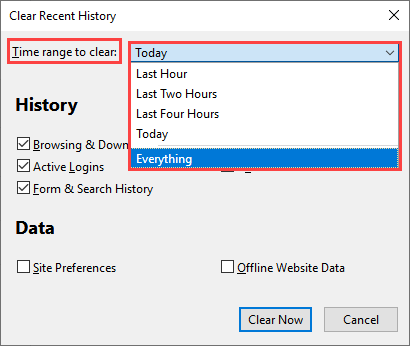
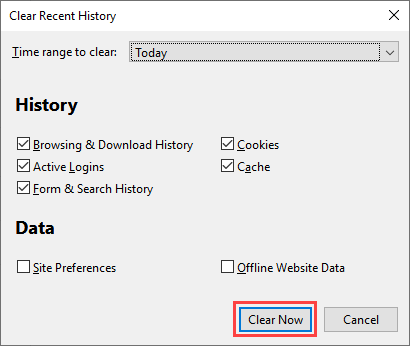
- At a minimum, select the checkbox next to "Cache."

- Select "Clear Now."
macOS
When using a mac computer, you can use "Safari" as your web browser. The following section will show you how to clear your browsing history. If you use "Firefox", or "Chrome" those instructions can be found in the Windows section.
Safari
Keyboard shortcut: Select "Command + R."
Clear web browser
- Select "History" tab and select "Clear History."

- Indicate the time range to clear as needed (all history is recommended).
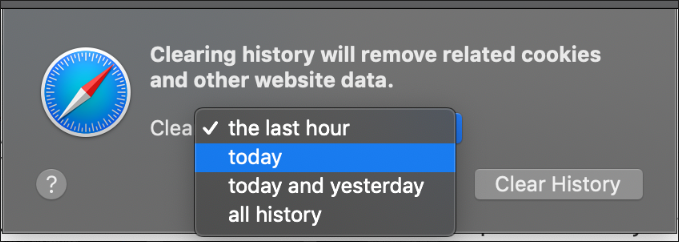
- Select "Clear History."

Tablet/Phone
When using a tablet or phone, you will use either an "Android", "iPhone", or an "iPad." In the following sections you will find instructions to clear the browsing history of the web browser that is on that device.
Android
- Navigate to "Chrome."
- Select the menu button (top right).

- Select "Settings."

- Below "Advanced", Select "Privacy."
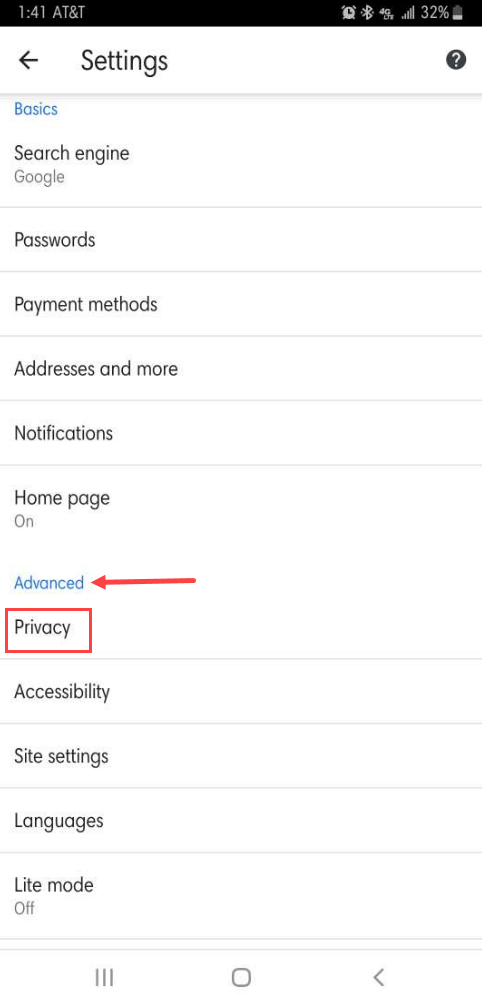
- Select "Clear browsing data."

- At a minimum, select "Browsing history."
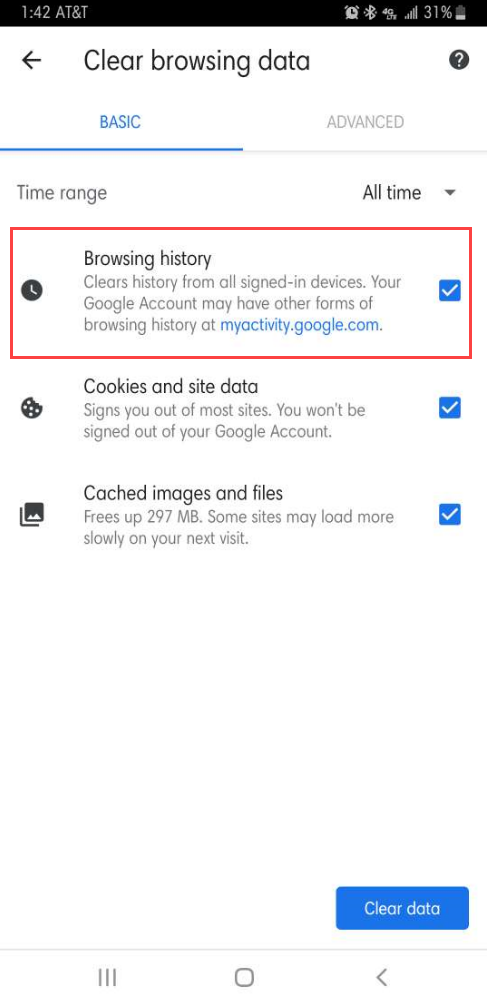
- Select "Clear data."

iPad/iPhone (iOS)
- Navigate to "Settings."
- Select "Safari."
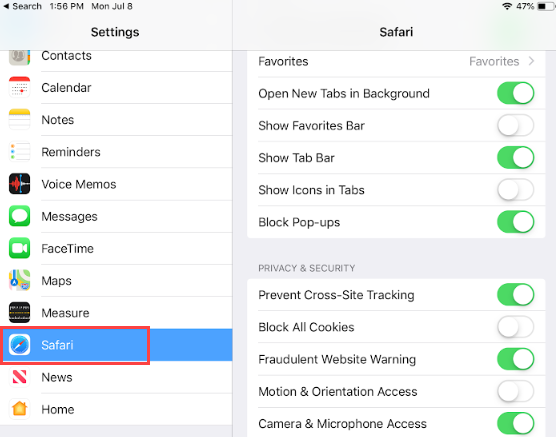
- Select "Clear History and Website Data."

- Select "Clear."

Next Steps
- For more information about clearing browsing history in Google Chrome, visit Google Account Help.
- For more information about clearing browsing history in Microsoft Edge, visit Microsoft Edge Support.
- For more information about clearing browsing history in Firefox, visit Mozilla Support.
- For more information about clearing browsing history in Safari, visit Apple Support.
- For more information about clearing browsing history on your Android device, visit Google Support.
- For more information about clearing browsing history on your iOS device, visit Apple Support.