This article guides you through the process of launching the BestNotes application and logging in for the first time.
Permissions Required
No specific BestNotes permissions are required.
Logging In to BestNotes
Before logging in for the first time, you will need to obtain the following items from your System Administrator:
- Site ID
- User ID
- Temporary Password
- Open BestNotes.
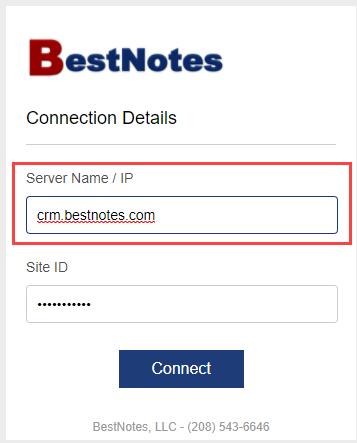
- In the "Server Name/IP" field, type "crm.bestnotes.com."
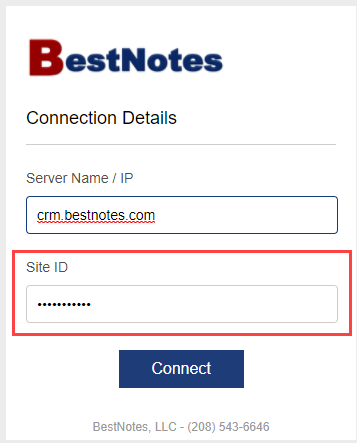
- In the "Site ID" field, type in the Site ID provided by your System Administrator.
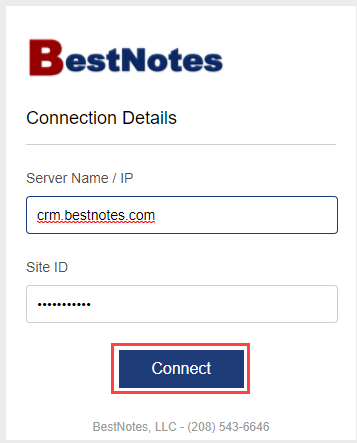
- Select "Connect."
- Type your "User ID" and "temporary password" into the corresponding fields.
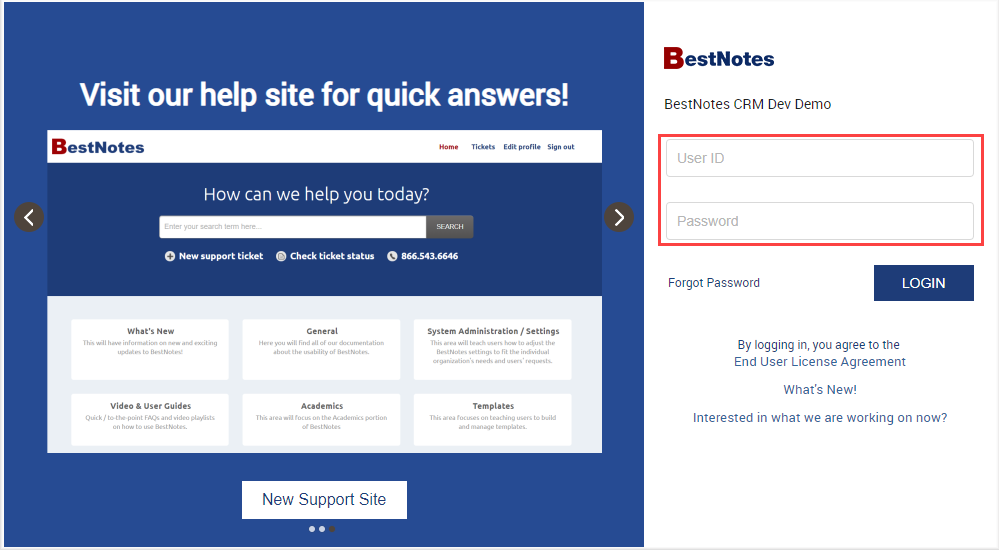
- Select "Login."

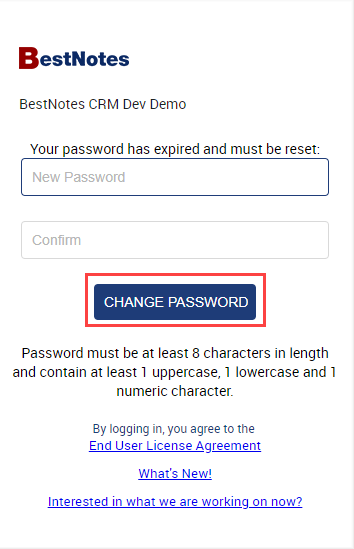
- Create a new password and select "Change Password."
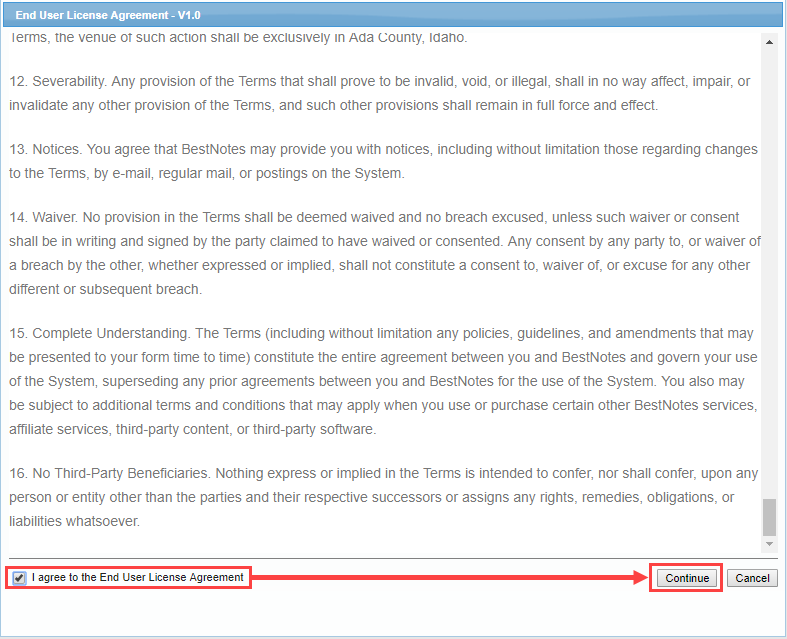
- Review the End User License Agreement (EULA).

- Choose "I agree to the End User License Agreement" if you agree to the terms then select "Continue."
You have now successfully logged in to BestNotes!
Next Steps
- See also: How to install BestNotes for Windows
- See also: How to install BestNotes for macOS