This article outlines the process for customers using both Salesforce and BestNotes to import client data from Salesforce into BestNotes, leveraging a custom Salesforce export file.
Permissions Required
No specific BestNotes permissions required
Importing Clients from Salesforce
Preparation for Salesforce Import
- Request Salesforce integration from BestNotes by submitting a submit Ticket with BestNotes Support.
- Request the custom report from your Salesforce Administrator: Salesforce export example.
- When saving the Salesforce Custom report, be sure to save it as a CSV file.
- Send a list of users that will need access to "Salesforce" within BestNotes.
- Create a "Fixed Tag" named "SF" within BestNotes.
- You will receive notification from BestNotes that Salesforce has been setup.
Import Clients from Salesforce
- Select the "Modules" button.
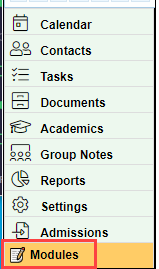
- Select "Salesforce."

- Select "Choose File."
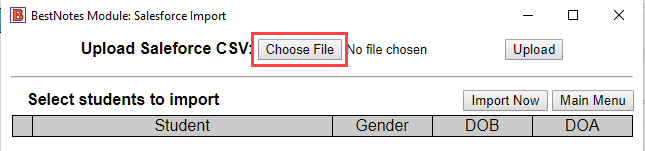
- Choose the Import File received from Salesforce and select "Open."

- Select "Upload."
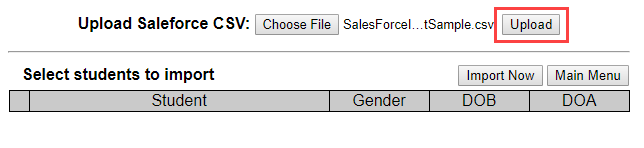
- You will be presented with a list of patients to import.

- Select the checkbox next to each patient to be imported.
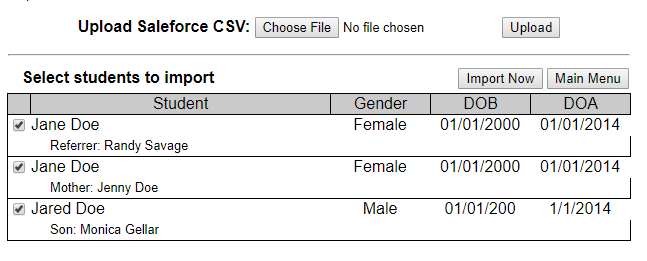
- Select "Import Now."

- You will receive confirmation of the import.

If the relationship of the related contact is "Therapist" or "Doctor" these related contacts will not be imported into BestNotes. These contacts may be entered in as users of BestNotes, and should be recorded as "Providers" on the "Edit Client" screen.
You have now imported your Salesforce contacts and can find them within BestNotes.
Back to top of page