This page provides instructions for accessing DrFirst within BestNotes. In order to access DrFirst, prescribers and staff must be subscribed to DrFirst and granted the necessary permissions in BestNotes. For more information on subscribing to DrFirst please submit a support ticket.
Permissions Required
No specific BestNotes permissions are required.
Navigating to DrFirst
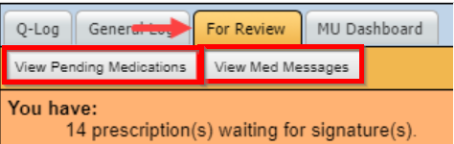
Provider notifications and general access:
- Click the "For Review" tab on the BestNotes landing page. This page can be accessed by selecting the "Calendar" tab on the bottom left.
- Pending medications and pharmacy messages can be viewed in DrFirst by clicking the corresponding buttons.
Access from client chart:
Note: Accessing DrFirst through the methods described below will launch the client's medication management interface in a new browser window.
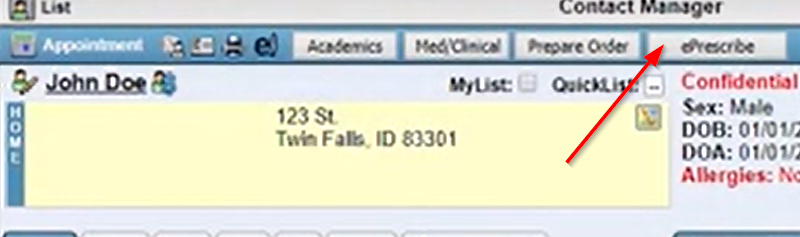
- Navigate to the client chart in BestNotes.
- Click the "ePrescribe" button at the top of the chart.
OR
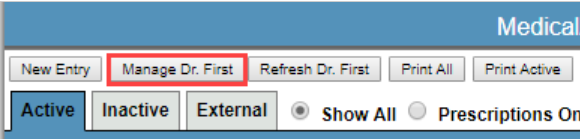
- Click the "Med/Clinical" button at the top of the chart.

- Click the "Meds" tab on the left side menu.

- Click the "Manage DrFirst" button at the top.
OR
- Click the "Med/Clinical" button at the top of the chart.
- Click the "Allergies" tab on the left side menu.

- Click the "Manage Allergies" button at the top.
