This article provides instructions on how to download and install the BestNotes application on macOS, ensuring your system settings are correctly configured.
Permissions Required
No specific BestNotes permissions are required.
Installing BestNotes on macOS
Verifying System Preferences
Before installing BestNotes, verify that your System Settings allow downloads from the App Store and identified developers.
- Select the Apple icon on the top left and click on "System Settings."
- Go to "Privacy & Security."
- Verify that "App Store and identified developers" is selected.
Installing the BestNotes Application
To download and install BestNotes, visit the BestNotes Downloads page.
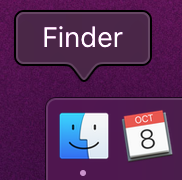
- The download will initiate. Once complete, open "Finder".
- Navigate to "Downloads".
- Drag and drop the "BestNotes" application into the "Applications" folder. If this is a zip file, double-click to unzip before dragging and dropping to the "Applications" folder.
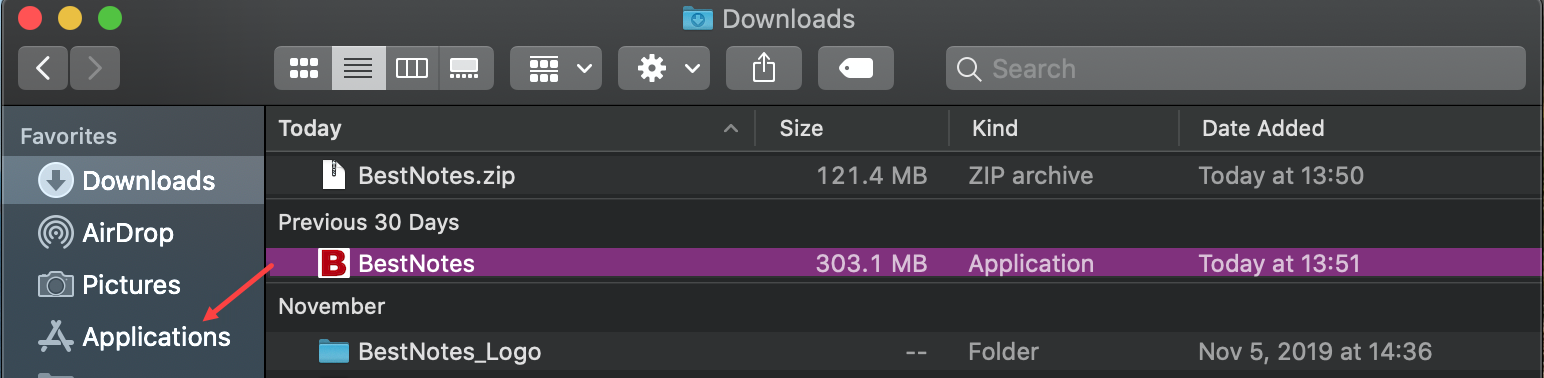
- Navigate to the "Applications" folder, open BestNotes, and accept any pop-up alerts.


You are now ready to use BestNotes.
Back to top of page