To send electronic prescriptions within DrFirst, you will need to have the patient's pharmacy selected. You can save up to five pharmacies for a patient. These instructions will guide you through adding a retail or mail order pharmacy in the DrFirst patient summary.
Permissions Required
No specific BestNotes permissions are required.
Managing Pharmacies in DrFirst
Terms to Know
- Practice List: contains only those pharmacies located within the first three digits of the practice's ZIP code.
- Favorites List: contains only the pharmacies that the individual user has previously selected to be in his or her favorites list.
- All Lists: contains all available pharmacies in the DrFirst database (default option).
- (C): Indicates the pharmacy accepts controlled substance prescriptions electronically.
- (E): Indicates the pharmacy accepts electronic prescriptions.
- (R): Indicates the pharmacy is a retail pharmacy.
- (SP): Indicates the pharmacy is a specialty pharmacy.
- (MO): Indicates the pharmacy is a mail order pharmacy.
- (24): Indicates the pharmacy is open 24 hours.
- (LTC): Indicates the pharmacy is a long term care pharmacy.
- (IH): Indicates the pharmacy is an in house dispensing pharmacy.
Add Pharmacy
If you have not added a pharmacy, a notification will display at the top of the screen.
- Select the "Pharmacy Search" icon within the "Patient" widget.


- Select the pharmacy list you would like to search. See "Terms to Know" for definitions.
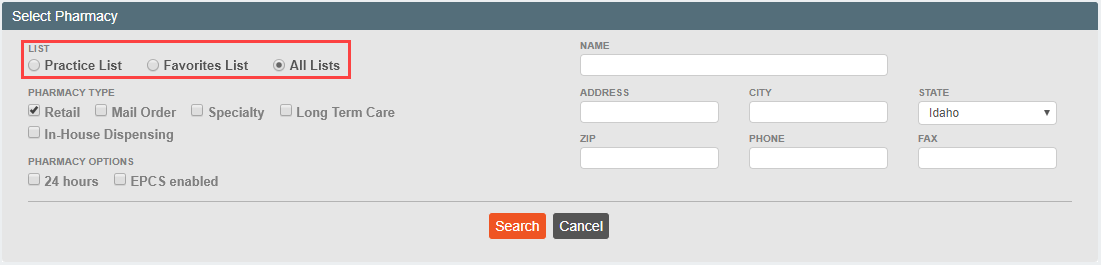
- Enter the search criteria for the pharmacy.

- Select "Search."
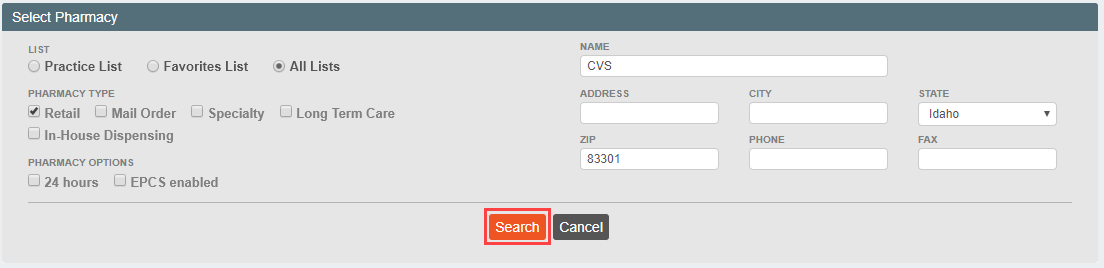
- This will display a list of pharmacies within your search criteria. Select the row to add the pharmacy to the patient's record. Be sure to verify the pharmacy type; see "Terms to Know" for definitions.

- The pharmacy will now display on the patient information screen in the "Pharmacy" drop-down list.

Send to Mail Order Pharmacy
- Select the "Mail Order" option for the pharmacy type.

- Select the desired pharmacy that includes (MO) within the "Type" column.

- This pharmacy will now display on the patient information screen in the "Pharmacy" drop-down list.

Pharmacy Details
Once a pharmacy has been added, you can view pharmacy details by selecting the "View Pharmacy Details" icon.


You can also remove a pharmacy by selecting the "Remove Patient Pharmacy" icon.

Save and Close
To ensure that all DrFirst data will pull into BestNotes, make sure at the end of each session, you exit DrFirst by selecting the drop-down in the top right corner, and selecting "Save and Close." This will send the information entered into DrFirst to BestNotes.
