This article provides instructions on how to review, activate, and delete allergies within DrFirst Patient Summary. It is recommended to manage all allergies in DrFirst, as only DrFirst entries sync to BestNotes.
Permissions Required
No specific BestNotes permissions are required.
Managing Allergies in DrFirst
The following instructions will be executed from DrFirst Patient Summary, demonstrating how to review and manage the activation and deletion of allergies.
Display Options
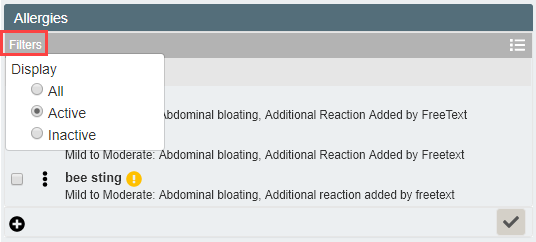
- You can choose how you would like the allergies to display by hovering over "Filters" in the top left corner of the allergies widget. This will display options such as "All", "Active", or "Inactive."
- Selecting the icon in the upper right corner toggles between an edit and read-only view of the allergy panel.

- The edit view allows for direct modification of allergy details.
- The read-only view provides a summary without direct editing capabilities.

Individual Allergy Management
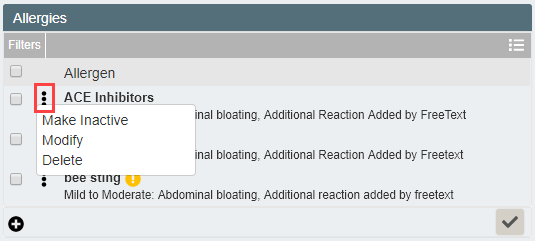
- You can manage a single allergy by selecting the action you would like to perform from the ellipsis (...) next to the specific allergy. This allows you to make an allergy inactive, modify the allergy, or delete the allergy.
- Clicking anywhere in an allergy cell provides a screen where the onset date can be reviewed, and you have the option to modify, make inactive, or delete the allergy.

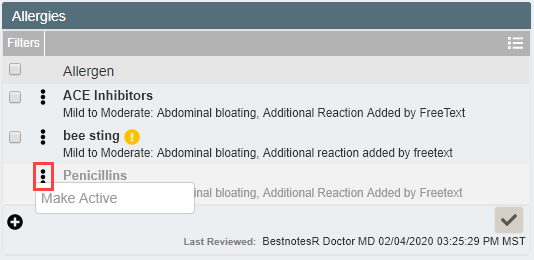
- To activate an inactive allergy, select the ellipsis (...) on the inactive allergy and select "Make Active."
Bulk Action Allergy Management
- Once you have entered allergies for the patient, you can mark the allergies as reviewed by clicking the checkbox in the bottom right corner of the allergies widget.

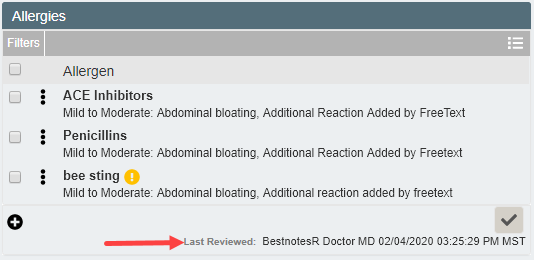
- Once the allergies have been reviewed, you will see a message that says who last reviewed those allergies, and the date and time it was completed.
- You can select more than one, or all allergies by selecting the checkboxes next to the allergies and delete multiple allergies at one time.

- In order to make sure that all DrFirst data will pull into BestNotes, make sure at the end of each session, you exit DrFirst by selecting the drop-down in the top right corner, and select "Save and Close." This will send the information entered into DrFirst to BestNotes.
