This article explains how to access and print the DrFirst Provider Clinical Report and Patient Clinical Report from the "Patient Information" widget, which provide comprehensive medication, allergy, and problem lists for patients.
Permissions Required
No specific BestNotes permissions are required.
Accessing DrFirst Medication Reports
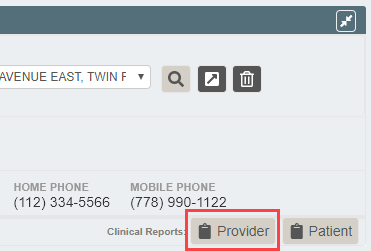
The medication reports consist of two reports that display within the "Patient Information" widget. These two reports are the "Provider Clinical Report" and the "Patient Clinical Reports", which are available through two buttons in the "Patient Information" widget.

Provider Clinical Report
The "Provider Clinical Report" lists the patient's active and inactive medications. It also contains the patient's allergy, diagnoses, and pharmacy information, as well as the provider information. It is a useful tool when transferring patient care to another provider.
- Select the "Provider" Clinical Report within the "Patient Information" widget.
- The "Provider Clinical Report" will display.

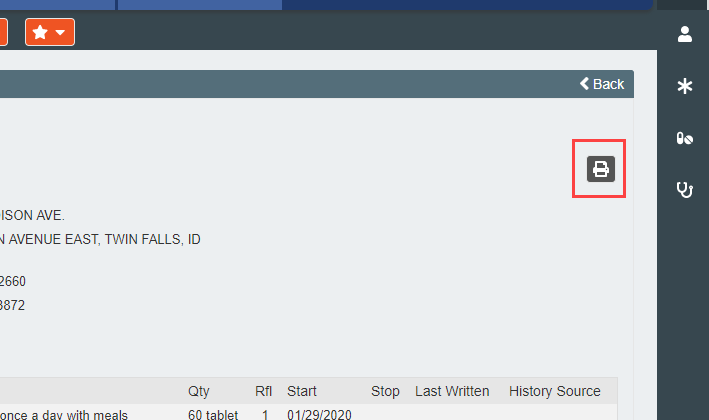
- To print this report, select the "Print" icon on the top right of the report.
Patient Clinical Report
The "Patient Clinical Report" is a wallet-sized version of a patient's current medication, allergy and problem list. This is an ideal way for patients to keep track of the medications they are currently taking.
- Select the "Patient" Clinical Report within the "Patient Information" widget.

- The "Patient Clinical Report" will display.
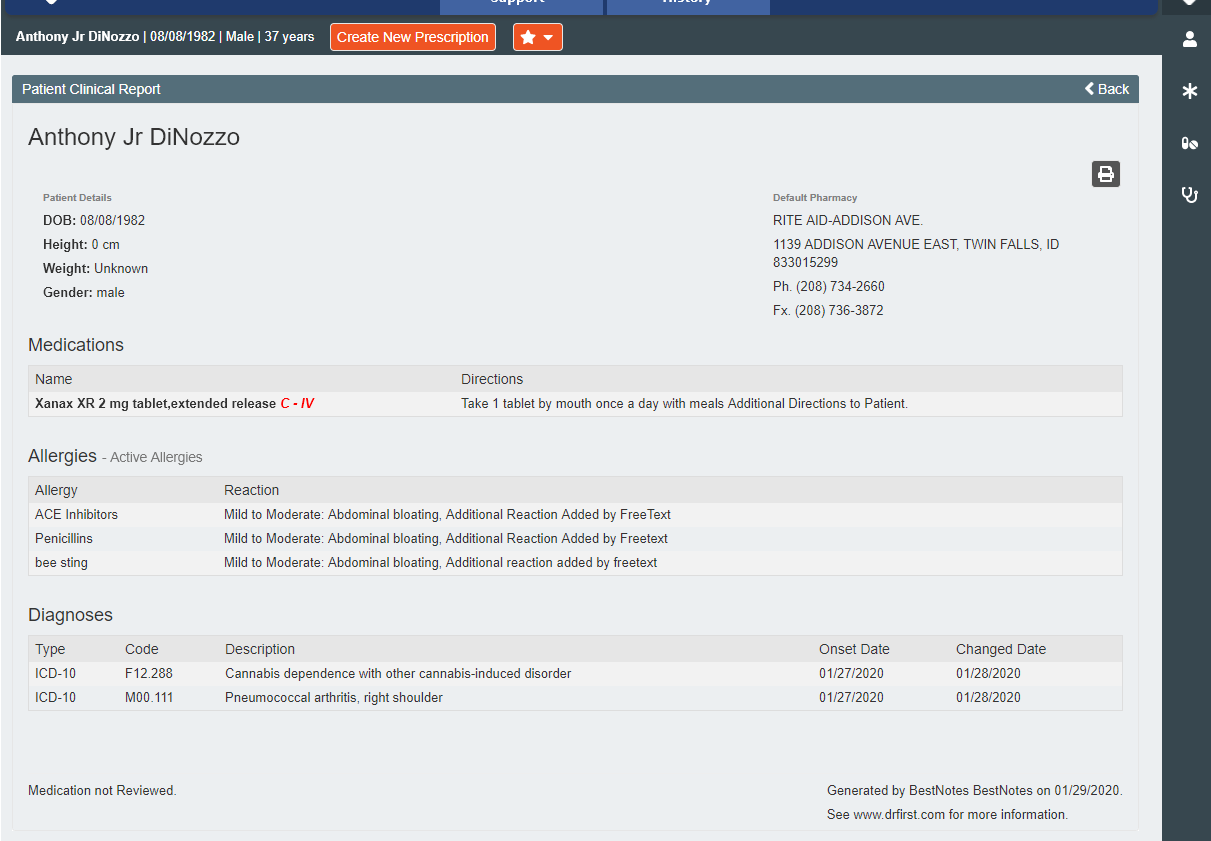
- To print this report, select the "Print" icon on the top right of the report.

NOTE: If you have pop-up blockers enabled, the print window will not display for either of these reports. You will have to turn this feature off to view and print the report.