Resetting the BestNotes macOS application clears its cache, which can resolve functionality issues. This process requires re-entering your "Site ID" to log back in.
Permissions Required
No specific BestNotes permissions are required.
Resetting the BestNotes macOS Application
Resetting the application will clear the cache of the application and can potentially address functionality issues that you may be having. This process will require you to re-enter your "Site ID" to log back in. If you don't know the "Site ID", reach out to your system administrator for this information before beginning this process.
- Make sure that all BestNotes windows are closed.
- Open "Finder."
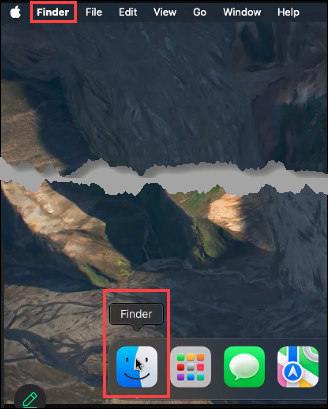
- Select "Go" in the top left corner, hold the "Option/Alt" key and select "Library."

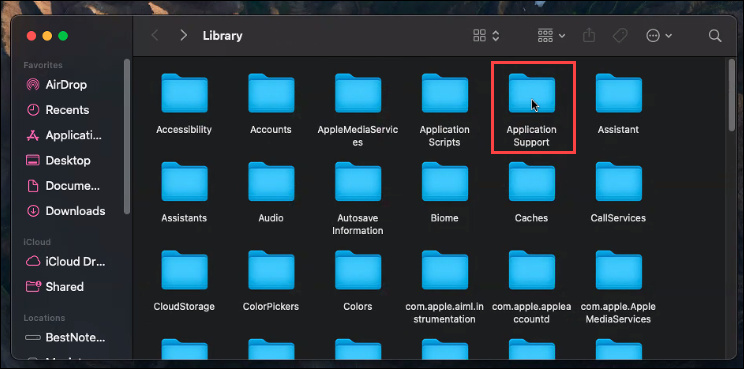
- In the Library, select the "Application Support" folder.
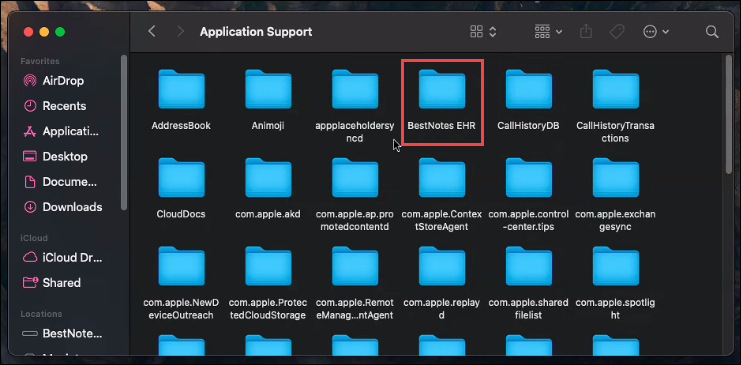
- Find the "BestNotes EHR" folder.
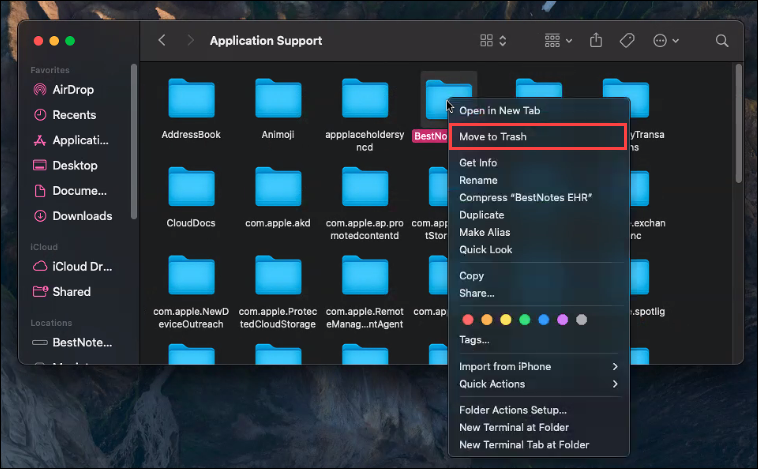
- Right-click on the menu or 'two-finger" tap, select "Move to Trash."
You have now reset your application. If the problem that you were having persists, reach out to BestNotes Support at submit a support ticket or (866) 543-6646.
Back to top of page