This article provides answers to frequently asked questions about OutcomeTools, covering topics such as setting up series, managing questionnaires, accessing the kiosk URL, and troubleshooting common issues.
Permissions Required
- Level 5 OutcomeTools user
OutcomeTools Frequently Asked Questions
How to Set Up a Series
Series must be created by BestNotes Support. To initiate this setup, submit a support ticket detailing the surveys and time frames that you would like the surveys delivered.
How to Edit Instances
Instances can be customized to your company needs. You can type your own instance into the "Instance" field each time. To add additional drop-down options to the "Instance" field, submit a support ticket detailing the drop-down options you would like added to BestNotes Support.
If typing your own instances, be sure to be consistent with the naming of instances across clients for reporting purposes. Typing in your own instances only applies one time. You must submit a support ticket to BestNotes Support to add the option to the drop-down.
How to Add More Questionnaires to Your Library
To request additional questionnaires, submit a support ticket detailing the questionnaires you would like to have added to BestNotes Support. You can find a list of available questionnaires in our Questionnaire library.
Custom Questionnaire Creation
For customized questionnaire requirements, please refer to the Customized questionnaire requirements article.
Adding Pain and Nutrition Assessments
It is considered best practice to complete the pain assessments and nutrition screening from the Med/Clinical section of BestNotes. These questions may already be included in your documentation. If further assistance is needed, submit a support ticket to BestNotes Support.
Finding Your Company's Kiosk URL
The company kiosk/iPad URL can be found on the "Account Settings" tab on your Master Dashboard. This tab will only be available for Level 5 OutcomeTools users.
- Navigate to the "Account Settings" tab on your Master Dashboard.

- Within "Account Settings", locate the "Kiosk URL" in the "Account Details" section.

Signing Up for OQ Measures
OQ Measures are licensed questionnaires that have an annual subscription. To sign up to use OQ Measures, you can start the signup process for access by filling out our OQ®-Analyst Software License Application & Order Form (OT).
Survey Completion Alerts
OutcomeTools does not have any active alerts that pop up on a staff member's screen. The best location to see what surveys are due is by navigating to the Master Dashboard. Displayed there is a running list of surveys that are due in the next seven days or by the time designated in the drop-down.

When in BestNotes, on the OutcomeTools tab, you will find a list of pending questionnaires for each client.

Resetting a Series
The two types of series that are available to use are "Static" and "Recurring" series. A recurring series can only be inactivated or reactivated. A static series can be reset.
Reset a Static Series
- Select the "Client Details" tab.

- Select the series that you would like to reset.
- Select the checkbox "Reset Series." This will reassign questionnaires with new dates if there has been an admit date change.
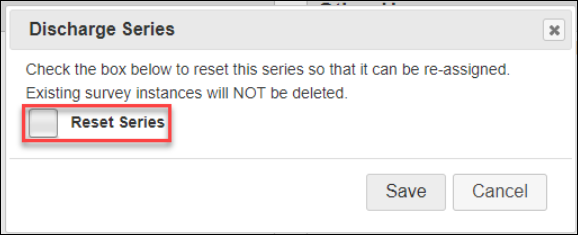
- Any questionnaires that have already been assigned may need to be dismissed if they are pending.
Inactivate a Recurring Series
- Select the "Client Details" tab.

- Select the recurring series that you would like to reset.
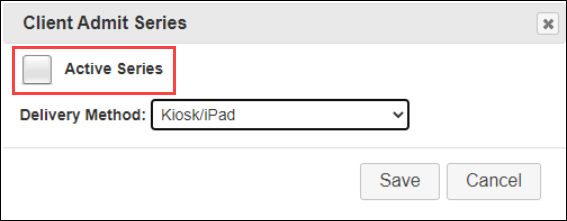
- Unselect the checkbox "Active Series." This will stop all future instances of the series.
Auto-Dismissing Expired Questionnaires
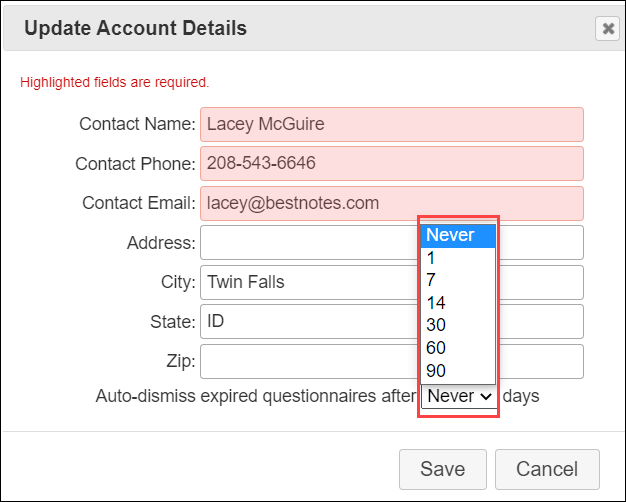
When questionnaires are assigned, by default they are open for a seven-day time period. At the end of that time frame, the questionnaire will expire. If you would like to remove the questionnaire from the list, you must select "Dismiss." A company can also set an auto-dismiss to a specified number of days.
- On the "Account Settings" tab (available for Level 5 users only), select the "Edit" button.
- This will bring up a screen that will allow you to set the number of days to auto-dismiss a questionnaire after it has expired.
Accessing OutcomeTools from a Browser
Logging in from a browser should not be done unless you have already added the client from BestNotes to OutcomeTools. This will guarantee that all of your client's surveys are connected to BestNotes as well as OutcomeTools.
- Navigate to outcometools.com.
- The "Login" button will be located in the upper right-hand corner.
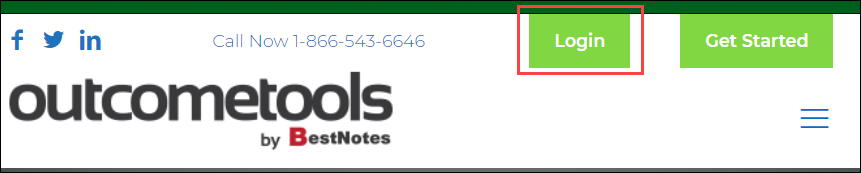
- Select the "Login" button and enter your username and password. The username is the email address connected to your BestNotes and OutcomeTools account.

Your password can be set from OutcomeTools in the "Manage Users" tab.

Pulling Related Contacts into OutcomeTools
Related contacts will automatically be added into OutcomeTools when you click the "Add Client" button from BestNotes, if the related contact in BestNotes has the "PG" or "OT" checkbox in the relationship area.

If the related contact was added, or the relationship checkboxes are selected after the client was initially added to OutcomeTools, you may have to open the "Edit Client" screen and select "Save" for the data to refresh in OutcomeTools.
Managing Automated Series with Multiple Programs
If you are using series to deliver surveys and are offering different levels of care, you may want to measure your clients at different levels of care. As a client moves through levels of care, they receive a new admit date. In order to continue using series within OutcomeTools, you must create a new client by selecting the "Add Episode" button.
Adding a new episode will create a new client and allow you to start a new series for the next level of care. Once the new client is created, you can categorize the client into the respective group on their Authorized Groups. Then you can filter by each individual episode of care on your average scores report using the Group/Location dropdown.
Next Steps
- See also: Questionnaire library
- See also: Customized questionnaire requirements
- See also: OutcomeTools Glossary: Series
- See also: OQ®-Analyst Software License Application & Order Form (OT)
- See also: Adding a new episode will create a new client