This article outlines the process for adding a client from BestNotes to OutcomeTools, ensuring their demographic and related contact information is correctly transferred.
Permissions Required
No specific BestNotes permissions are required.
Adding a Client to OutcomeTools
To add a client to OutcomeTools, you will first log in to BestNotes and navigate to the chart of the client you would like to have added to OutcomeTools. Once you are at the client's chart, follow the steps below:
- Select the "OutcomeTools" tab.
- Select "Add Client."

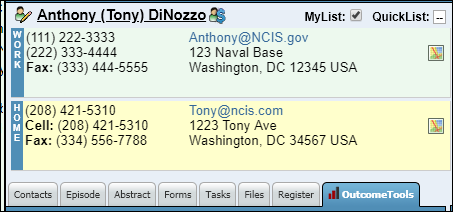
- When you select "Add Client," the demographics for that client and the related contacts that have the "PG" or the "OT" checkbox (see Figure 1-1) will be populated into the contact in OutcomeTools (see Figure 1-2).

Figure 1-1. Related contact with "PG" or "OT" tag.

Figure 1-2. Contacts created in OutcomeTools.
If the client has already been added to OutcomeTools, instead of the "Add Client" option, you will see the "Go to OutcomeTools" link (see Figure 1-3).

Figure 1-3. Go to existing OutcomeTools client.
| BestNotes users should never select the "Add Client" button within OutcomeTools. Contacts added this way will not be connected to a BestNotes contact. This could also potentially cause duplicate contacts within OutcomeTools. |