This article explains the three methods for assigning questionnaires to clients in BestNotes and OutcomeTools: using a series, directly in OutcomeTools, or via the OutcomeTools tab in BestNotes.
Permissions Required
No specific BestNotes permissions are required.
Assigning Questionnaires
Before assigning a questionnaire, ensure your client has been added to OutcomeTools. You can assign a single questionnaire or a group of questionnaires depending on your quality measurement process and purpose. Questionnaires can be assigned in three ways:
- Adding a series of questionnaires.
- Questionnaires tab in OutcomeTools.
- OutcomeTools tab in BestNotes (if your instances are available in your drop-down).
Adding Questionnaires in OutcomeTools Using a Series
Assigning a series means to assign a questionnaire or multiple questionnaires at regular intervals.
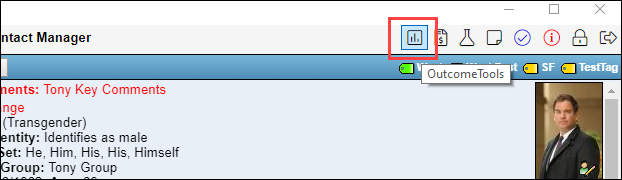
- Navigate to OutcomeTools by selecting the "Go To OutcomeTools" from the client's chart.

--OR--
- Navigate to OutcomeTools by selecting the OutcomeTools icon in the top right corner of BestNotes.
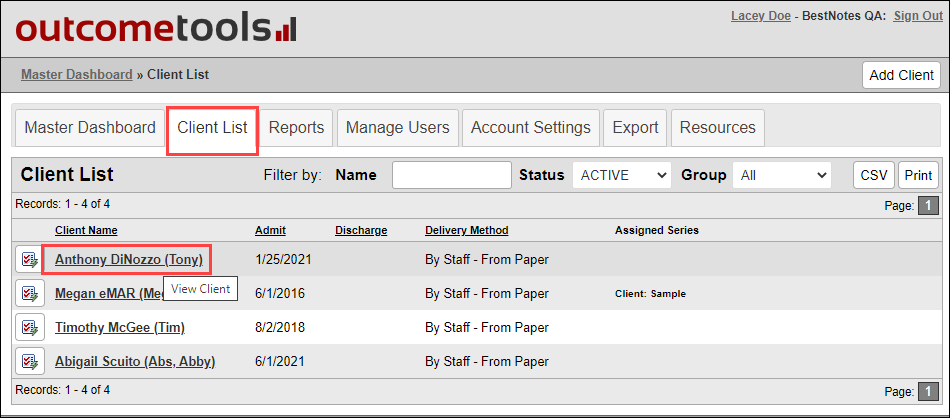
- Select the "Client List" tab, and the client's name in OutcomeTools.
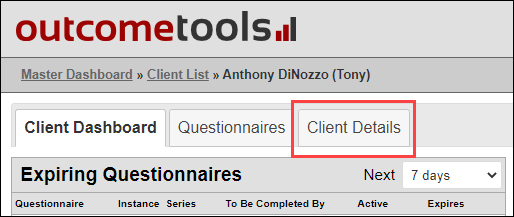
- Select the "Client Details" tab.
- Select the lightning bolt icon on the far right-hand side of the client details.

- Select the series you would like to assign.

NOTE: Series will only show to be assigned if a client has an admit date and/or discharge date relating to the parameters of the series being assigned.
- Choose the delivery method to the client.

- Select "Assign Selected."

Once you have completed these steps, the questionnaires will be assigned to the client at the designated times in the series. It will calculate based on the admit date or discharge date to know when to assign each questionnaire.
NOTE: If you only have a sample series, your company may not have a series setup. Send in the questionnaires and the time intervals you would like to have setup to submit a support ticket.
Adding Questionnaires in OutcomeTools
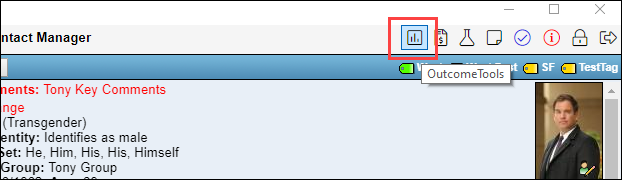
- Navigate to OutcomeTools by selecting the "Go To OutcomeTools."

--OR--
- Navigate to OutcomeTools by selecting the OutcomeTools icon in the top right corner of BestNotes.
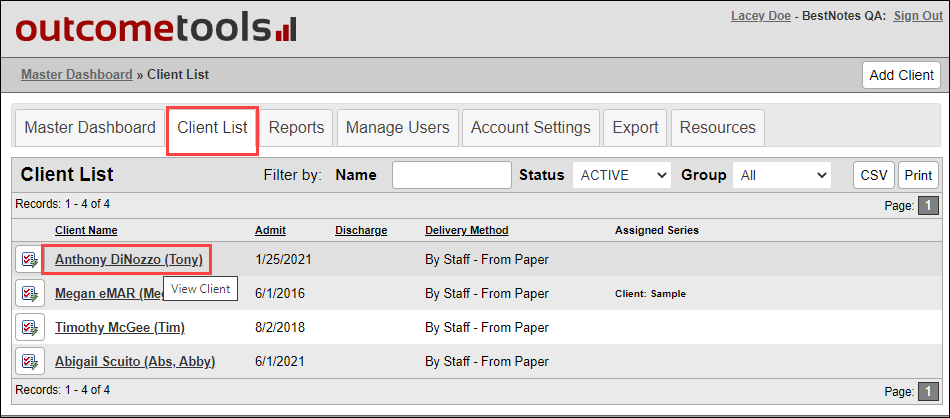
- Select the "Client List" tab, and the client's name in OutcomeTools.
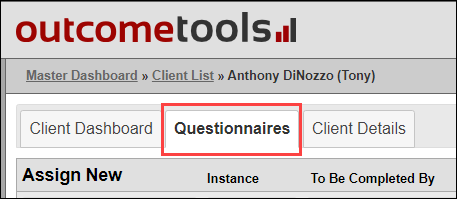
- Select the "Questionnaires" tab.
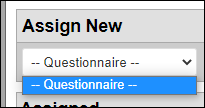
- Below "Assign New", work from left to right to assign the details for the questionnaire.
 Select the "Questionnaire" drop-down to select the questionnaire.
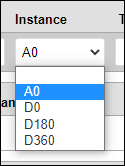
 Select the "Instance" drop-down to choose the instance the client is taking the questionnaire.
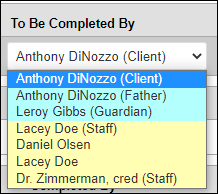
 Select "To Be Completed By" drop-down, and select "Client", "Parent", or "Staff Member."
 Select the "Delivery Method" drop-down to choose your delivery method.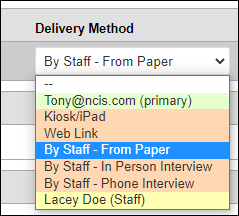
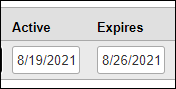
- Select the date you want the questionnaire to be active. The expiration will default to 7 days, but can be changed if necessary.
 Select the lightning bolt icon to assign the survey.
Adding Questionnaires in BestNotes
Questionnaires can be assigned from the OutcomeTools tab in BestNotes. It is recommended to use this for questionnaires that need to be assigned on an as needed basis.
- Select the OutcomeTools tab in the client's chart.

- Work left to right through each drop-down.

- Select the "Instant Survey" drop-down to select the desired questionnaire.

- Select the "Instance" dropdown to select an instance.

If you do not assign an instance, it will default to "IQ" which stands for "Instant Questionnaire." Instant questionnaires do not let you know at what interval in treatment the questionnaire was delivered.

- Select the "Assigned to" drop-down to select the client or the related contact.

- Select "Create."

Next Steps
- See also: How to Add a Client to OutcomeTools
- See also: OutcomeTools Glossary: Series