This article explains how System Administrators can add and manage custom pronoun options within the "System Customization" area of BestNotes, which then appear in the "Edit client" window.
Permissions Required
- Manage System Customization
Adding and Managing Custom Pronouns
Add Custom Pronoun
To add a new customized option follow the steps below:
- Navigate to "System Customization."
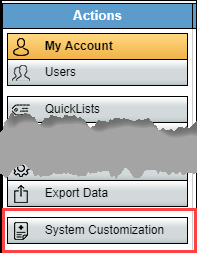
- Select the "Modules" option, and select "Pronouns."

- Select "Add new row."
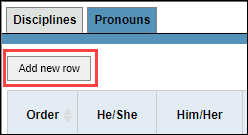
- You can now enter your pronoun set options.

- Select "Save."

Manage existing Custom Pronoun
To update an existing customized option, select the pronoun you would like to edit.

Once you have made your adjustments, click your mouse anywhere outside of the rows to initiate an automatic save. You will notice the "Modified By" and "Modified On" columns will be updated.

To inactivate an existing option, un-select the checkbox in the "Active" column, on the row of the pronoun you would like to inactivate. This action will save automatically, and update the "Modified By" and "Modified On" columns. To activate an inactive pronoun option, you will select the checkbox in the "Active" column.

If you would like your customized options to appear in a specific order, you can customize the order by adjusting the numbers in the "Order" column when you create the pronoun option. You can also adjust the order after the creation by selecting the one you would like to move, and dragging and dropping it to the placement desired.

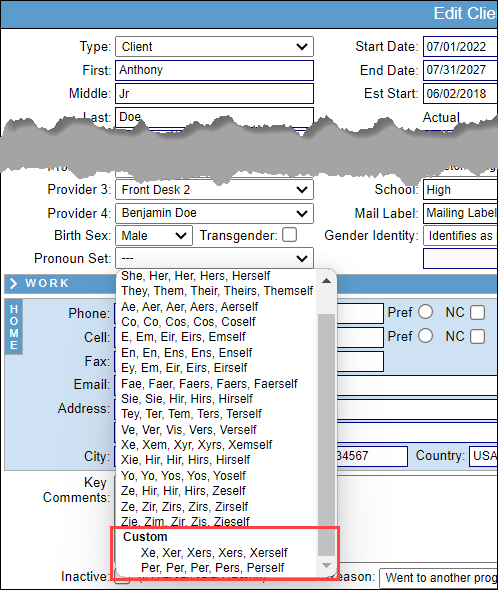
All of your customized options will appear at the bottom of the list in the "Pronoun Set" drop-down in the "Edit Client" window.
Next Steps
- See also: System Customization tool