This article explains how to view completed questionnaire results and scores in BestNotes, including accessing them from the OutcomeTools tab, the Questionnaires tab in OutcomeTools, and the Activity Log.
Permissions Required
No specific BestNotes permissions are required.
Viewing Questionnaire Results
When questionnaires are completed, most will generate a score that will inform the clinician based on the client's responses. Each questionnaire's scoring is different and clinicians should learn how to interpret the scoring results whether that is reading research materials or reviewing the reference websites provided by OutcomeTools on the Questionnaire Library.
You will find the score in the upper right hand corner of the completed questionnaire.
Individual questionnaire results can be accessed in three different locations:
- On the Questionnaires tab in OutcomeTools.
- On the OutcomeTools tab in BestNotes.
- On the Activity Log in BestNotes.
Questionnaires tab in OutcomeTools
Using OutcomeTools to view questionnaire results will allow you to view or edit instance details to the questionnaire. To view questionnaire results for a client from within OutcomeTools, follow the steps below:
- Navigate to the client's page in BestNotes.
- Select the "OutcomeTools" tab.
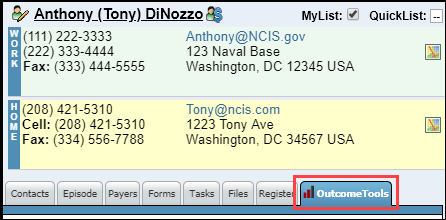
- Select "Go to OutcomeTools."

- Select the "Questionnaires" tab.
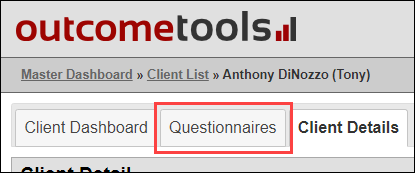
- Navigate to the "Completed" section.

- On the same line of the questionnaire you would like to review, select the icon that is a piece of paper with two checkmarks located on the right hand side.

- The completed questionnaire will be opened.

To edit the instance details:
- From the "Questionnaire" tab, select the row of the questionnaire you would like to edit.
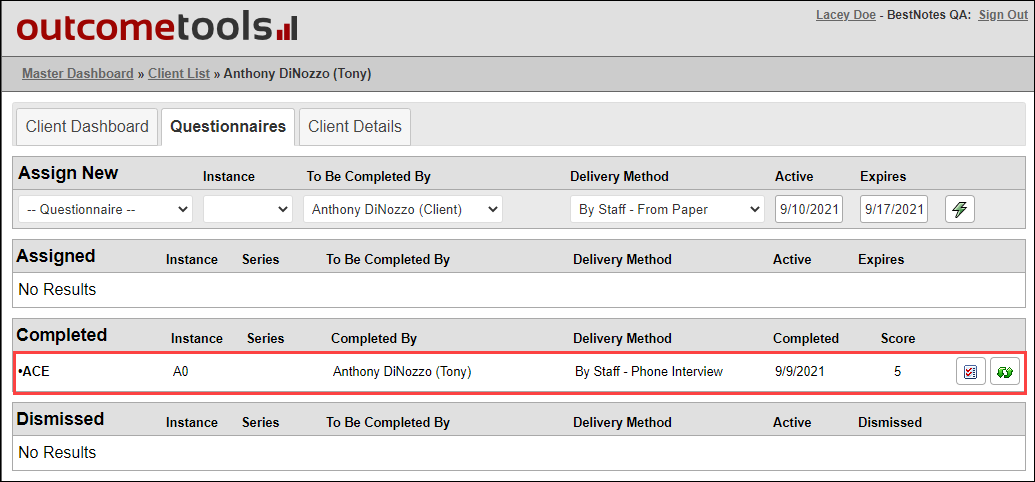
- This will allow you to update the "Instance" and the "Completion Date."

OutcomeTools tab in BestNotes
To view a copy of a client's questionnaires from the OutcomeTools tab on a client's page in BestNotes, follow the steps below:
- From the client's page in BestNotes, select the "OutcomeTools" tab.
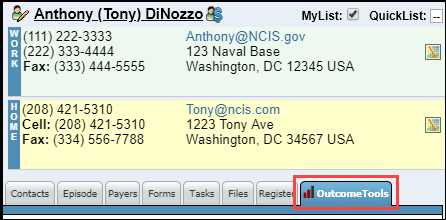
- You will see a list of assigned and completed questionnaires, select the questionnaire you would like to view.

- A copy of the questionnaire will be displayed.
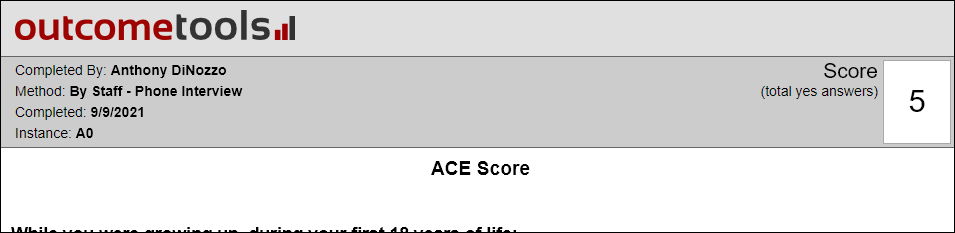
This can be pulled simultaneously with your clinical documentation to reference while in a treatment session.
Activity Log in BestNotes
You can add a signer to keep track of what clinician administered or reviewed the questionnaire with the client, to meet accrediting body standards such as The Joint Commission, by accessing the questionnaire from the client's Activity Log. This can be done by following the steps below:
- Navigate to the Activity Log on the client's page.

- Select the date of the questionnaire you would like to view.

- A copy of the questionnaire will open.

- You can then view the questionnaire and add yourself or another user as a digital signer by selecting the icon next to "Signers."
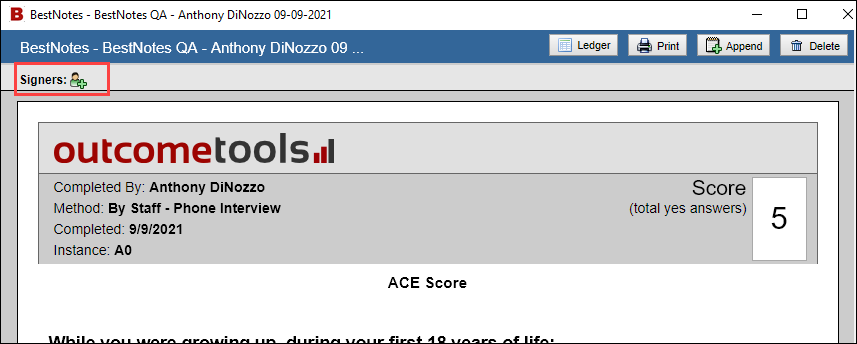
- You will then need to select "Update Signers" to ensure that your updates are saved.

- If you add yourself as a signer, you can also sign the document by selecting the "Sign Entry" button on the top menu bar.
