This article explains how to enable 2-Factor Authentication (2FA) in BestNotes to add an extra layer of security to your account.
Permissions Required
No specific BestNotes permissions are required.
Enabling 2-Factor Authentication
- Download an Authenticator (Google Authenticator, Microsoft Authenticator, etc.) from your mobile device's app store.
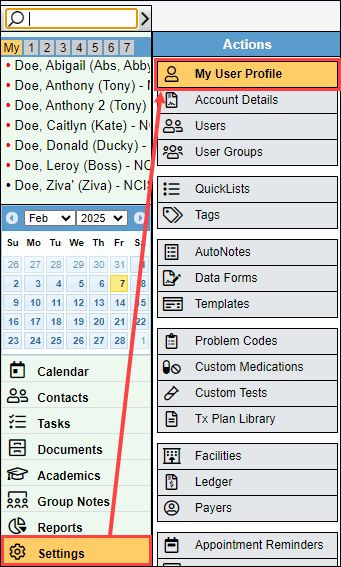
- In BestNotes, navigate to "Settings" and "My User Profile."

- Under the "Account Verification" section, select "Enable 2-Factor Authentication."
- Scan the QR code with the Authenticator on your mobile device. If your camera will not scan the QR Code, you can select the "Manual Setup" button for a code that you can enter into the Authenticator app.


- You will see a code in your Authenticator app (may look different depending on the Authenticator app).
- Enter the code from your Authenticator app into BestNotes and select "Verify Code."


- In BestNotes, you will now see a message stating "2-Factor Authentication has been enabled for your account."
