This article provides instructions on how to disable 2-Factor Authentication for your BestNotes account. Disabling 2-Factor Authentication will reduce your account's security, and it is recommended to re-enable it as soon as possible for optimal protection.
Permissions Required
No specific BestNotes permissions are required.
Disabling 2-Factor Authentication
If you disable your 2-Factor Authentication, your account will be less secure and the 2-Factor Authentication should be re-enabled as soon as possible in order to provide the best account security. If you would like to disable the 2-Factor Authentication follow the steps below.
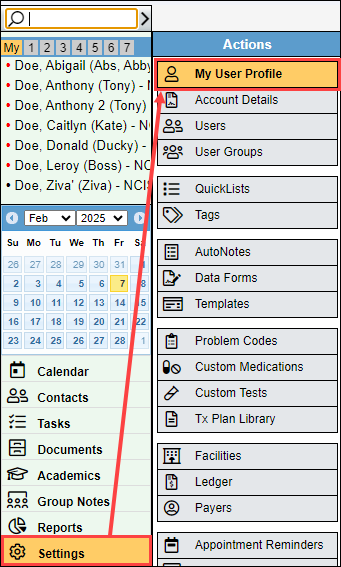
- Navigate to "Settings" and "My User Profile."
- Select "Disable 2-Factor Authentication."

- You will receive a prompt asking, "Are you sure you want to disable 2-Factor Authentication for your account?". Select "OK."

- You will then see a message on your account stating, "2-Factor Authentication has been disabled for your account." with the option to re-enable 2-Factor Authentication when you choose.

- If your email has been verified, you will also receive an email confirmation.

Next Steps
- Enable 2-Factor Authentication
- Login with 2-Factor Authentication
- 2-Factor Authentication FAQs
- 2-Factor Authentication for Administrative users