This article explains how BestNotes users can export their personal BestNotes calendar to an external calendar application using a unique iCal URL.
Permissions Required
No specific BestNotes permissions are required.
Exporting Your BestNotes Calendar via iCal
Any staff members who wish to import their BestNotes calendar into another calendar can do so using their unique iCal URL. Each user will need to perform this task individually.
Finding your iCal URL
- To find your iCal URL, navigate to "Settings", then "My User Profile."
- Your URL is located under "Calendar Export."
- You will then follow the instructions from your external calendar application to add the "iCal URL" link.

- For instructions on how to import your calendar into specific applications, visit:
iCal Information Exported
When you have the iCal URL connected, you can expect to see the following information. The information included below will only appear if it exists on the calendar appointment in BestNotes. You will not be able to make any changes to an appointment outside of BestNotes.
- Appointment subject line.
- Appointment status (if supported by external calendar)
- Appointment date and time.
- Appointment location (Facility).
- Users associated with the appointment.
- Contact's first name and last initial.
- First 70 characters of "Notes" tab.
- Meeting URL.
- "BestNotes CRM" identifier.
Here is an example (appointment status not supported by this calendar):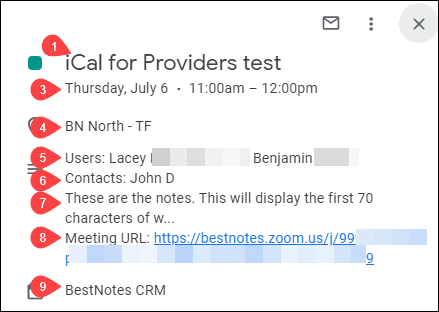
Next Steps
- See also: iCal for clients