This article provides instructions on how to reduce your BestNotes user count and manage various feature subscriptions to lower your monthly bill, ensuring you retain access to your records while optimizing costs.
Permissions Required
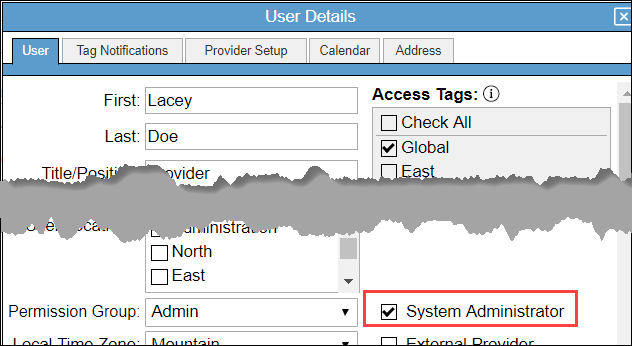
- System Administrator checkbox
- Manage Users permission
Reducing Costs by Managing BestNotes Features
To prevent unnecessary costs, review and update the items below in addition to reducing your user count. If you choose to keep only one active user, that user will be your only access into BestNotes, and that user needs to have a verified email. Keeping one or more users active ensures you will have access to all your data quickly and easily using BestNotes.
To manage the items described in this section, you will need to have the "System Administrator" checkbox, and the "Manage Users" permission.

Manage within BestNotes
DSM-5
- For any active users, remove the associated DSM-5 permission to prevent this charge from being included with your bill.

ASAM Continuum
- If you are using ASAM Continuum, remove the associated permissions.
- Send a request to BestNotes Support to inform us that you will no longer be using this feature.
ASAM Co-Triage
- If you are using ASAM Co-Triage, remove the associated permissions.

- Send a request to BestNotes Support to inform us that you will no longer be using this feature.
Appointment Reminders
- Navigate to Settings and then Appointment Reminders.

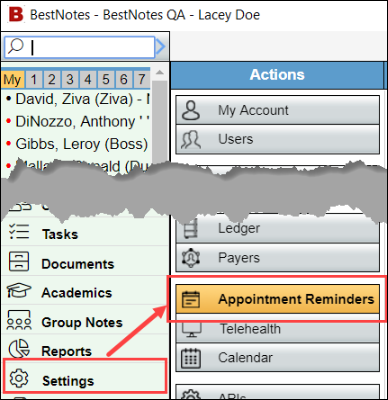
- In the "Appointment Reminders" window, uncheck the Enable Appt Reminders checkbox.
- Select Save.
BestNotes Telehealth
- Navigate to Settings and then Telehealth.


- In the "Telehealth" window, uncheck the Enable Telehealth checkbox.
- Select Save.
Contact BestNotes Support
The following items require creating a support ticket or contacting BestNotes Support to address.
Portal
- If you have a portal and wish to stop receiving new applications, inform BestNotes Support to remove access to applications.

- If you wish to turn off the portal entirely, inform BestNotes Support. (You can still allow portal access for ease of sharing documentation electronically with patients if you only remove application access).
OutcomeTools
If you are using OutcomeTools, it may be part of your existing BestNotes Subscription. Keeping your BestNotes Subscription active will also retain your OutcomeTools account. If you decide to cancel BestNotes and would like to continue to use OutcomeTools as a standalone product, you will be required to sign a new OutcomeTools agreement. Contact Kristen Francom at kristen@bestnotes.com with any questions. Otherwise, OutcomeTools will be cancelled when you cancel your BestNotes account.
Electronic Billing
- If you are doing electronic billing through BestNotes with one of our approved partners and will no longer be utilizing this feature, contact BestNotes Support to let us know you will no longer need this service.
- If you are using Claim MD and paying your fee to BestNotes, contact BestNotes Support to let us know you will no longer need this service.
DrFirst
- If you are using DrFirst through BestNotes (accessing DrFirst from BestNotes), contact BestNotes Support and ask to have this service deactivated to avoid additional charges.
Next Steps
- See also: How to Inactivate Users
- See also: How to Verify an Email Address