This article explains how to reactivate an inactive user in BestNotes, restoring their access and adding them to your billable user count.
Permissions Required
- Manage Users
Reactivating a User
If you do not see the inactive user, you may need to reach out to your System Administrator to have them update your "Access Tags."
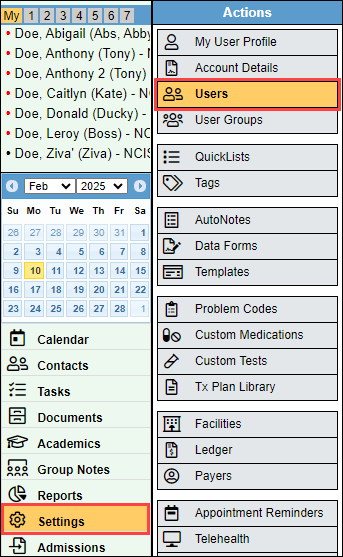
- Navigate to "Settings", then "Users."
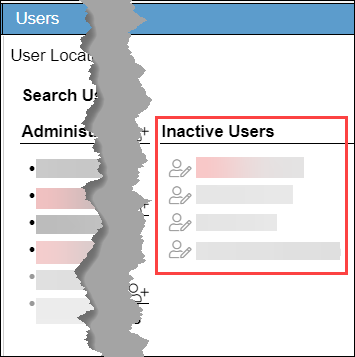
- From the "Inactive Users" list, select the user you would like to reactivate.
- In the "User Details" window, unselect the "Inactivate & force log off" checkbox.

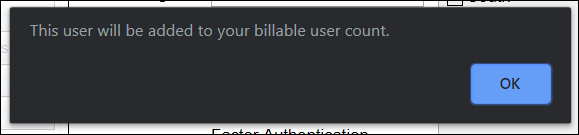
- You will receive an alert to let you know that this user will be added to your billable user count. Select "OK."
- Select "Save."

Now that you have unselected the checkbox, and saved your updates, this user will be activated, and will be added to your billable user count.