This article explains how to reset and un-submit questionnaires in OutcomeTools for updates or resubmission, and how to merge duplicate client records by manually transferring questionnaire data.
Permissions Required
- File Audit
Managing Questionnaires and Merging Duplicate Clients
Update or Resubmit Questionnaire
When making small updates or sending the questionnaire back to the client to update, follow these steps:
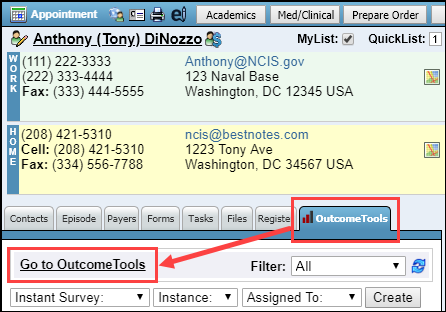
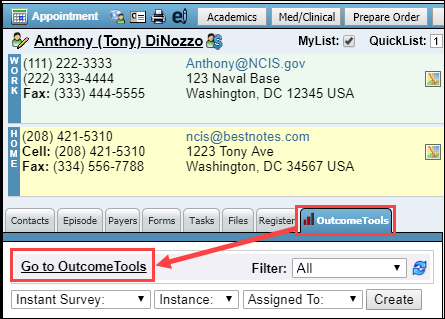
- From BestNotes, navigate to the client that you would like to update and select the "OutcomeTools" tab, and select "Go to OutcomeTools."
- Navigate to the "Questionnaires" tab and find the "Completed" section with the scored questionnaires.

- Find the questionnaire you would like to update. On the row of the questionnaire, note the completion date of the questionnaire, and select the "Reset/Un-submit" button on the far right.

- You will receive a prompt asking, "Are you sure you want to reset this questionnaire?" Select "Yes." Any saved answers will be retained, but the questionnaire will be placed in the "Assigned" section.
- Select the questionnaire by clicking anywhere on the row of the questionnaire in the "Assigned" section.

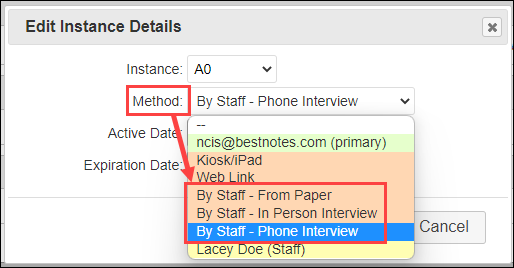
- Change the delivery method to the appropriate method depending on the action you are taking. You will only be able to change the date on By Staff delivery methods.
- If you are making changes to the questionnaire and will need to backdate, you will update the delivery method to one of the "By Staff" delivery methods.
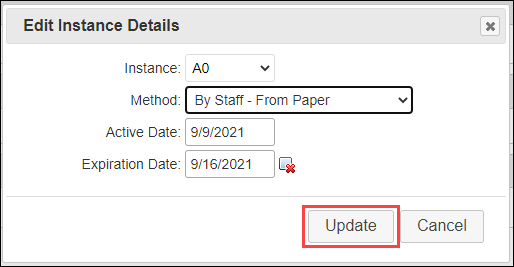
- Select "Update."
- Select the "View Questionnaire" icon on the far right of the row.

- Apply any necessary changes to the questionnaire.
- Navigate back to the client's chart in BestNotes. In the "Activity Log," locate and delete the old log entry (before selecting "Submit." in OutcomeTools). This can only be done by users with the File Audit permission.If a questionnaire is "reset or un-submitted" the original copy is still maintained in BestNotes. This is why you would need to manually delete the duplicate copy of the questionnaire.
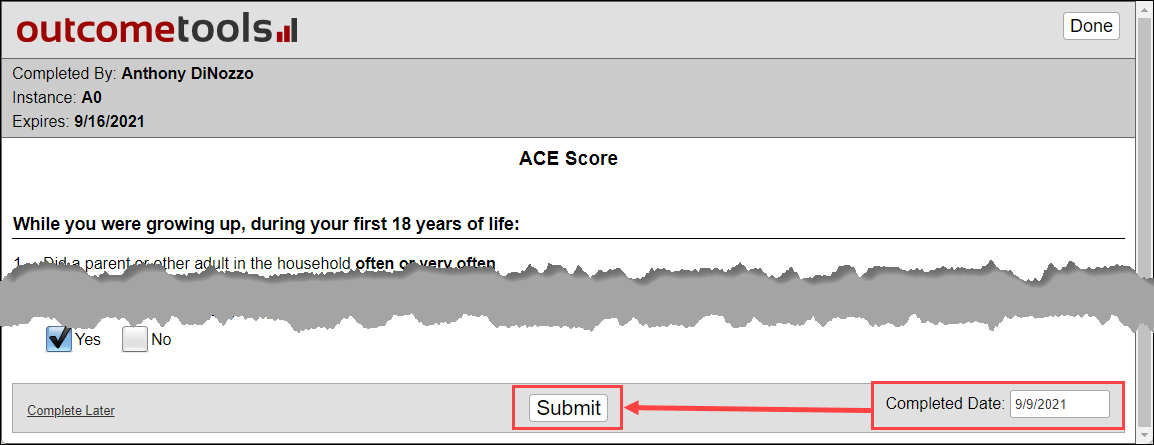
- At the bottom of the questionnaire, update the "Completed Date" to the original date noted in step number 3 above and select "Submit." A copy of the updated questionnaire will be placed in the client's Activity Log.
- If you are sending the questionnaire back to the client to be resubmitted, update the delivery method to "Email", or "Kiosk iPad" for the client to make changes.
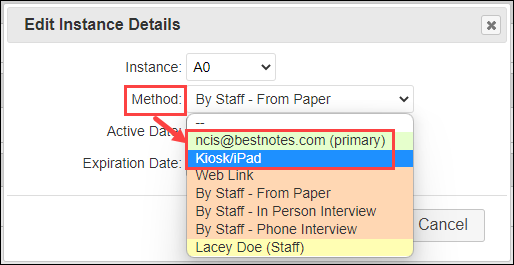
- Select "Update."
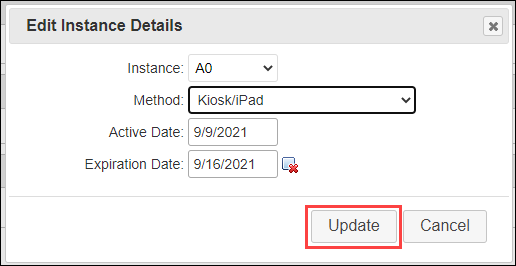
- The date of completion will automatically update upon submission.
- Navigate back to the client's chart in BestNotes. In the "Activity Log," locate and delete the old log entry. This can only be done by users with the File Audit permission.
- If you are making changes to the questionnaire and will need to backdate, you will update the delivery method to one of the "By Staff" delivery methods.
Merge Duplicate Clients
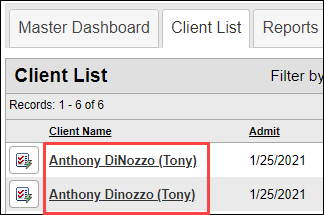
If you have a client that has been added into OutcomeTools manually, and that client was added separately from BestNotes into OutcomeTools, this could create duplicate contacts in OutcomeTools. You may need to merge these clients. Merging clients in OutcomeTools is a manual process, and must be done by copying the existing results on the OutcomeTools client into the BestNotes client. Follow the steps below:
Identifying Duplicate Contacts
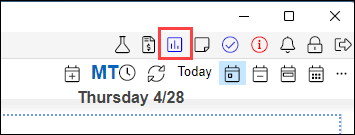
- Navigate to OutcomeTools by selecting the OutcomeTools icon in BestNotes in the top right corner.
- In the OutcomeTools window that opens, navigate to the "Client List."

- For any contacts that have the same name, select the name the client.
- Navigate to the Edit Client Details tab.

- Select the "Edit Client" icon on the left side of the client's name.
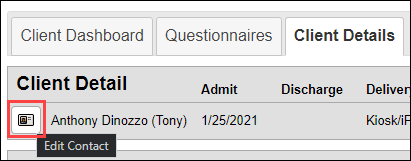
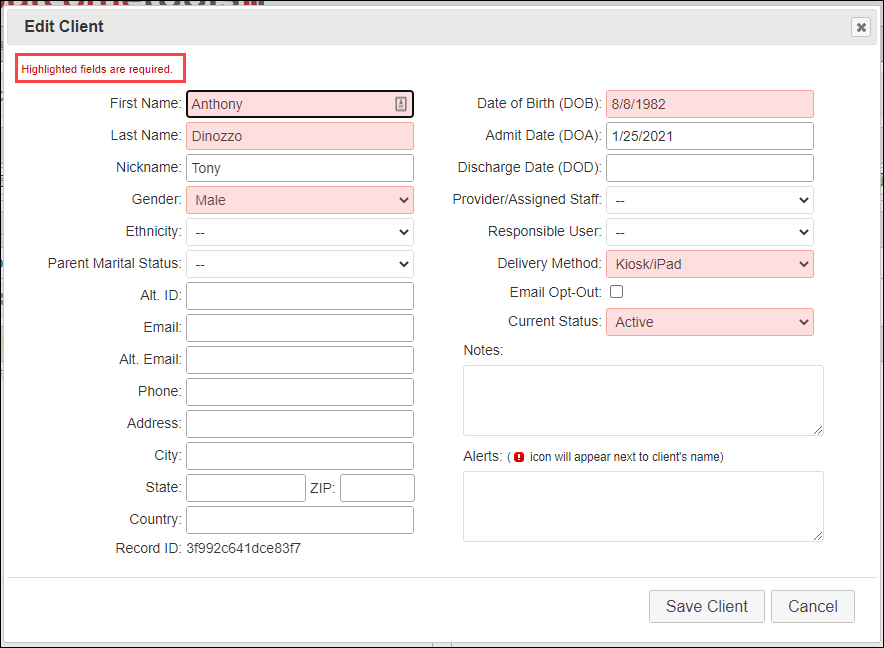
- If the client was created in BestNotes, the red text at the top will read, "Locked data is managed in BestNotes. Unlocked items can be updated here", and you will see lock icons next to the locked fields.

- If the client was created in OutcomeTools, and is not connected to BestNotes, the red text at the top will read, "Highlighted fields are required", and you will not see any lock icons.
Merging Client Records
- In OutcomeTools, on the client that was created in OutcomeTools, navigate to the "Questionnaires" tab, locate the "Completed" section and take note of each questionnaire that is in this list.

- Leaving the OutcomeTools window open, return to BestNotes and navigate to the BestNotes contact that you want to merge the questionnaires into, select the "OutcomeTools" tab, and select "Go to OutcomeTools."
- Navigate to the "Questionnaires" tab, and create a new questionnaire for each of the completed questionnaires on the duplicated client, setting the "Instance" to what was set in the original questionnaire, and the "Delivery Method" to "By Staff - From Paper."

- On the original questionnaire, select the icon to "View Results." On the new questionnaire select the icon to "Assign Questionnaire." The new questionnaire will now be listed in the "Assigned" section, and you can select the icon to "View Results" to fill it out. This will allow you to view the results side by side.

- You will manually copy the answers into the new questionnaire to match the answers in the original, and add the completion date that is listed for the original questionnaire.

- Select "Submit" on the questionnaire. This will add the questionnaire to client's OutcomeTools tab in BestNotes, and will place a copy of the questionnaire in the client's "Activity Log" within BestNotes. The completion date of the questionnaire is the date that will be applied to the entry in the client's activity log.

- Repeat steps 5-7 until all questionnaires are added to the BestNotes client.
- Inactivate the duplicate contact once all questionnaires have been updated.

Next Steps
- While it is not recommended by BestNotes to delete questionnaires, if you have an instance that you need to delete, you can submit a support ticket.