This article provides instructions on how to download, open, and validate your BestNotes data export. The data export is only available if specifically requested to BestNotes Support or after cancellation.
Permissions Required
- System Administrator
Exporting and Validating Your Data
- You will need to log in as the System Administrator user.
- Once you have logged in, navigate to "Settings" and "Account Details."

- You will then see an "Export Information" section with your export link and password. Select the link to download the export to your computer.
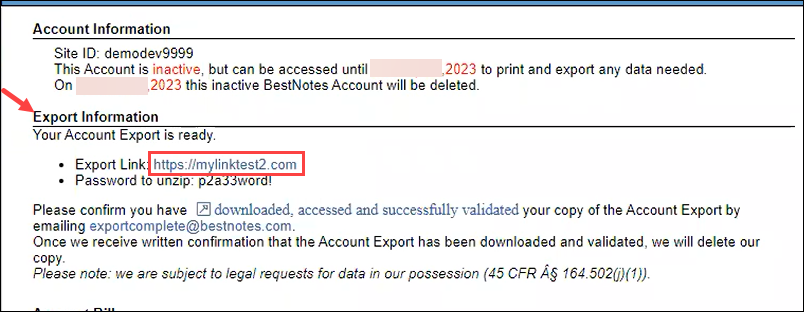
- Once you locate the data export that has been downloaded to your computer you will need to open and validate your data. The file will be named with your Site ID followed by the date.
Open Export
In order to open your data export you will need to unzip the export. You can unzip the export by following the instructions below.
- Locate the download on your computer.
- Right-click the file (Mac - view options).
- Select the "Extract All..." option.
- Enter the password you received with your export and select "ok."

- Open the file by double-clicking. You will see two files. One file is "siteid_dump" and the other is "siteid_rawdata."
- You will then need to unzip each of these files, right-click and select "Extract all" for each file.

- You can now view the contents of each file.
- Dump copy "siteid_dump" (A backup containing a windows folder for each contact with html copies of their demographics, documents, data forms and uploaded files.)
- Raw data dump "siteid_rawdata" (CSV formatted files for contacts and emar records.)

Verify Data
The file named xxxx_dump includes a list of each contact and the contents of their activity log in a Windows folder format that has been exported out of BestNotes. We ask that you log into your inactive BestNotes account and compare the data in your export with the data in BestNotes.
For example choose 4-5 contacts and review the contents of their exported folder in comparison to what you see in BestNotes. Please take your time to validate and familiarize yourself with the translated format.
The file named xxxx_rawdata includes .csv files of your data. Please look through these and verify that all your data has been exported for you.
Once you have reviewed both files and are confident that all of your data is present and accurate we ask that you email exportcomplete@bestnotes.com so we can remove our copy of your account export from our servers.
Back to top of page