This article provides a step-by-step guide on how to add a program or level of care to a client's chart in BestNotes.
Permissions Required
- Administer Programs
Visual Tutorial
- 0:06 Navigate to the Episode tab
- 00:14 Add a Program
- 00:18 Add Program Details
- 00:39 Add Program (Level of care) and location
- 01:05 Add Staff
Adding a Client Program (Level of Care)
The "Administer Programs" permission is required to manage programs on a client's chart.
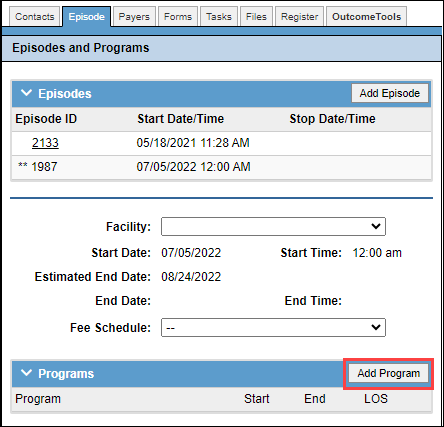
- Navigate to the client's chart and select the "Episode" tab.

- Then select the "Add Program" button.
- Enter a "Start Date" and, if applicable, a "Start Time."
Note: An "End Date" is not required until the client transitions or discharges from the level of care or program, but you may choose to enter an "Estimated End Date."

- Select the "Program" drop-down and assign the appropriate "Level of Care" or "Program."
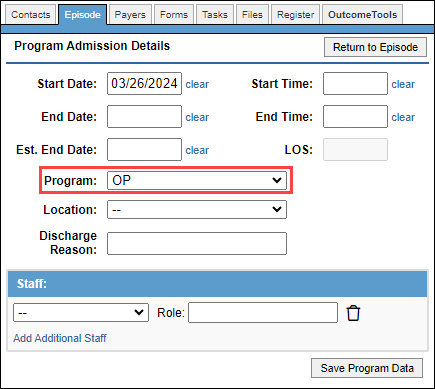
Note: The Program and Locations options can be customized to fit your needs. Your System Administrator can request an update to these areas by contacting BestNotes Support.
- In the "Location" drop-down, assign the appropriate location.

- Select the "Staff" drop-down menu to document the client's Primary Provider from the list of active users in your database.
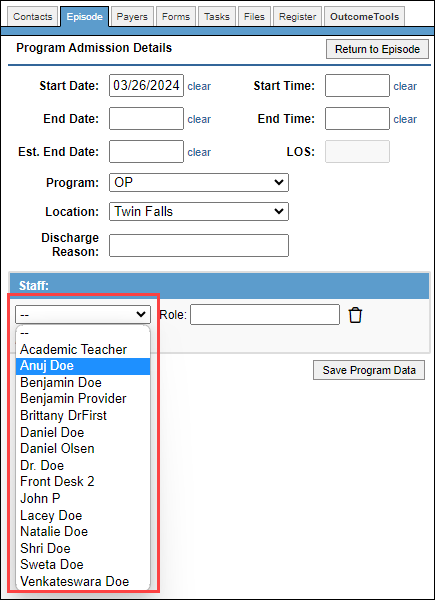
- Select "Save Program Data."
