This article provides answers to frequently asked questions regarding academics management in BestNotes, covering how to handle period changes, class/subject changes, teacher updates, and uploading GED practice test scores.
Permissions Required
No specific BestNotes permissions are required.
Academics Management FAQs
Managing Period Changes After Enrollment
If a period changes after students have been enrolled, the period will need to be changed on each student individually. There are two ways to change the period on a student.
Change Period from Admin Tab
To change the period from the "Admin" tab, follow the steps below:
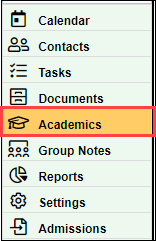
- Navigate to the "Academics" tab in the bottom left corner.
- In the "View" drop-down, select the "Admin" option.

- Select the "Classes" tab.

- Select the "Manage Enrollment" icon.

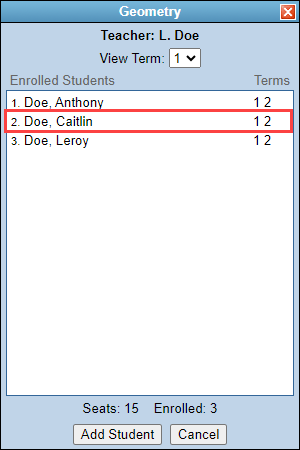
- Select the student's name.
- In the "Period" drop-down, select the new period.

- Select "Update Section."
- Repeat for each student as necessary.

Change Period from the Student's Chart
To change the period from the student's chart, follow the steps below:
- Navigate to the student's chart.
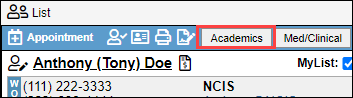
- Select the "Academics" button.
- Select the "Enroll" button.

- Select the "Details" next to the class that the period needs to change.

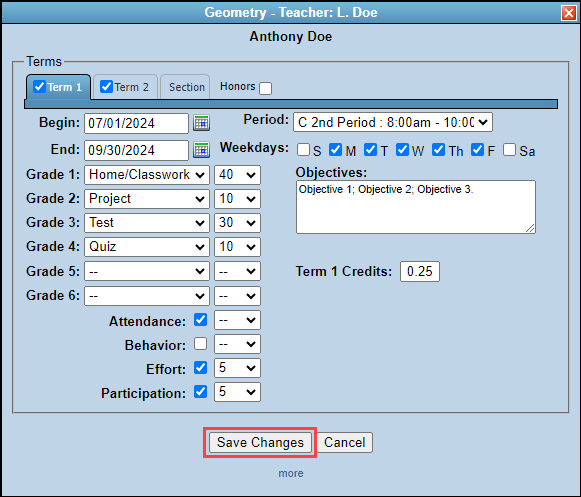
- In the "Period" drop-down, select the new period.

- Select "Save Changes."
- Repeat for each student.
Handling Class/Subject Changes During a Term
If you have a class or subject change during a term, you will want to create the new class/subject, and then update the "End" date in the old class to match the date of the start of the new class. You will update the dates by following the steps below:
- Navigate to the student's chart.
- Select the "Academics" button.
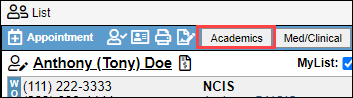
- Select the "Enroll" button.

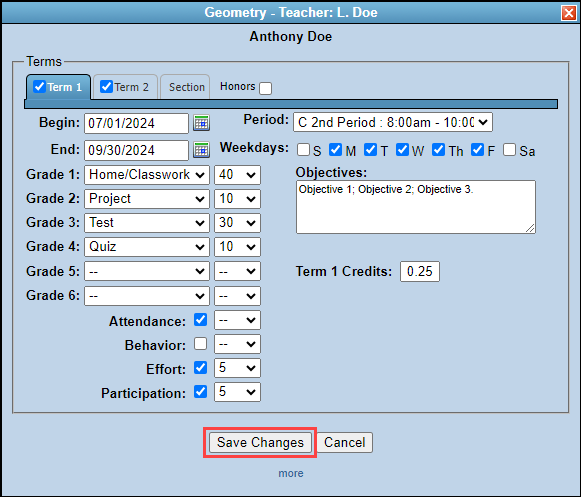
- Select the "Details" button next to the class that is to be removed.

- Update the "End" date to the last date the student will be enrolled in the class.

- Select "Save Changes."
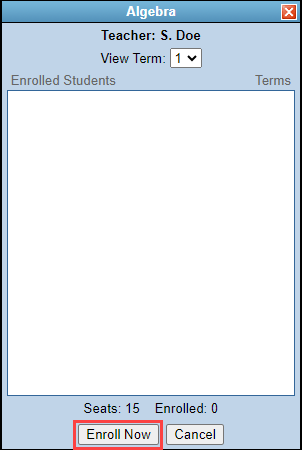
- Select the 'Enroll" button next to the class the student will be entering.

- Select "Enroll Now."
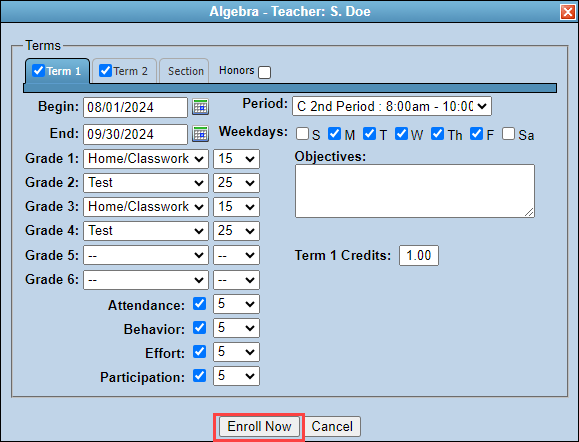
- Update the "Begin" date to be the first day the student will be enrolled in the class.

- Select "Enroll Now."
Updating the Teacher for a Class
It is important that you do not remove or end the class. To update the teacher of the class, follow the steps below:
- Select the "Academics" tab in the bottom left menu.
- In the "View" drop-down" select "Admin."
- Select the "Classes" tab.


- Select the class that the teacher is being updated in.
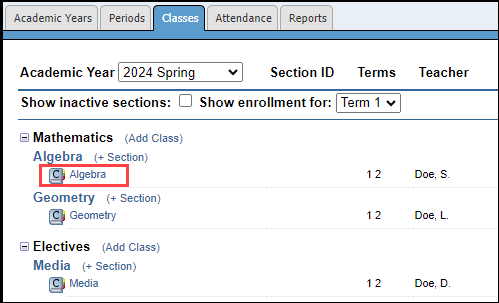
- In the "Teacher" drop-down, select the name of the new teacher.

- Once you have selected the new teacher, Select "Update Section."

Uploading GED Practice Test Scores
For any uploaded items, including GED practice test scores, you will want to upload them into the "Files" tab on the student's chart. It is recommended to create an "Academics" folder to separate the Academics files from other types of uploads.

Next Steps
- See also: How to Create a New Class/Subject